Preview a Scenario
Use scenario previews to view essential information about a scenario, without opening the scenario.
View a Preview
To open a Preview , on the Explore view or in the Assembly Explorer on the Evaluate view, select the row or card for a scenario, then click the Preview button:
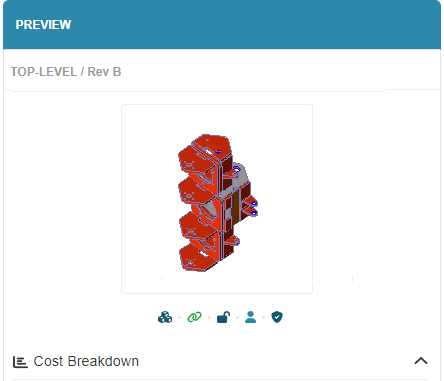
The Preview opens. For example, this figure shows a preview of an unanalyzed scenario for an assembly:
Tip
Click on the thumbnail image to open the scenario.
Scenario State Information
Check a scenario’s current state from the icons shown in the Preview (in the Explore view) or from Actions > Info in the Evaluate view. When working in the Evaluate view, you’ll also see on-screen messages that indicate the same states.
The table below lists each scenario state, its icon, description, and corresponding message displayed in the Evaluate view.
| Scenario State | Icon | Description | As Shown in the Evaluate view |
|---|---|---|---|
| Part | The scenario is a part. | The same icon is shown in Evaluate. | |
| Assembly | The scenario is an assembly. | The same icon is shown in Evaluate. | |
| CAD Connected | The scenario has a connected CAD file. | ||
| CAD Disconnected | The scenario no longer has a connected CAD file. | Message displayed: The CAD used to create this scenario is no longer available. | |
| Unlocked | The scenario is unlocked and can be overwritten. | ||
| Locked | The scenario is locked and cannot be overwritten. | Message displayed: This scenario is Locked and cannot be edited. | |
| Public | Other users within your organization can see this scenario. | Toolbar option shown: Edit (when the scenario is published). | |
| Private | Only you can see and modify this scenario. | Toolbar option shown: Publish (when the scenario is not published). | |
| Virtual | The scenario was created without a corresponding CAD | Message displayed: This scenario was created without CAD. | |
| Verified | The scenario was created from a corresponding CAD file. | ||
| Missing | Corresponding CAD not found | Message displayed: Missing CAD - Upload to run analysis. |
Tip
You can hover over these icons in aP Design for information about the scenario status.
See Preview a Scenario and Review or Update Scenario Info to learn more about Preview and Info.
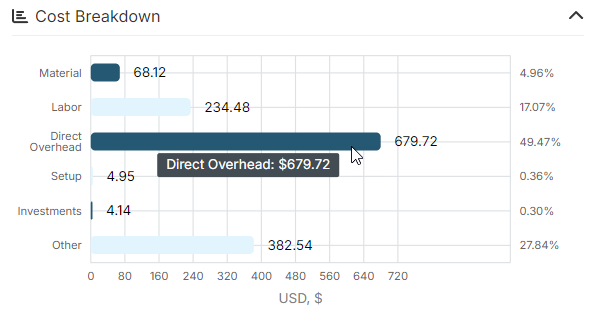
Examine the Cost Breakdown and Cost Results
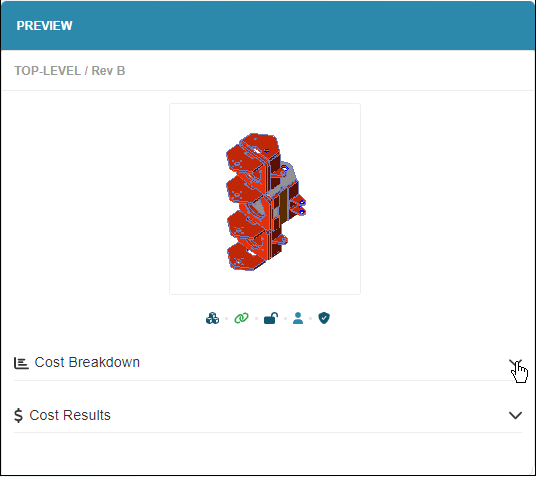
For a successfully analyzed scenario, a Preview also provides an interactive cost breakdown chart and a summary of the cost results.
To view the Cost Breakdown chart or Cost Results summary expand the respective node.
To display the numerical data for a cost category, hover over the category in the chart.
Close the Preview
To close the preview, click the close Preview button: