Expansion and Extension of Group Actions
Group Delete
Simultaneously delete up to 10 scenarios.
You can now simultaneously delete up to 10 scenarios from either:
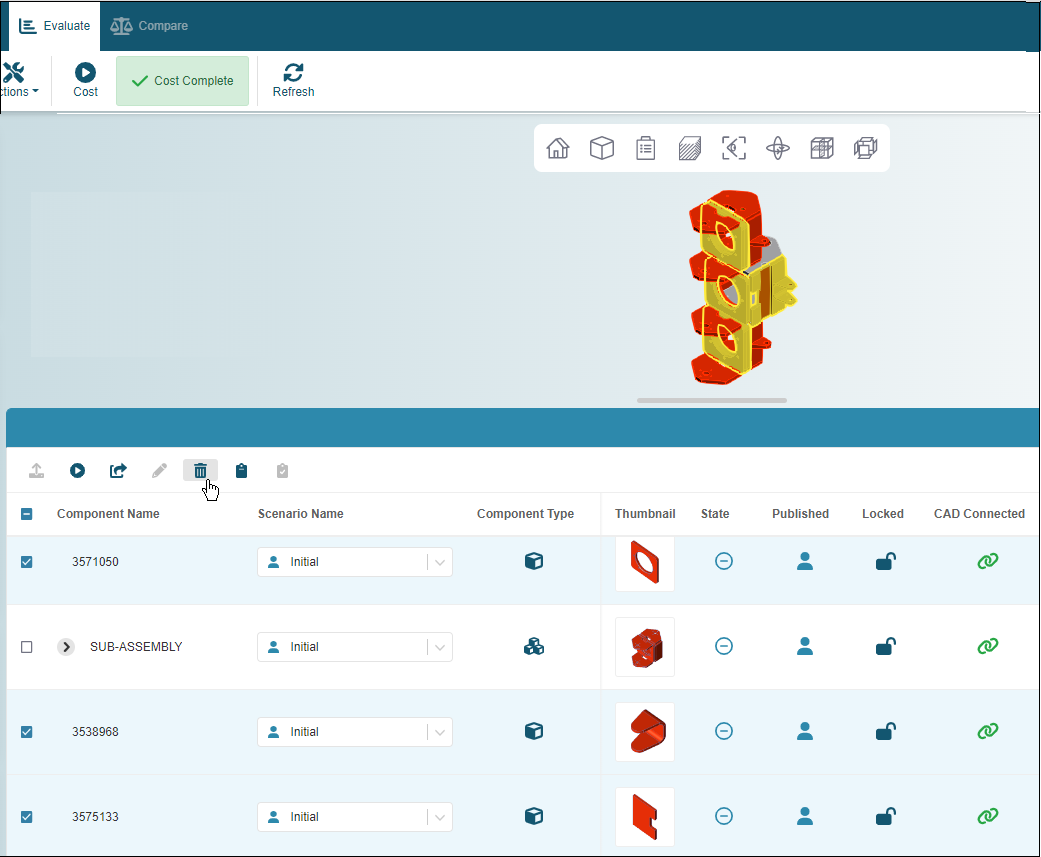
- The Assembly Explorer – Group delete selected scenarios for parts or for that are part of an assembly that is open in the Explore tab.
- The Evaluate Tab – Group delete selected part or assembly scenarios, regardless of whether they related.
To group edit scenarios in the Assembly Explorer:
- Open an assembly to the Evaluate tab.
- In the Assembly Explorer, select up to 10 rows that contain either a part scenario or up to 10 rows that contain a sub-assembly that you want to delete.
-
In the Assembly Explorer toolbar, click the delete button.
-
In the confirmation dialog, click Delete.
The scenarios are deleted.
To group edit scenarios in the Explore tab:
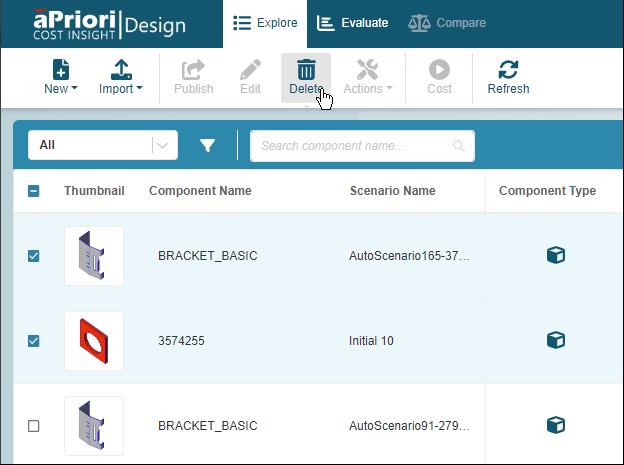
- Select up to 10 rows that contain either a part scenario or up to 10 rows that contain a assembly that you want to delete.
-
In the Explore page toolbar, click the delete button.
-
In the confirmation dialog, click Delete.
The scenarios are deleted.
Group Actions on the Explore Tab
Simultaneously edit, cost, or publish multiple scenarios on the Explore tab.
Cost Insight Design 2022 R1 introduced the group actions for the components of an assembly in the Assembly Explorer on the Evaluate tab. Now, in addition to being able to group delete, you can group edit, cost, or publish multiple scenarios on the Explore tab. Therefore, the scenarios that you can perform group actions on do not have to be child components of the same assembly.
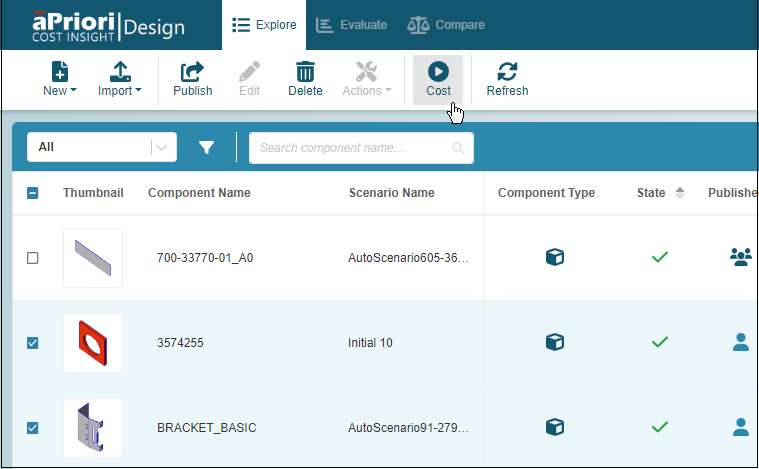
For example, this figure shows two unrelated components that are selected for group costing in the explore page.
To apply a group action to scenarios on the Explore tab:
- Select up to 10 part or up to 10 assembly scenarios,
- In the toolbar, click one of these buttons:
- Publish
- Edit
- Delete
- Cost
Info
If a group action button is disabled, hover over the button to display to learn why it disabled.
Limitations
Limitations for Group Costing:
- You cannot initiate a costing while the State for one or more components is Costing in Progress.
- An assembly scenario, including an assembly scenario that is a subassembly of another assembly scenario, will not cost successfully if it contains any components that have not costed successfully.
- A group can consist only of all part components or all assembly components. You can not include both parts and assemblies in the same group.
- Any changes that you make to the inputs are applied to every scenario in the group. For example, if for Process Group, you select Sheet Metal, the Process Group for the selected scenario for every component in the group is set to Sheet Metal.
-
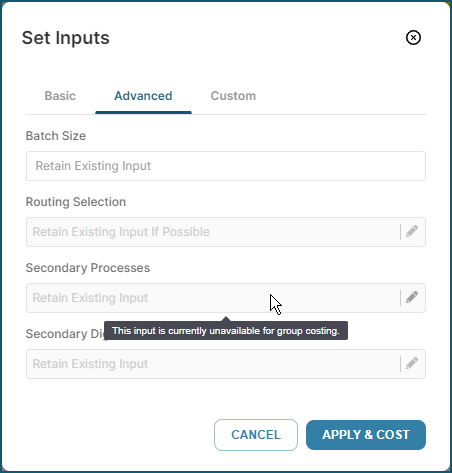
Any Secondary Inputs that have already been specified for the scenarios in the group are honored, but Batch Size and Volume are the only Secondary Inputs that you can set in the Set Inputs dialog for a group costing.
 Workaround
If you want to apply Secondary Inputs (other than Batch Size or Volume) or if you want to update any other inputs for one or more scenarios that you want to group cost, set those inputs individually. Then, in the Set Inputs dialog for a group costing, use the default value, Retain Existing Input, as applicable.
Limitations for Group Publishing
You cannot perform group publish if any of these conditions is true:
-
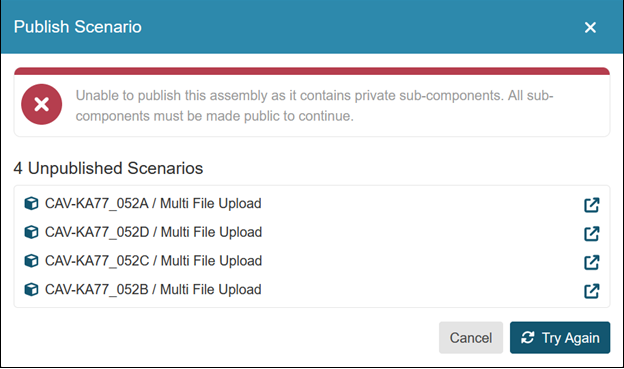
A selected component is an assembly that contains a component for which the current scenario is private but is not also selected for publication.
If you attempt to publish an assembly that contains one or more components for which the current scenario is private, the Publish Scenario dialog displays an error message that provides both the names of the components for which the current scenario is private and buttons that you can use to open and publish each of the private scenarios.
-
The current scenario for a selected component is public.