Cost in aPriori Plug-in Updates
enable.step.costing property for Cost in aPriori Plug-ins
Disable the option to Enable Step File Costing by default when working with assemblies..
When you launch a Cost in aPriori plug-in session from your supported CAD application, the Cost in aPriori Options dialog provides an option for enabling STEP file costing.
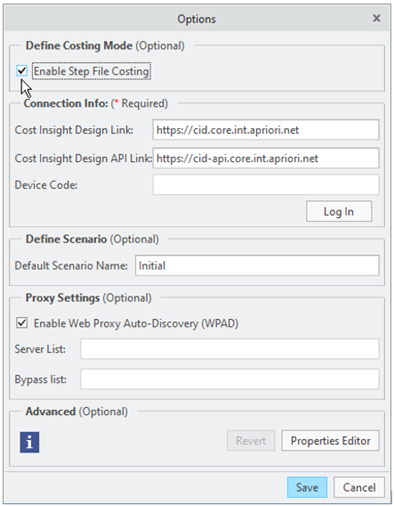
However, although you can import a STEP CAD file that contains a part model to Cost Insight Design, you cannot import a STEP CAD file that contains an assembly model. Therefore, the option is not applicable when you launch a Cost in aPriori plug-in while an assembly is in the active window of your CAD application.
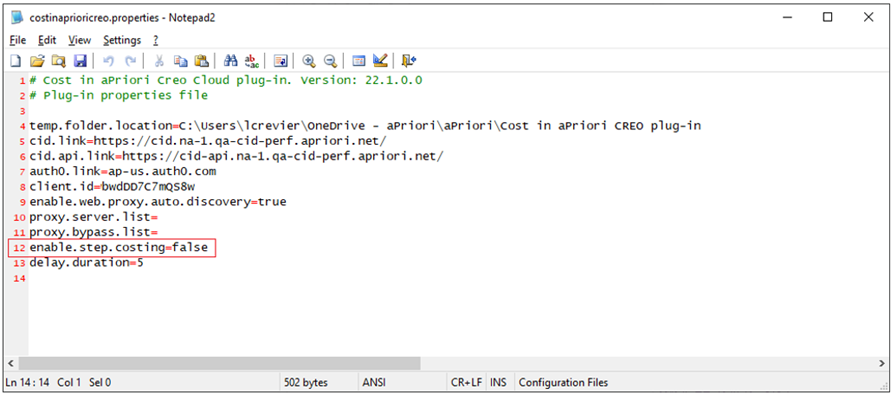
To prevent you from inadvertently setting the option to yes, when you launch a Cost in aPriori session while an assembly is in the active window of your CAD application, the plug-in disables the option by setting the enable.step.costing property in the costinapriori.properties file to false.
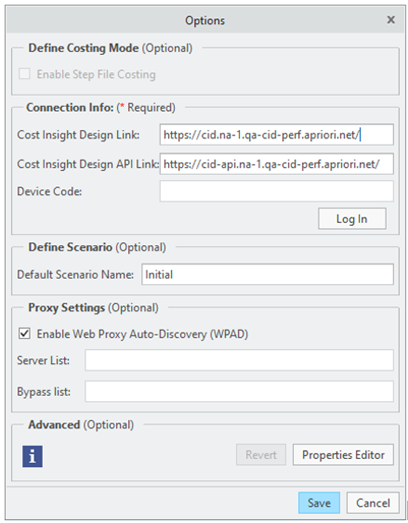
The option is disabled when you launch a session from the active window of an assembly.
Alternatively, if you typically work with STEP part files, to enable and select the option by default, in the costinapriori.properties file, set the enable.step.costing property to true.
Tip
If you want to import an assembly CAD file after you have enabled and used the option to Enable Step File Costing in order to import a STEP part file, log out and then back in to Cost Insight Design. If you then launch a Cost in aPriori plug-in while an assembly is in the active window the plugins detects and auto-disables the step option.
To avoid issues, as a best practice, during a single Cost Insight Design session, work either only with native or STEP CAD part files or work only with native CAD files for both parts and assemblies.
Usability Improvements to Cost in aPriori Plug-ins and Plug-in Installers
Easily install and use a Cost in aPriori Plug-in to integrate your CAD application with Cost Insight Design 2022 R1.
The installer and CAD application User Interfaces (UIs) for the Cost in aPriori plug-in have been entirely re-engineered to work in conjunction with the capabilities of Cost Insight Design 2022 R1.
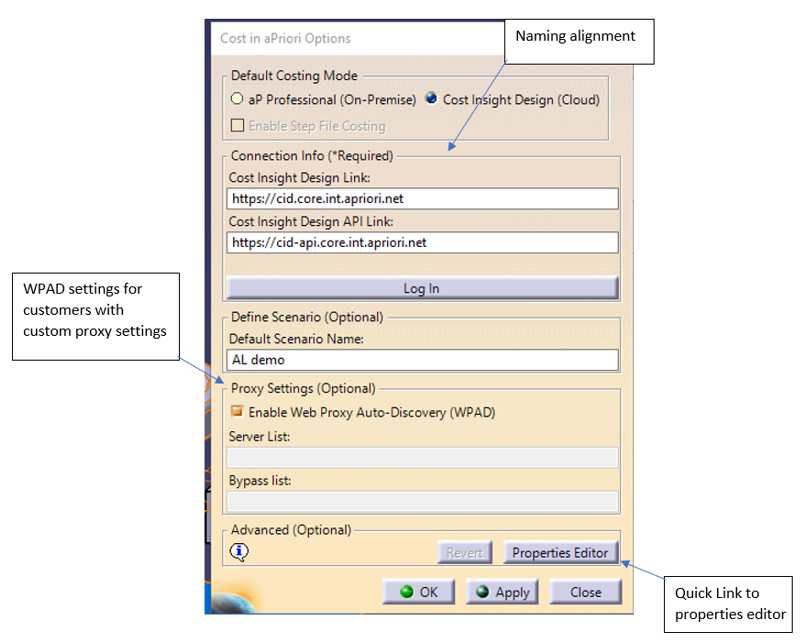
The updates include:
- More intuitive installer UI
- Post installation persistence of preferences set during installation
- Product name alignment for the Cost in aPriori Options dialog
- Quick link to properties editor in the Cost in aPriori Options dialog
- Assembly support is enabled
- Part modification/change and rapid selection for CAD file imports
- Confirmation of successful CAD file imports
- Increased maximum part count limit for assembly CAD file imports (10 times greater than the maximum part limit for CAD file imports initiated from within Cost Insight Design)
Limitations
- The maximum part count limit is 200 per assembly import.
- The CAD file size limit is defined by the CAD file size limit for your deployment.
- The STEP file format is permitted for parts but not for assemblies.