Log in from your CAD Application
This example shows how to log into aP Design with an Analyze in aPriori plug-in.
After you log in, you can import CAD files and work with parts and assembly components and scenarios in a dedicated browser window for aP Design.
Note
You will need the Analyze in aPriori Dedicated Browser to log in to aPriori Design from your CAD application. See Installing CAD Application Plug-ins.
- In the CAD application toolbar, select the plug-in options, for example:Tools > Analyze in aPriori > Options:
-
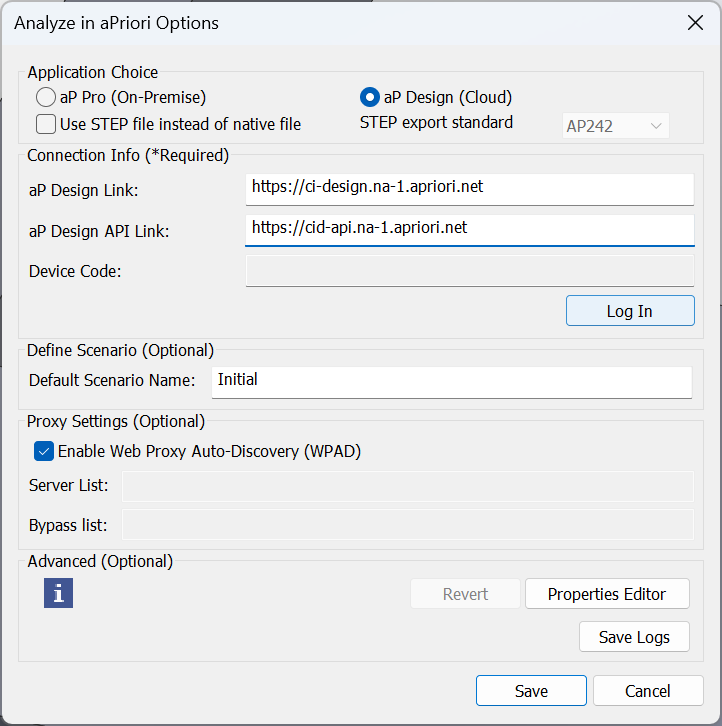
In the dialog, confirm that the Application Choice is set to aP Design (Cloud) and that the Connection Info is correct. Also, if a CAD file that you want to upload is a STEP file for a part model, select the option to Enable Step File Analysis.
Then click Log In:
-
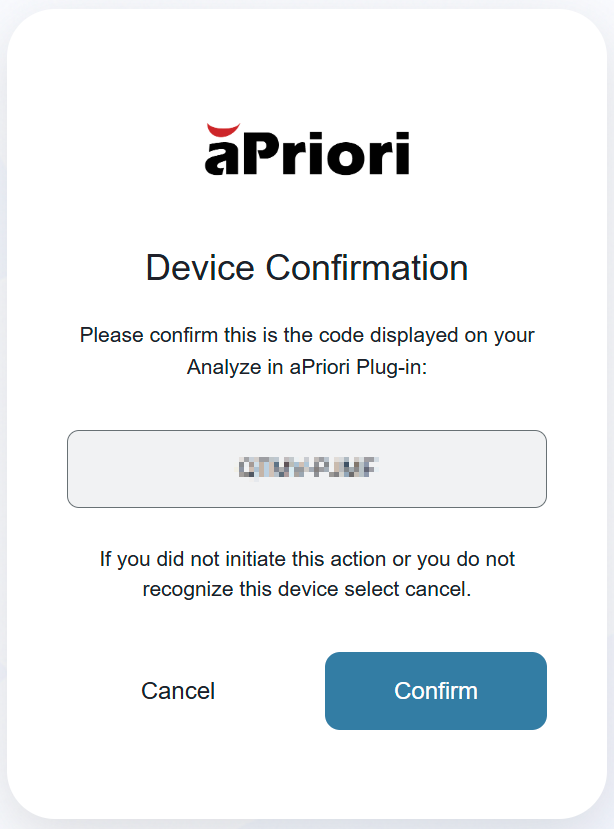
The aPriori Dedicated Browser opens and displays a confirmation code. Confirm that the code matches the Device Code that appears in the dialog. Then click Confirm:
-
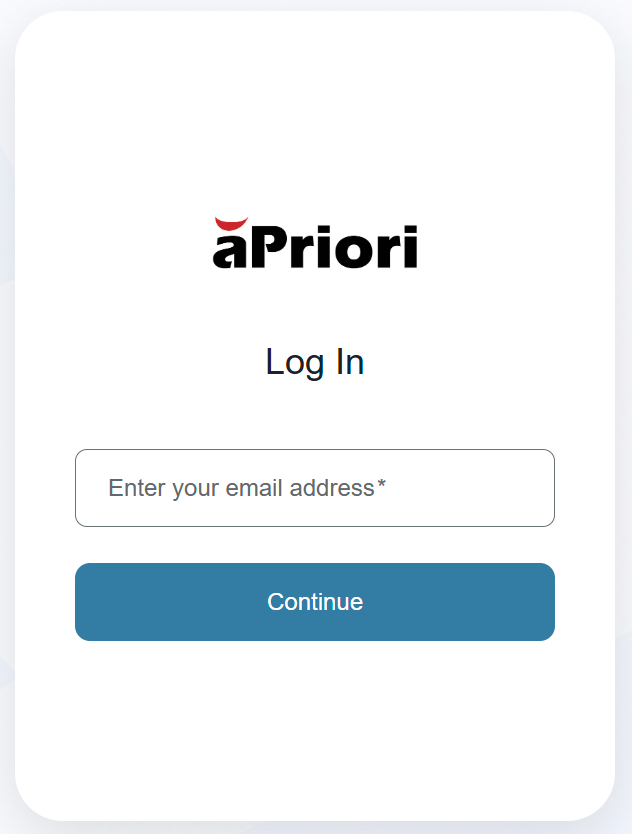
In the browser, enter your email address and click Continue:
-
Enter your login credentials as supplied by your system administrator and click Continue. When prompted, enter your Customer Code. (See Additional Information)
Info
Install or upgrade to the latest Plug-in version to configure your Customer Code and avoid re-entering your credentials and code. See the Dedicated Browser Installation.
-
aP Design acknowledges the login and then opens aP Design in the aPriori Dedicated Browser
Additional Information
Customer Code
Your Customer Code was previously provided in an email from aPriori or by your system administrator. It's required each time you log in.
If you are unsure of your Customer Code, please review the email you received (aPriori Customer Code) or contact your system administrator. For further information on Customer Codes see the following support articles: