Switch a Scenario
From the Evaluate view, you can switch between Scenarios using the Design navigation bar or the dropdown menu. You can also switch Scenarios for individual components while working in the Assembly explorer.
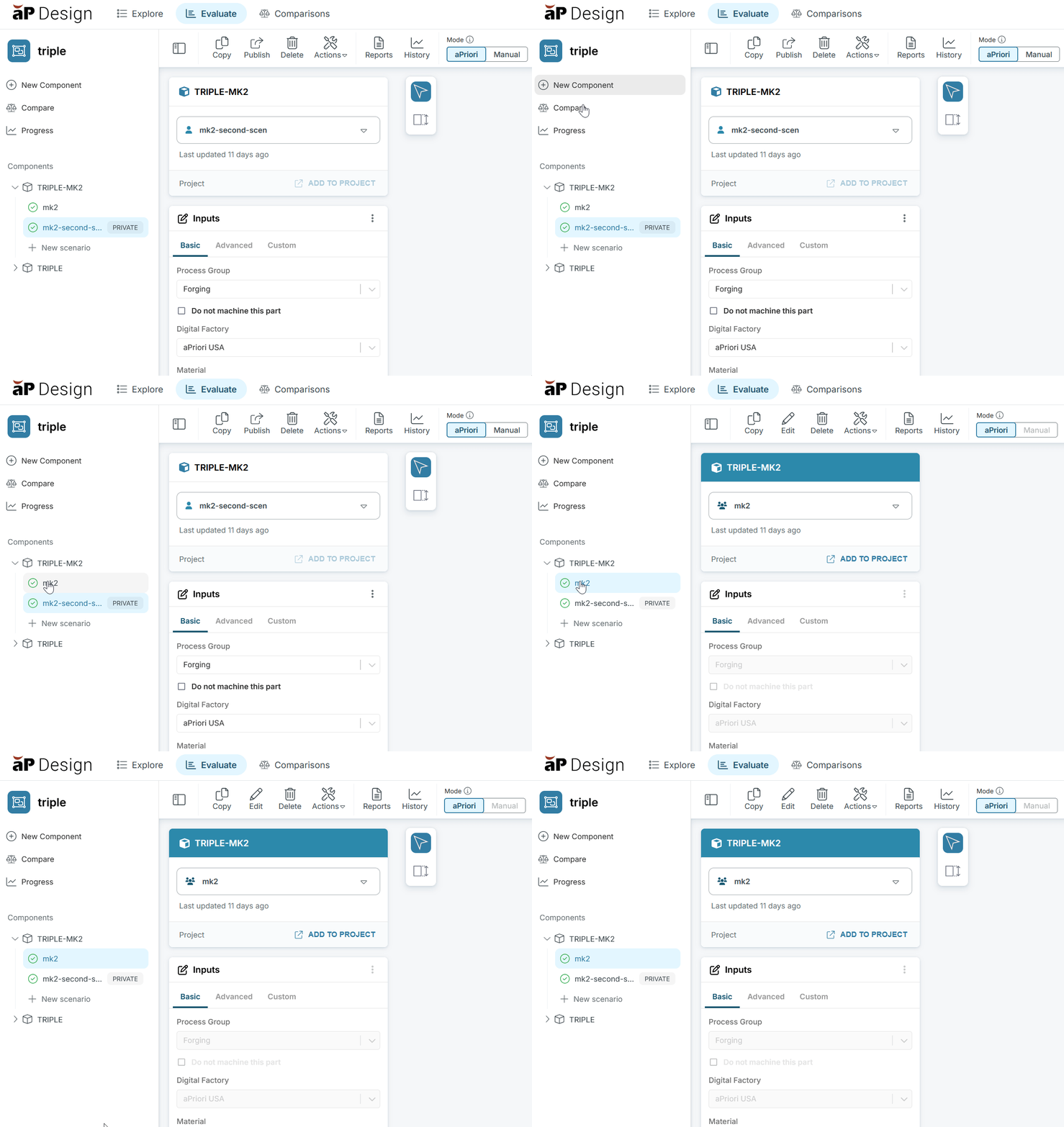
Using Design Navigation
In the Design navigation bar, find a Scenario listed under Components then click it's name to switch:
Using the Dropdown
From the dropdown, click the Scenario name to open the dropdown menu, then choose an alternative Scenario:
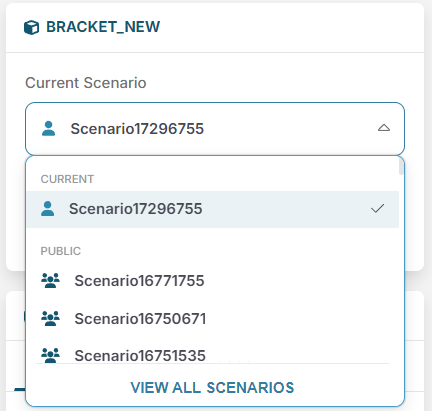
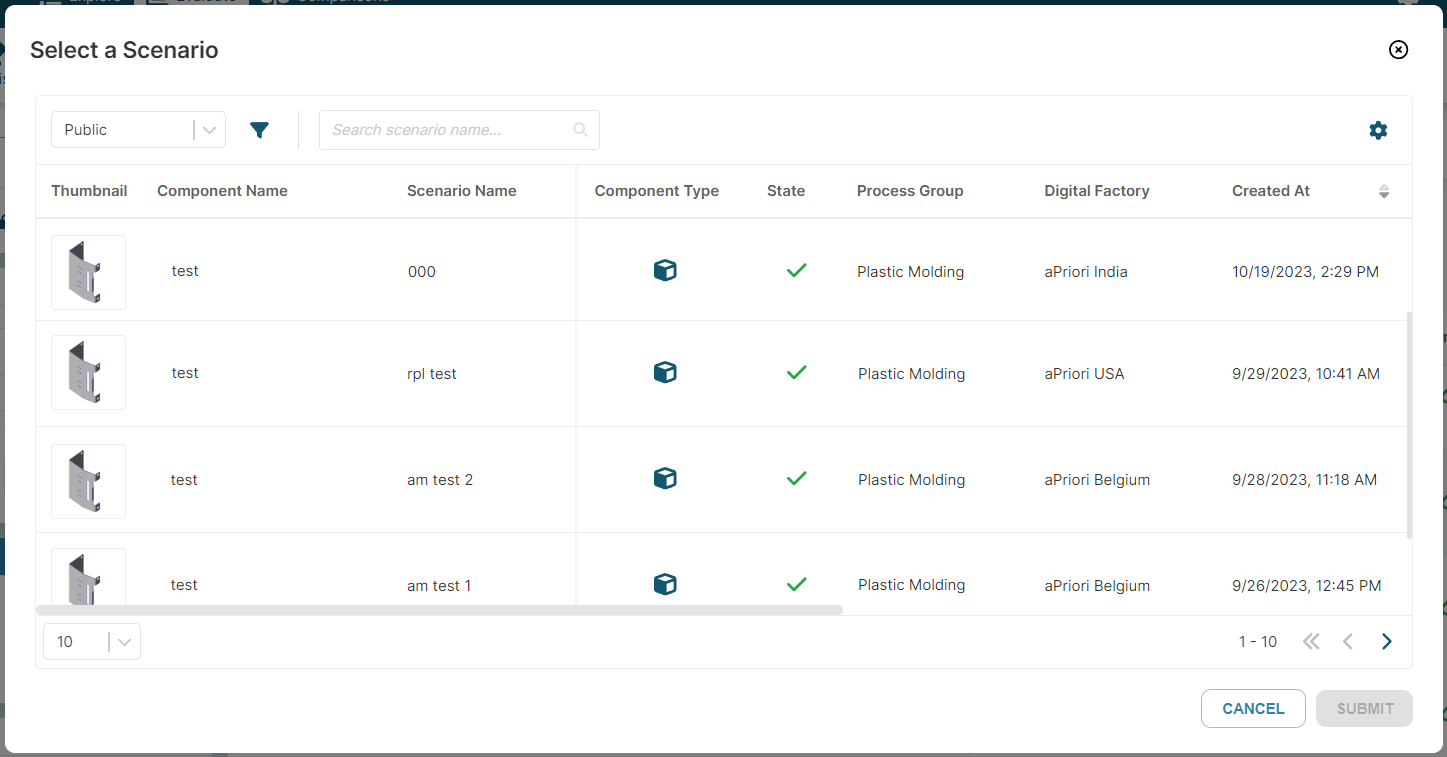
If you can't find a Scenario from the dropdown, use to open a filterable list of every eligible Scenario.
Use to configure the view and hide or show relevant parameters to help select a Scenario. You can also use filters to refine the information displayed:
Assembly Explorer
With an assembly open in Evaluate:
-
From the Components tile, click the OPEN to open the Assembly Explorer
-
Click on the Assembly Explorer header to apply the tree view
-
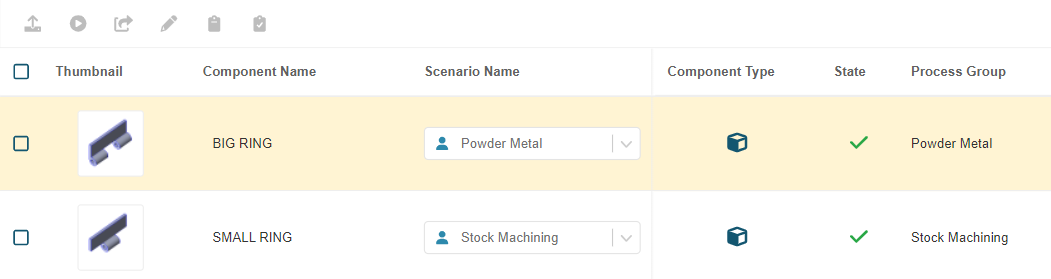
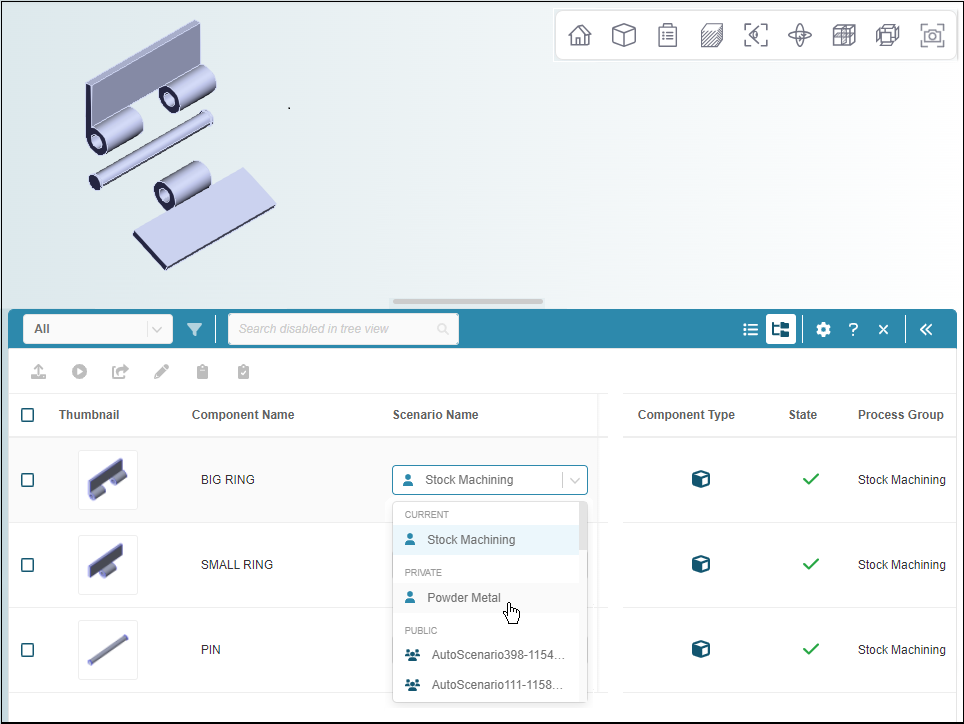
Click the Scenario name to open the dropdown menu, then choose an alternative scenario:
To indicate that the change renders the displayed analysis results obsolete, the row that contains the component is highlighted in yellow. Reanalyze the assembly to get the most up-to-date results.