Import a Simple Part
This example imports a simple part from a CAD file in a supported format.
Example parts for testing purposes are available from our Learning Resources - see Use Sample Parts.
-
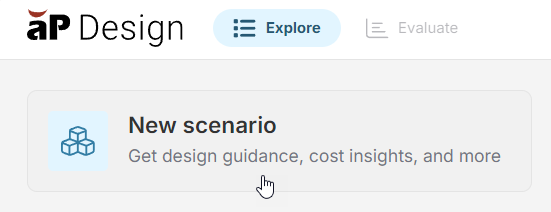
From Explore, click New scenario:
-
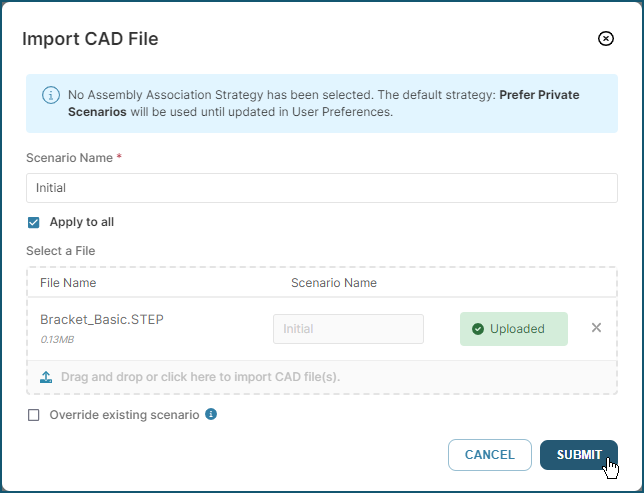
In the Import CAD File dialog, drag and drop your CAD file onto the upload area, or click to select a file from your local filesystem
-
Click to import the file:
-
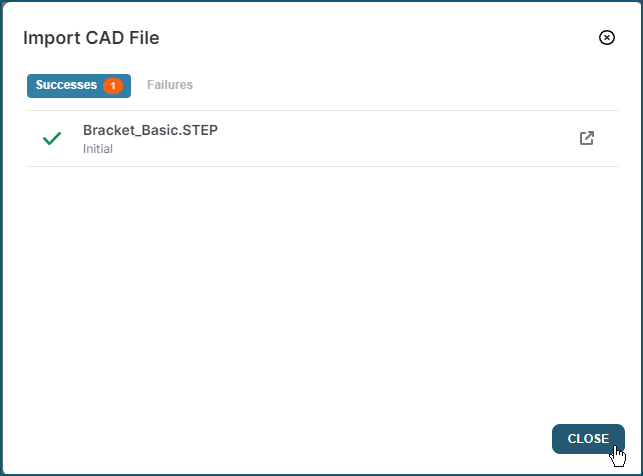
When the dialog confirms the import was successful, click
See Import CAD Files into aP Design to learn more.
View Imported Part
After you import a new part, aP Design creates a new Component and an initial Scenario for the component, showing this information in the Recent filter in the Explore view:
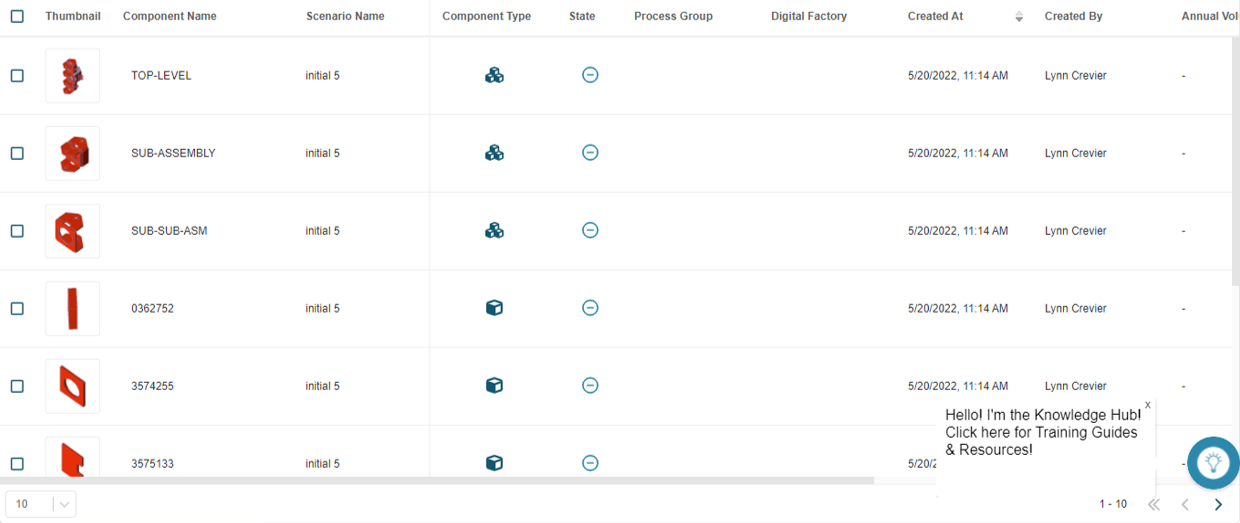
See Explore View Details to learn more about the information in the Explore view.
Tip
Review Key Concepts to learn more about Components and Scenarios.