Provide Costs Manually
You can provide costs for a scenario manually instead of using the aPriori cost engine. This allows you to enter known Piece Part Costs for parts that may vary from the aPriori estimate, given the manufacturing route or volume of procurement. For example, these might include parts such as bolts, washers, gaskets, or existing stock.
This topic covers the following areas:
- Provide Costs Manually for an Unanalyzed Scenario
- Provide Costs Manually for a Previously Analyzed Scenario
- Access Manually Costed Scenarios from aP Pro
- Identify Manually Costed Components
Provide Costs Manually for an Unanalyzed Scenario
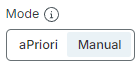
If you are working with an unanalyzed scenario, on the Evaluate tab toolbar, click Manual on the Mode toggle switch:
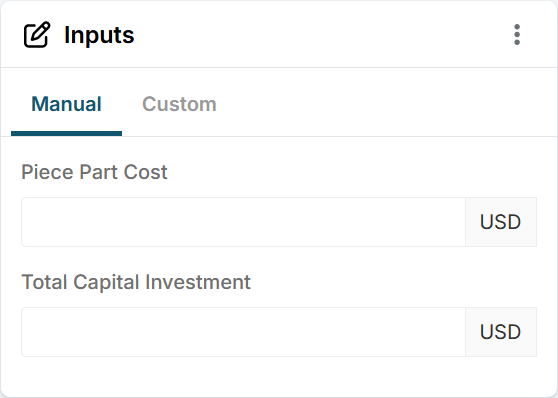
Enter a Piece Part Cost and/or a Total Capital Investment value using the Inputs tile:
Note
aP Design does not amortize Total Capital Investment when you use Manual cost mode, therefore Fully Burdened Cost will equate to Piece Part Cost.
Click Save.
When complete:
-
The state updates to Saved:

-
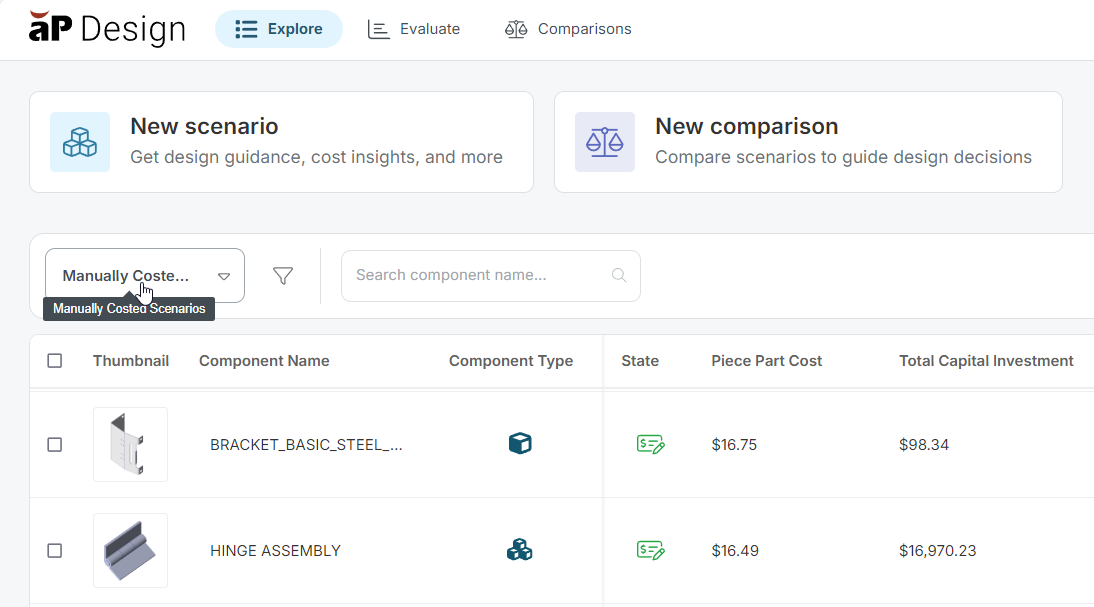
On the Explore tab, the State column indicates that the scenario has been manually costed:

Provide Costs Manually for a Previously Analyzed Scenario
You can switch the mode of a previously analyzed scenario from aPriori to Manual or from Manual to aPriori.
Switch from aPriori Mode to Manual Mode
If you are working with a scenario that has previously been analyzed using the aPriori cost engine (that is, using aPriori mode), on the Evaluate tab toolbar, click Manual on the Mode toggle switch:
aP Design displays an ‘Are you sure’ message, warning you that previous cost results will be lost if you save your scenario in Manual mode. If you wish to proceed, click Continue to Manual Mode. Otherwise click Cancel.
Enter a Piece Part Cost and/or a Total Capital Investment value using the Inputs tile:
Note
aP Design does not amortize Total Capital Investment when you use Manual mode, therefore Fully Burdened Cost will equate to Piece Part Cost.
Note
When a scenario was saved initially using aPriori mode and you switch to Manual mode, aP Design preserves certain parameters, for example the process group and digital factory.
Click Save.
Switch from Manual Mode to aPriori Mode
If you are working with a scenario that has previously been saved using Manual cost mode, on the Evaluate tab toolbar, click aPriori on the Mode toggle switch:
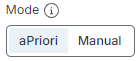
aP Design displays an ‘Are you sure’ message, warning you that previous cost results will be lost if you save your scenario in aPriori mode. If you wish to proceed, click Continue to aPriori Mode. Otherwise click Cancel.
Proceed as described in Analyze a Scenario.
Access Manually Costed Scenarios from aP Pro
In aP Design, you can access scenarios that were manually costed in aP Pro. Likewise, in aP Pro, you can access scenarios that were manually costed in aP Design.
Identify Manually Costed Components
You can easily find and identify manually costed components using several methods.
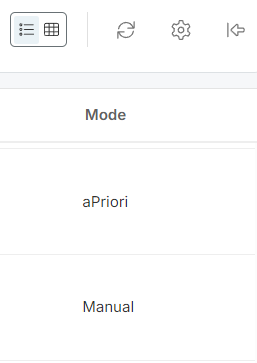
Mode Table Column
Select the Mode column using the Table Settings configurator in the Explore tab and in the Assembly Explorer. The column then displays in the table:
State Icon
You can easily identify manually costed components within the Explore and Assembly Explorer tables using the ‘Manual’ icon in the State column.
Mode Filter
You can add a filter called, for example, ‘Manually Costed Scenarios’ using the Criteria:
- Property: Mode
- Operation: In
- Value: Manual
The filter will then be available for you to select in the filter drop-down menu: