Edit a Scenario
You can perform several actions on your Scenario to aid your workflow.
Assign a Scenario
Assign, re-assign, or unassign a public Scenario to another user:
From Evaluate, click Actions then Assign:
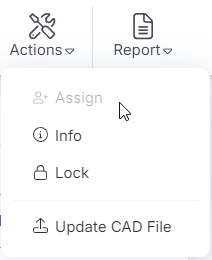
When prompted, enter or select an assignee, then click SUBMIT.
You can also assign a private scenario that you are in the process of publishing; see Publish a Scenario
Lock or Unlock a Scenario
Protect a scenario from being overwritten:
From Evaluate, select Actions then the Lock option.
You can still perform other operations on a locked Scenario, such as deleting it
Copy a Scenario
Make private copy of a Scenario from the Explore and Evaluate views.
Copy a Scenario from Explore
- From Explore, select a Scenario, then click Copy:
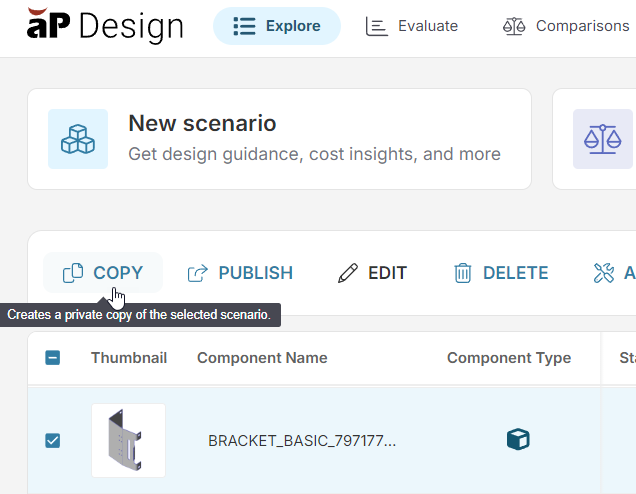 3. Enter a new Scenario Name when prompted, then SUBMIT
Copy a Scenario from Evaluate
Using the toolbar:
- From Evaluate, click Copy from the toolbar
- Enter a new Scenario Name when prompted, then SUBMIT
Using the side navigation:
- From the Evaluate left Design navigation bar, click New scenario
- Enter a new Scenario Name when prompted, then SUBMIT
Delete a Scenario
To delete a private scenario, select or open it, then select Delete.
Edit a Public Scenario
Use the Edit button from the Explore or Evaluate toolbars, or from the Assembly Explorer, to create an editable private copy of a public scenario (you cannot directly edit a public scenario).