Enhanced Support for Manufacturing Processes
Support for Routing Selections
Define a routing that better reflects your production requirements or assumptions and decreases subsequent costing time.
In Cost Insight Design and aPriori Professional, when a part is for the first time in determines all the potential production routes, that is all the sets of processes that can be used to make the part and the order of the processes in each set. For example, for a simple part, the available routings might involve a combination of processes A, B, C, D and/or E in these orders and for these costs:
- A, B, C – 9 USD
- A, C, B – 10 USD
- A, E – 7 USD
By default, aPriori applies the most cost-effective production route when determining the rest of the outputs for the costing. If you accept the aPriori selected routing, but then change another input and recost the part, aPriori again evaluates every potential production route and selects the least expensive option.
For the simple part example, aPriori would choose option 3 because it has the lowest cost. If you change a production input, for example the volume, when you re-cost the scenario, aPriori determines every potential production route again and selects the least expensive option.
However, you may a different routing than the one selected on price alone. For example, you prefer option 2 for the simple part because process E yields a higher level of quality than processes B and C.
In Cost Insight Design, 2021 R1 SP1, you can override the aPriori routing selection for a part component. If you do so, the routing that you select will be applied to subsequent costings of the part for as long as that routing is selected and aPriori will evaluate the scenario using only the specified routing. It is much computationally cheaper to evaluate only a single routing than it is to determine and evaluate every possible routing. Therefore, subsequent costings are significantly fasted for scenarios that have pre-selected routings, which are also referred to as pinned routings.
To select a routing for a costed scenario in the Evaluate tab:
-
On the INPUTS tile, select the Advanced tab.
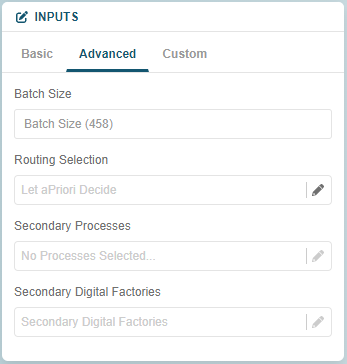
The Routing Selection field is set to Let aPriori Decide.
-
In the Routing Selection field, click the edit icon, .
The Select Routing dialog opens.
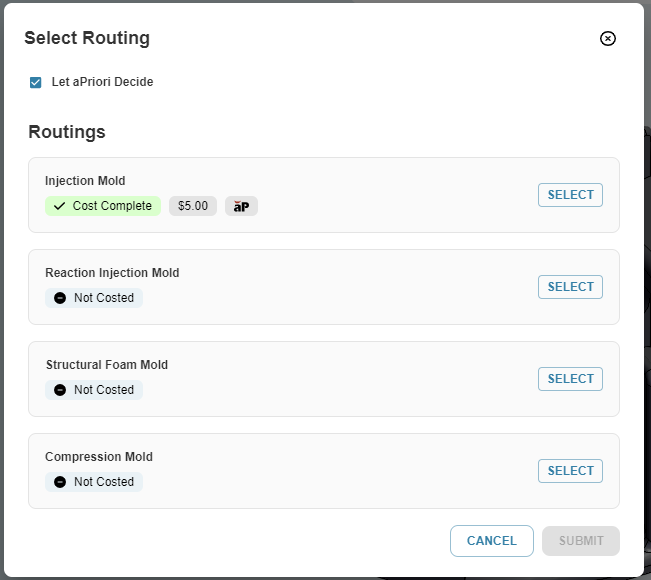
The Let aPriori Decide option is selected. The least expensive routing is selected and an aPriori icon, aP is displayed next to the cost.
-
In the Select Routing dialog, select an alternate routing.
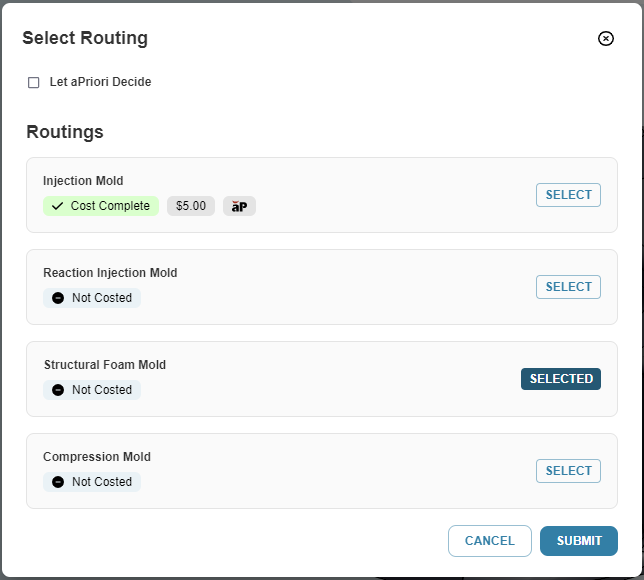
The Let aPriori Decide option is deselected and Selected is displayed on the button for the selected routing.
-
Click Submit.
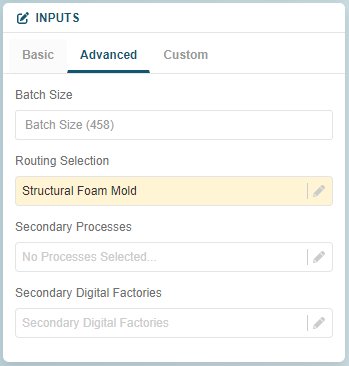
The dialog closes and the selected routing appears in the Routing Selection field on the Advanced tab of the INPUTS tile. The field is highlighted to indicate that the scenario has not been cost for the updated settings.
The pinned routing persists until it another it is overridden by the option for automatic routing selection or by the selection of another routing.
To enable aPriori to determine all the routing options and to select the routing for a scenario that has been costed with a pinned routing, open the Select Routing dialog, select the option to Let aPriori Decide and then recost the scenario.
Limitations
-
Although pinned routings are persistent going forward, they are not persistent in Cost Insight Design 2022 R1 SP1 for routings that were pinned in a prior release (for example in aPriori Professional). If, in Cost Insight Design 2022 R1 SP1, you cost a scenario that includes a pinned routing and that was last costed in a prior release, aPriori overrides the pinned routing and selects the least expensive routing.
Workaround
In Cost Insight Design 2022 R1 SP1, cost the first cost the scenario that includes a pinned and that was last costed in a prior release. Then reselect the previously pinned routing (or any available routing that you prefer) and recost the scenario.
-
Pinned routings do not persist if you select a different process group or digital factory, even update the inputs and then revert to the original inputs without re-costing the scenario.
Workaround
To re-apply a pinned routing that was overridden by an uncosted update to one or more other inputs, use the back button in your web browser.
-
Pinned routings do not persist for scenarios that fail to cost.
Workaround
To re-apply a pinned routing that was overridden by an failed costing, first re-cost the scenario with the option to Let aPriori Decide selected. and then, once the scenario costs successfully, examine and select, if desired, an alternate routing.
-
Alternate routings be available for selection for a private scenario that you cost in an earlier version of Cost Insight Design. However, because the routing data that is displayed in Select Routing dialog may be obsolete, as a best practice, first recost the scenario with the option to let aPriori Decide selected. Then, once you have re-initialized the scenario in Cost Insight Design 2022 R1 SP1, you can select a routing based on up-to-date data.
Machining Option for Cast and Forged Parts
Conf Configure a scenario to use only forging or only casting instead of both forging and machining or both casting and machining (respectively).
In previous releases, aPriori automatically used machining processes for features that are typically machined, regardless of the selected process group. You now have the option to not have a part machined if it uses one of these process groups:
- Casting
- Casting - Die
- Casting - Investment
- Casting - Sand
- Forging
This option is useful for parts that have features that can be fully processed by casting or by forging.
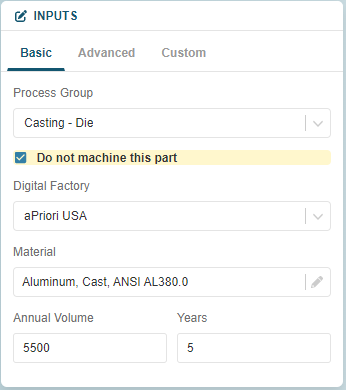
To enable this option, for a scenario in the Evaluate tab that has Process Group set to Forging, Casting, Casting - Die, Casting - Investment, or Casting - Sand, on the INPUTS tile, on the Basic tab, select the Do not machine this part check box.
Extended Support and Usability for 2-Model Machining Source Models
Use a source model that has not been fully cost, and more easily work with 2-Model Machining scenarios.
In Cost Insight Design, 2021 R1 SP1, you can
- Cost a part that is made by using 2-Model Machining even if the status of the source model is cost incomplete.
- Toggle the overlay of the source model on and off.
- Drive changes to the state of the 2-Model Machining scenario by updating the source model with which it is associated.