Expanded Color Palette with Code Entry for GCD Highlighting
Cost Insight Design (CID) Release Notes 2021 R1 SP1
Select from a full-range palate or enter an RGB color code to set the color that Cost Insight Design uses to highlight selected GCDs in the Explore tab Viewer.
The Selection settings allow you to specify the selection color, which is the color that Cost Insight Design uses to highlight selected GCDs in the Viewer and panels in the Explore tab. The previous version of Cost Insight Design allowed you to choose between only 27 preset colors for GCD highlighting.
Now, to ensure that you can choose a color that allows you to easily differentiate the highlighted GCDs from other GCDs in your component, you can choose the selection color from an expanded palette.
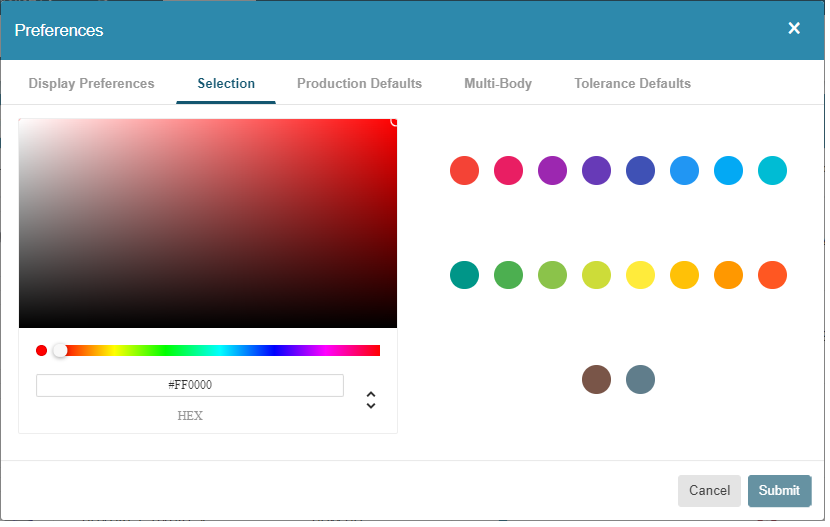
To open the Selection settings, first, in the Cost Insight Design header bar, select the Preferences button, . Then, in the Preferences window, select the Selections tab.
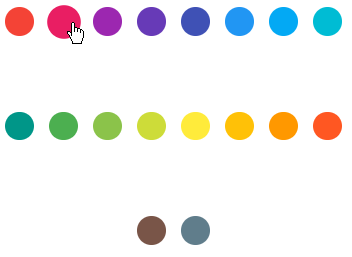
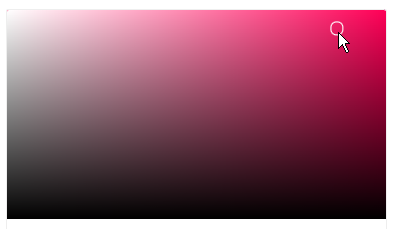
To set the selection color, first, use any combination of these methods:
-
Select a predefined color
-
Scroll to the hue of interest

-
Click a color in the palette viewer
-
Use the up down arrows to display the RGB code input fields and then update the values.

-
Use the up down arrows to display the HSL code input fields and then update the values.

-
Use the up down arrows to display the HEX code input field and then update the values.
 Once you have set the selection color, click Submit.