Work with Assemblies
Use the Assembly Explorer (shown when you open an assembly on the Evaluate tab) to work with components and scenarios associated with an assembly:
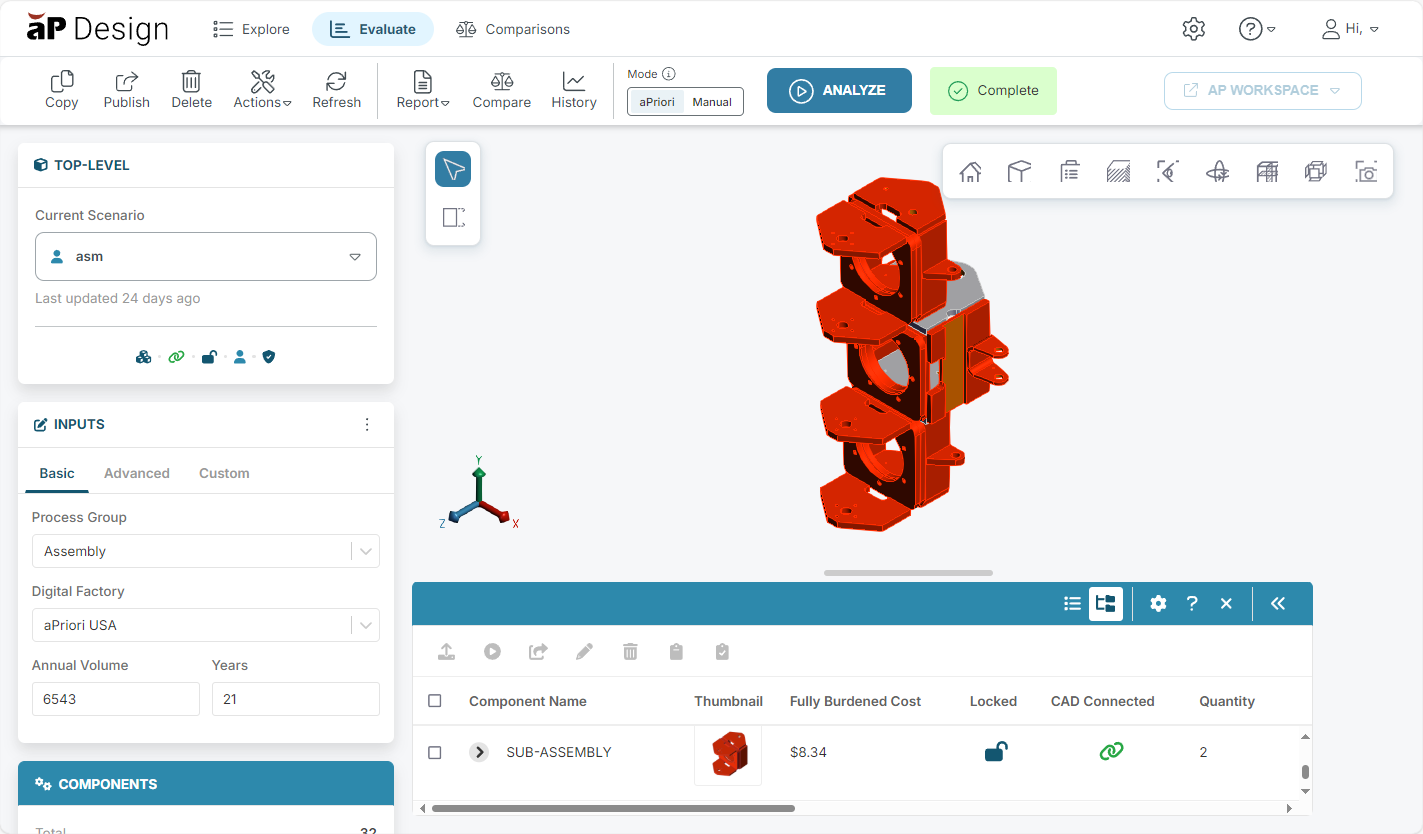
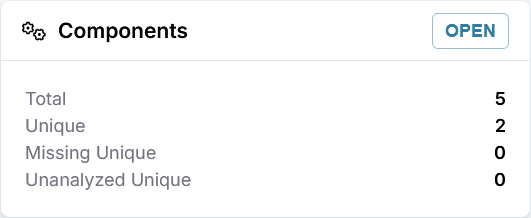
You can also open the Assembly Explorer manually by clicking the OPEN button on the Components card.
Info
A warning appears in the Components card if components have changed or are still being processed. The Assembly Explorer highlights changed or in-progress components. To ensure your results are accurate, reanalyze your assembly after component changes or after processing is complete.
The Assembly Explorer provides both a Tree View and a List View. By default, the components are displayed in the Tree View, .
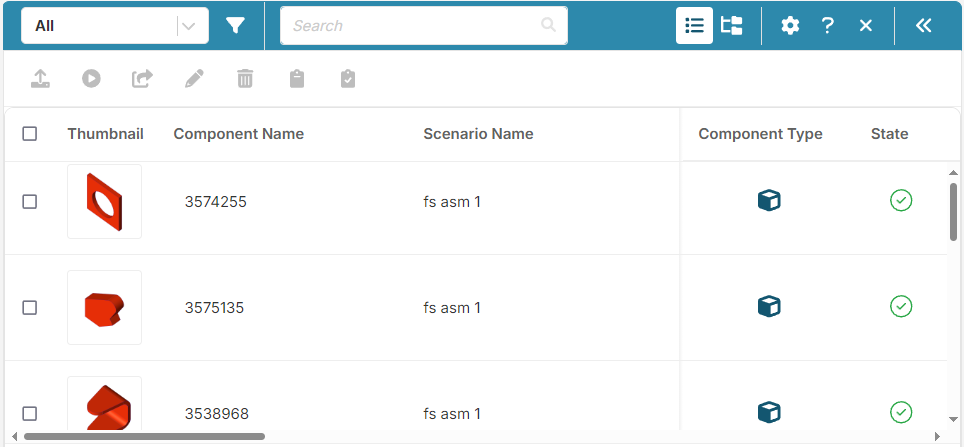
Click the List View icon, , to see a flattened component list, allowing you to search and filter components.
Tip
You can add, delete, or reorder the columns for both the Tree View and the List View, using the configure button, .
Assembly Explorer Functions
- Set inputs for and analyze multiple components. See Group Analyze Scenarios.
- Create multiple editable clones and publish multiple scenarios. See Publish a Scenario.
- Exclude and include multiple components from future analyses of the assembly. See Excluding and Including Assembly Components.
-
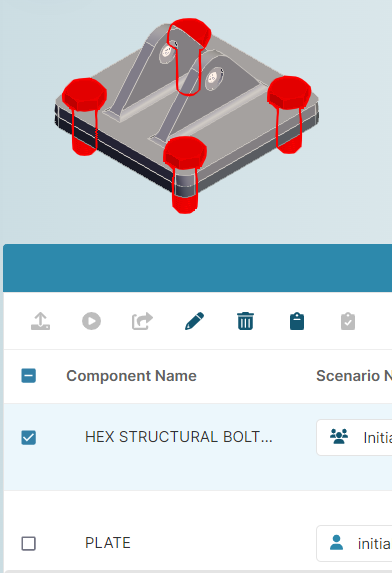
Highlight one or more components in the 3D viewer by selecting the checkboxes for those components.
-
Switch the scenario for a component. See Switch a Scenario.
- Update the CAD file for a component. See Update a CAD File in the Assembly Explorer.
- Open a scenario to the Evaluate tab on a new tab in your browser window.
- Preview a scenario. See Preview a Scenario.