Switching on/off the ACM Extension to aP Analytics
You can enable (turn on) or disable (turn off) the extension of your aPriori Access Control permissions to aP Analytics. To extend database access control permissions that you set prior to the 2019 R2 release of aPriori, you must enable the access control extension for the database in aP Analytics. To overcome aP Analytics limitations that are associated with the Access Control Model Extension, you can enable the access control extension in aP Analytics. For more information, see Access Control Model Extension Limitations for aP Analytics
To allow short-term scenario access to all users, you can toggle (disable and later enable) the access control extension in aP Analytics.
Prerequisites
Before you can enable or disable the Access Control Model Extension, you must:
-
In the aP Analytics Jasper UI, navigate to Repository > Domains. and select the relevant domain.
When a domain is selected, you can edit it in the navigation bar at the top of the screen.
-
Click Edit.
The domain appears in an editable view with multiple tabs at the top.
-
Open the 'Security' tab.
-
Import the security XML file, .
adHocSecurity.xml.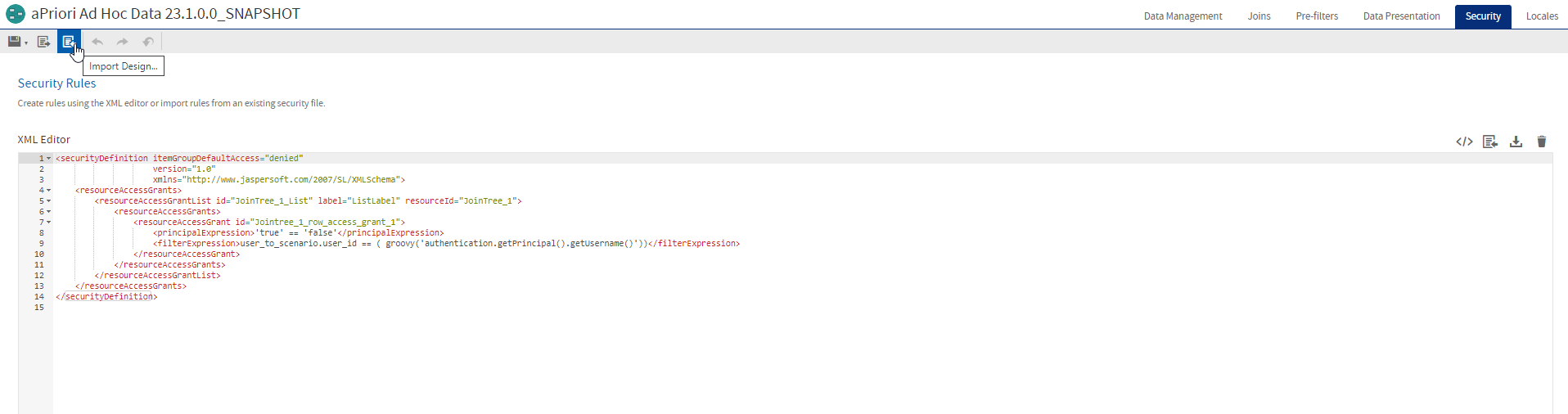
-
Save the changes.
Enable the aPriori Access Control Model Extension to aP Analytics
To turn on Access Control in aP Analytics:
-
In the Jasper UI, from the aPriori command line, import the adHocSecurity.xml file. The file is a data-base specific security file that you can access at
\apriori-platform\distribution\<version>\reporting\accessControl\<db_type>\adHocSecurity.xml,where:
<version>is the release number. For example, the<version>for aPriori Release 2019 R2 is19.2.0.0.<db_type>is the type of database management system that you use for aPriori . Options are MSSQL, MySQL, or Oracle. -
Run the changeAccessControlSetting script, accessible at
apriori-platform\distribution\<version>\deploy\changeAccessControlSetting.cmd, with the input argument for enabling access control:changeAccessControlSetting -on -
Save the changes.
Disable the aPriori Access Control Model Extension to aP Analytics
To turn off Access Control in aP Analytics:
-
In the Jasper UI, from the aPriori command line, delete the
adHocSecurity.xmlfile. The file is a data-base specific security file Save the changes. -
Run the
changeAccessControlSettingscript, accessible atapriori-platform\distribution\<version>\deploy\changeAccessControlSetting.cmd, with the input argument for enabling access control:changeAccessControlSetting -offWhere
<version>is the release number. For example, the<version>for aPriori Release 2019 R2 is19.2.0.0.Note:
To read the input argument for the
configuration.propertiesfile, enter thechangeAccessControlSettingcommand without an input argument.