LDAP Sync View History tab
Use this tab to review the status of sync jobs that have run.
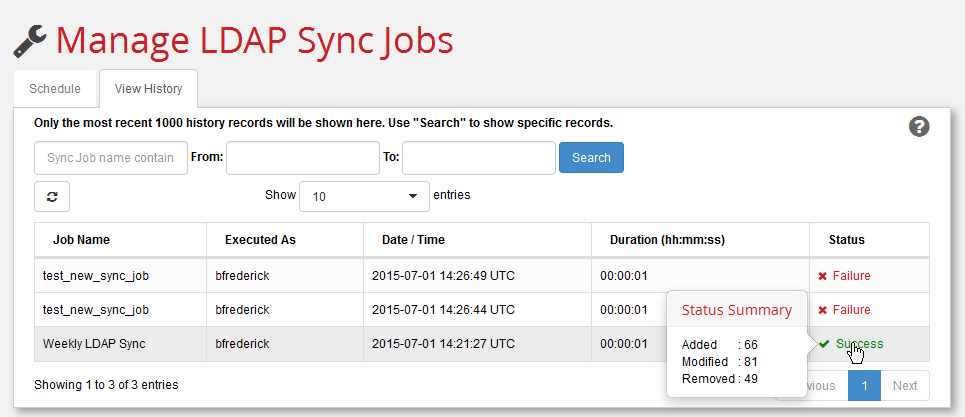
Filter the display by using the calendar widgets in the From and To fields to narrow-down a time period. Enter a string in the Sync Job name contains field to display only those jobs that contain the exact same string. Control the number of jobs displayed with the Show n entries pull-down menu.
Note:
You can display the number of users added, modified, or removed by a successful job by hovering your cursor over a Success entry in the Status: column. Hovering over a Failure status displays a summary of the error encountered. You can bring up a ‘Status Detail’ window with more details by clicking on the ‘Failure’ link.
Note:
At least two situations can result in a “Partial” status: LDAP Sync jobs with connections that change group membership will fail the group update portion of the job, but successfully update other user properties if executed by a user without UPDATE Group access. In this case, the job status displays Partial and itemizes the Access Control warnings. “Partial” status can also be caused by sync’d properties that have large values that have been truncated. Hovering over the Partial status displays the fields that have been truncated.
To investigate the reasons behind LDAP Sync failures, you should check the following logs, in order of priority:
- aServer logs -- typically found in
<drive:>\apriori-platform\aserver\logs - Tomcat log -- typically found in
<drive:>\apriori-platform\tomcat\logs\catalina. - aPriori log -- typically found in
<drive:>\Users\<username>\aPriori\<version>\logs\apriori.log
Use the Refresh button () to update the list of scheduled jobs.
Note:
Recently executed jobs do not appear here until you click the Refresh button.