Scenario Export View History
If you have performed one or more exports, you can use the View History tab to display a list of past exports.
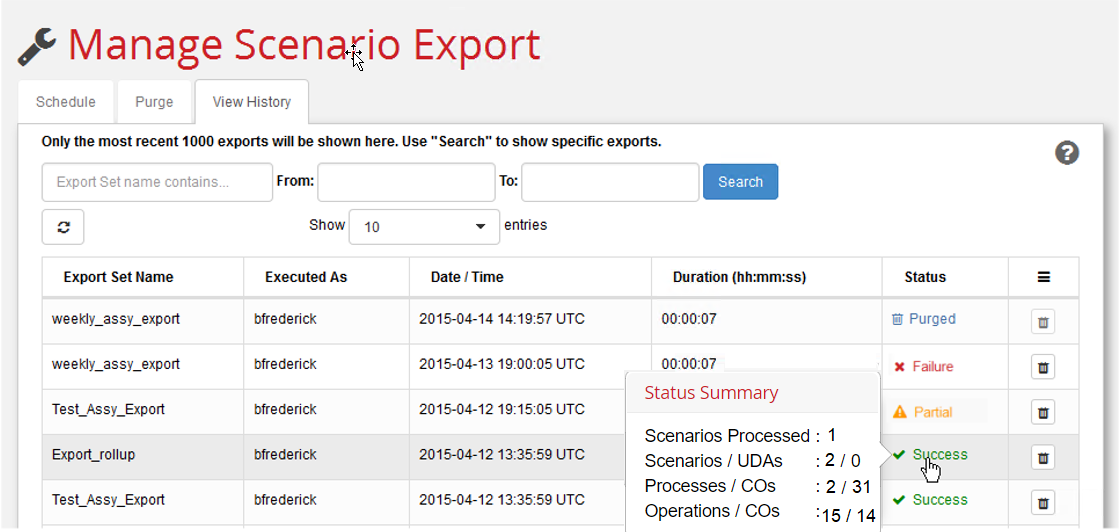
Recently exported sets do not appear on this tab until you click the Refresh () button.
From this tab you can:
- Narrow the list of displayed exports by specifying some or all of an export set name, and/or providing a date range, then clicking Search. Performing a Search with no criteria returns a list of all Export Sets.
- Update the list to include any recently completed exports by clicking the Refresh button ().
- Examine detailed status of the export sets by either hovering over or clicking the entries in the Status column, as described in the next section.
-
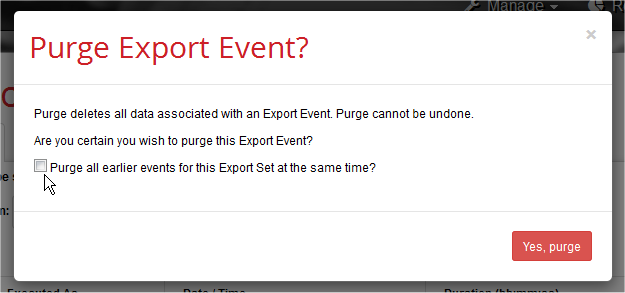
Purge the data of a specific export set from the reporting database by clicking the Purge icon () in the far-right column. In the resulting confirmation window, the "Purge all earlier events for this Export Set at the same time?" checkbox provides an efficient way to purge multiple instances of an obsolete export without needing to purge each one individually.
The Purge icon is disabled when the job status is "Started" or "In Progress".
-
View the status of the export. During and after an export, to view the Status Summary, hover over the displayed status.
To Display Detailed Status
Scenario Export provides the following status levels for exports:
- Started (with green flag) – The export job has started.
- In Progress (with "busy" icon) – aPriori has tested ("processed") at least 100 scenarios to see if any of them should be exported (scenarios are not exported if nothing has changed since the last time they were exported). This status is updated every 100 scenarios, or when the job completes. (You must click Refresh to see status updates. Note that hovering over the Status column can show a count of 0 even if thousands of scenarios have been processed, if none of them have changed and therefore do not require exporting.
- Success (in green, with a checkmark) – All scenarios completed the export operation. If you hover over a Success status, Scenario Export displays a summary of the scenarios, user defined attributes (UDAs), processes, operations, and custom outputs (COs) that were successfully exported. Note that in the case of sub-assemblies that contain multiple instances of the same parts, the number of scenarios processed will exceed the number of parts that get added to the reporting database: if the same part appears three times in an assembly tree, it will be processed three times during the export process, but only one entry is added to the database.
- Partial (in orange, with an exclamation within a triangle) – One or more scenarios did not successfully export, though others did. If you hover over a Partial status, Scenario Export displays the number of scenarios that failed to export. Clicking on a Partial status displays a detailed list of the scenarios that failed to export. You typically need to return to aP Pro to fix and recost these scenarios, and then re-export them.
- Failure (in red, with an X) – No scenarios successfully exported, or scenario not found in operational database. If you hover over a Failure status, Scenario Export displays an error message such as "0 scenarios exported" or “Scenario not found :
- . ". Clicking on a Failure status displays a detailed list of the scenarios that failed to export. You typically need to return to aPriori to fix and recost these scenarios, and then re-export them. - Aborted (in red, with an X) – An unknown number of scenarios failed to be exported due to the Tomcat server being shut down in the middle of the export.
- Purged (in blue, with a trash barrel icon) – The data related to this export event has been removed from the reporting database. Hovering over a Purged status displays a summary of the scenarios, user defined attributes (UDAs), processes, operations, and custom outputs (COs) that had been successfully exported by the purged event.
Export status and reports
The status of an export set determines whether or not its data can be used when a report (either Ad Hoc or Out of Box) is run:
| Export Set Status: | Available for Use by Ad Hoc or Out of Box Reports? |
|---|---|
| Completed | Yes |
| Partial | Yes |
| Failed | No |
| In Progress | No |