Child to Parent Table
The child_to_parent table provides access to the hierarchy structures. The child_to_parent table stores records that represent the child/parent relationships. The table is designed to work in conjunction with the scenario_facts table.
| Attribute | Attribute Type | Description |
|---|---|---|
| export_event_id | bigint(20)PK | Pointer to the export event |
| child_scenario_facts_id | bigint(20)PK | Pointer to the child scenario fact |
| parent_scenario_facts_id | bigint(20)PK | Pointer to the parent scenario fact |
| count_in_parent | Int(11) | Number of instances of this child under this parent |
| position_in_parent | Int(11) | Position (order) of this child relative to siblings |
The child_to_parent table enables is useful because the JasperReports ad hoc tool cannot navigate through hierarchical tree structures that represent an Assembly or BOM. You can group all of the components in an assembly or rollup into an export set and aggregate the results quite easily, but the tool cannot understand parent/child relationships that have arbitrary levels of depth. This is not a problem for the Jaspersoft Studio tool, however. So if you want to traverse the Assembly and BOM structures that are stored in container objects such as assemblies or rollups, you should do so with the Studio tool.
This diagram is a conceptual model of the Reporting database using an entity-relationship (E/R) model.
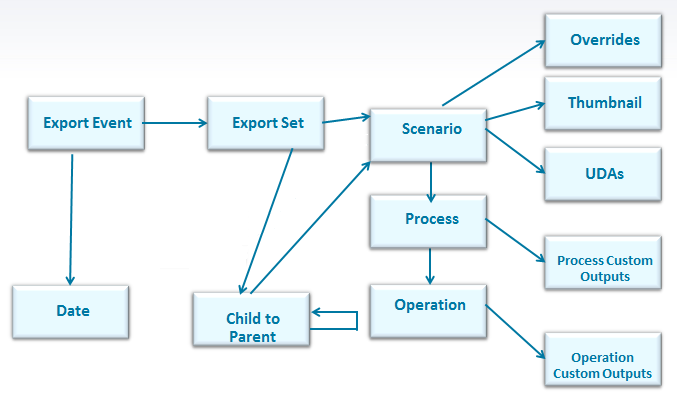
The model does not capture all of the relationships or tables, and it has collapsed the “facts” tables into their primary dimensions. For example, scenario_facts and scenario are merged into the ‘Scenario” entity, and ditto for process/process_facts and operation/operation_facts). With these caveats in mind, it is helpful to understand where the BOM tables fit in and how to use them to navigate the hierarchies that are stored in the aP Analytics database.
Example
This figure shows a simple assembly that has been loaded into aP Pro and then exported to the aP Analytics database as part of a rollup.
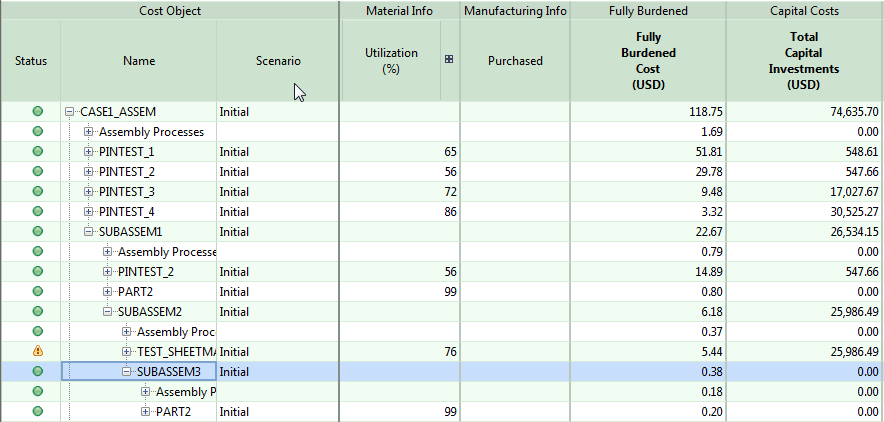
The hierarchy for this assembly is shown in this child_to_parent table:
| Part_Number | Child_SF_ID | Parent_SF_ID | Count in Parent | Position in Parent |
|---|---|---|---|---|
| CASE1_ASSEM | 2 | 3 | 1 | 1 |
| PINTEST_1 | 1 | 2 | 2 | 1 |
| PINTEST_2 | 4 | 2 | 2 | 2 |
| PINTEST_3 | 5 | 2 | 4 | 3 |
| PINTEST_4 | 6 | 2 | 1 | 4 |
| SUBASSEM1 | 11 | 2 | 1 | 5 |
| PINTEST_2 | 4 | 11 | 1 | 1 |
| PART2 | 10 | 11 | 4 | 2 |
| SUBASSEM2 | 13 | 11 | 1 | 3 |
| TEST_SHEETMACHINING | 12 | 13 | 1 | 1 |
| SUBASSEM3 | 14 | 13 | 1 | 2 |
| PART2 | 10 | 14 | 1 | 1 |
Note:
The part_number column is not in the database table but it is placed here to help understand the data. The part_number is from the scenario table which is you can access by following the child_scenario_fact_id (Child_SF_ID) foreign key to the Scenario_facts table and then traversing to the Scenario table via the scenario_id field in the fact table. This two-step process is not obvious from the E/R diagram because the diagram combines the Scenario and Scenario_Facts table into a single entity.