VPE Sync Schedule tab
This section provides a quick reference to VPE Sync Schedule tab. For detailed descriptions and examples, see Chapter Log in and Manage Subscriptions.
VPE Sync Schedule tab
Use this tab to define, modify (edit), and delete subscription jobs.
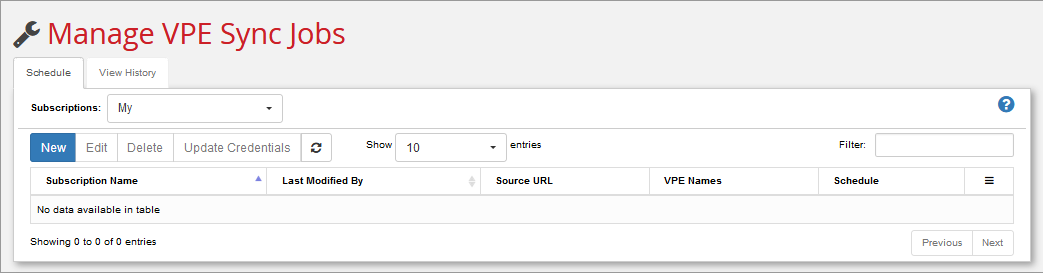
Use the Subscriptions: pull-down menu to filter which sync jobs to display. "My" jobs shows subscriptions associated with your username (i.e., subscriptions that you were the last user to create/edit). "All" is only visible to system administrators and shows subscriptions for all users.
For example, if you are logged-in as user “admin3”, and you have previously created or edited “job2” and “job5”, those are the only jobs that you will see when “My” is selected. If another user named “admin5” has created “job7”, then you will also see that subscription when you click “All”, assuming that "admin3" is a member not only of the vpe.sync.admin.group. but is also a system administrator.
All sites are queried, and the subscriptions to which you have permission from all sites are presented on the tab as a combined list.
Click New to create a new subscription sync job. For a detailed example, see To create a subscription Job.
Use Edit to modify an existing sync job that you have selected from the list. This displays the Edit Subscription dialog (basically the same dialog displayed by New Subscription). See To edit an existing subscription and Fill in the fields on the Subscription dialog: for a description of those fields.
Use Delete to permanently remove an existing subscription that you have selected from the list.
Use Update Credentials to update the access token in the database with the token of the current user so that the job can authenticate to the publisher site. You need to do this if the global key has changed (see “Global and Client Keys” in the Enterprise Platform Installation Guide). Running VPE Sync jobs after changing the global key and without updating credentials can result in an error message similar to “ResourceException: Not authorized to access resource:”
Use the Show n entries pull-down menu to control the number of sync jobs displayed.
Enter a matching string in the Filter: field to limit the display of jobs to only those that contain that string. For example, entering "exp" in this field would display subscriptions with names that include "export", "expired", and "flexpoint", but would not display "ex_parts" or "flexible". This field does not accept wildcards or regular expressions.
Use the right-facing arrow button ( ) to execute the job immediately, without waiting for its scheduled time (if any).
Use the Refresh button () to update the list of subscriptions.