Scenario Sync Schedule tab
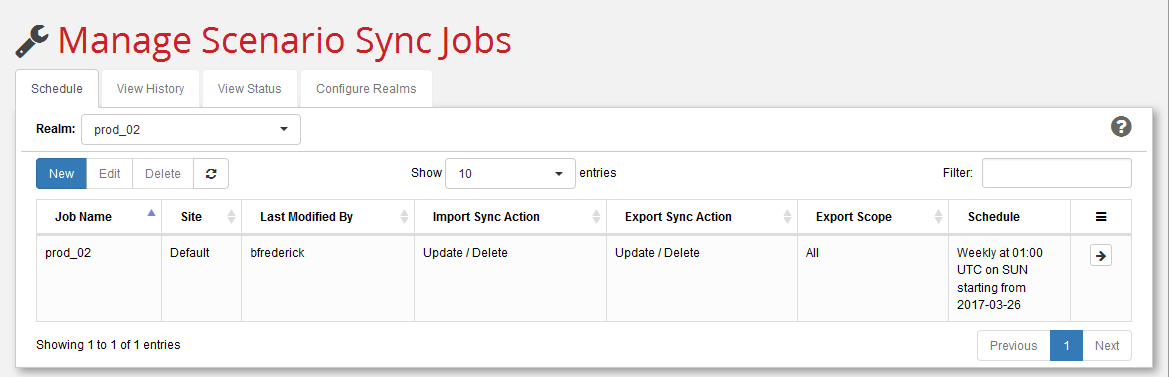
Use this tab to define, modify (edit), and delete synchronization jobs.
-
Use the Realm: pull-down menu to select which sync jobs to display. When you switch realms, all sites in the realm will be queried and a combined list of jobs for the realm will be presented.
-
Click New to create a new sync job. For a detailed example, see Schedule a Sync Job.
-
Use Edit to modify an existing sync job that you have selected from the list. This displays the Edit Sync Job dialog, which provides a sub-set of the fields offered by the Create a Sync Job dialog. See Schedule a Sync Job for a description of those fields.
-
Use Delete to permanently remove an existing sync job that you have selected from the list.
-
Use the Show n entries pull-down menu to control the number of sync jobs displayed.
-
Enter a matching string in the Filter: field to limit the display of jobs to only those that contain that string. For example, entering "exp" in this field would display sync jobs with names that include "export", "expired", and "flexpoint", but would not display "ex_parts" or "flexible". This field does not accept wildcards or regular expressions.
-
Use the right-facing arrow button () to execute the job immediately, without waiting for its scheduled time.
-
Use the Refresh button () to update the list of scheduled jobs and to view remote sites that have joined the realm while you have been logged in.