Manage System Data View History tab
If you have performed one or more exports, you can use the View History tab to display a list of past exports.
Note:
Recently exported sets do not appear on this tab until you click the Refresh () button.
Tip:
If your System Data Export never shows up in the history, even though it appears to have executed successfully, confirm with your database administrator (DBA) that the schema names for your installation do not include special characters "-" (hyphen) or "." (period). If they do, you cannot continue until this issue is corrected.
From this tab you can:
- Narrow the list of displayed exports by providing a date range, then clicking Search. Performing a Search with no criteria returns a list of all Export Sets.
- Update the list to include any recently completed exports by clicking the Refresh button ().
-
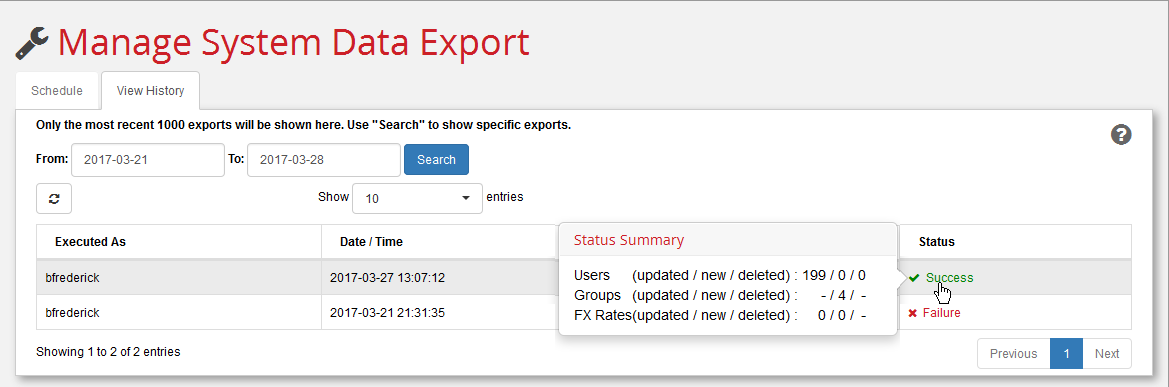
Review the status of the export sets by viewing the Status column. Hovering over a “Failure” message displays a short summary of the error condition. Clicking a “Failure” status brings up a Status Detail window that can provide useful information for debugging problems. Hovering over Success status displays the number of updated, new, and deleted records for users, groups, and currency rates.
Note:
Certain categories will never show updated and/or deleted numbers, and so always appear with hyphens in those columns
The following lists the behavior for each category:
- Users: In addition to actual new users, any users that are restored from a deleted state are also counted as “new”.
- Groups: The number of groups is always shown as “new” because System Data Export simply shows the number of groups exported.
- Currency rate: A new rate for an existing currency is counted as an “update”. Rates are never deleted. The addition of new currencies is a very rare state.