Manage System Data Export Schedule tab
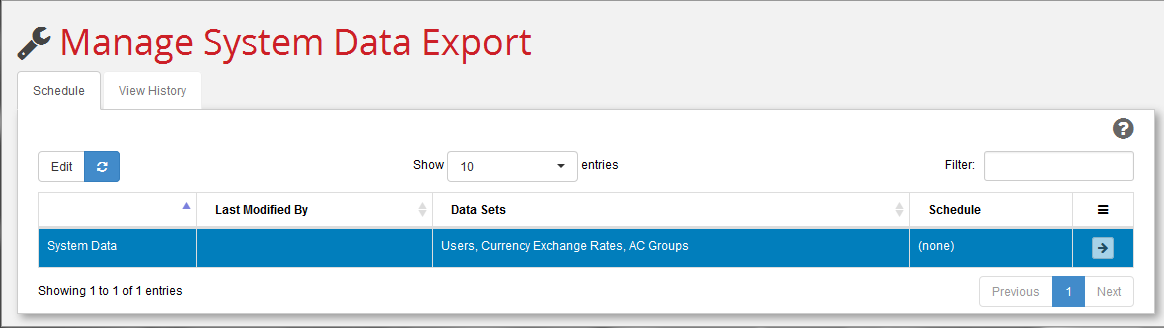
Use the Schedule tab to edit when and how often the system data export job runs. This is the tab that appears by default the first time you bring up the Manage System Data Export dialog.
Note:
Unlike the Manage Scenario Export Schedule tab, the Manage System Data Export Schedule tab displays a System Data export job that is pre-defined. The Schedule tab does not provide the ability to create New exports or Delete the existing one. You can only Edit the schedule for the single, system-defined export job.
To enable and run the job for the first time
You must Enable the job before it will run.
-
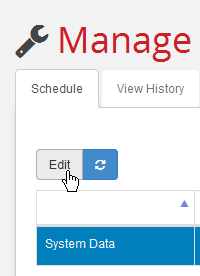
In the Manage System Data Export Schedule tab, click Edit.
-
In the resulting Edit System Data Export diaolg, choose either Once or Repeat.
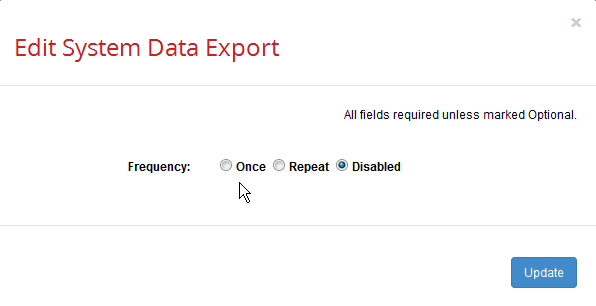 Choose Once if your system data will remain stable over a long period of time. Choose Repeat if you anticipate that this data may change and will need to be updated regularly. Your choice here determines what further fields will be displayed.
Use the information in this table to determine the appropriate values for your installation.
| Field | Description |
|---|---|
| Frequency | Choice of: Once –Perform a one-time export at the date and time specified. Repeat –Perform a series of exports at the time specified, on the dates or schedule specified Disabled-- Do not run the export job. Note: What you select here determines what other fields (described below) you must fill in. |
| Date/Time (UTC): (YYYY-MM-DD HH:mm) Time (UTC): (HH:mm) |
If you selected Once above, you will see the Date/Time (UTC): prompt.--Use the time selection widget to select the date and time when you want this purge operation to run. Be sure to use 24-hour, UTC time, not local. For example, specify "15:04" for "3:04 PM UTC" (which would be "10:04 AM Eastern). If you selected Repeat above, you will see the Time (UTC): prompt. --Use the time selection widget to select the time when you want this purge operation to run. Be sure to use 24-hour, UTC time; for example, specify "15:04" for "10:04 AM Eastern". If you selected Repeat above, you will also see some combination of the fields described in the rest of this table. |
| Interval: | Re-run the export based on one of the following: Hourly –Run at the frequency specified in the Every: field. For example, to run the job every six hours, specify 6 Hours. To run every hour, specify 1 Hour. Daily –Run once a day. No further settings are required. Weekly –Run once a week, on the days specified in the Days in Week: field. Note: Specifying Weekly and then selecting every day of the week is equivalent to specifying Daily. Monthly –Run once a month, on the months specified, either on the Last Day of the month or on the Days: specified. |
| Ends: | Continue re-running the export at the specified time at the specified interval until the specified date (On YYYY-MM-DD) or until the end of time (Never). |