LDAP Sync Usage Notes
This section contains information about various topics that can affect the way you use LDAP Synchronization in your day-to-day operations.
Validity of LDAP Connection Definitions
Because LDAP Synchronization automates the update of user information from LDAP Connections defined from the aPriori System Administrator window, it is critical to ensure that these connections are defined correctly. In particular, you may encounter the following issues when creating and testing LDAP Synchronization jobs:
- The same users must not appear in multiple LDAP connections. If they do, you cannot reliably predict in which groups they will appear after running the sync jobs.
- LDAP connections that do not define all required fields (User License, Schema Privileges, or Default Schema) will prevent you from creating an LDAP Sync job for that connection.
See the aPriori System Administration Guide for more information about defining LDAP connections.
LDAP Sync and Kerberos authentication
If your LDAP Sync jobs depend on Kerberos rather than simple authentication, you must ensure that a valid “krb5.conf” file has been configured, or that the java.security.krb5.realm system property has been set. Failing to do so may result in the error “LDAP Connections configured with Kerberos Authentication fail to sync with Oracle.”
See the following Oracle documentation for more information: https://docs.oracle.com/javase/7/docs/technotes/guides/security/jgss/tutorials/KerberosReq.html
Refreshing client/database connections
aPriori clients do not reflect LDAP Synchronization updates until the database connection has been refreshed, either by logging out and logging back in again, or by clicking File -> Refresh Database Connection. It is possible that users who have their group or Access Control data altered by a sync transaction may see unexpected behavior until they refresh. System Administrators should implement notifications or "best practice" routines to ensure that their users refresh their database connections regularly.
Important Access Considerations
There are some important aspects of user access that you must consider when planning how to create and run LDAP Synchronization jobs.
- The LDAP Synchronization job will run under the account and privileges of the last person to create or modify the sync job. In other words, the person who logs into LDAP Synchronization and creates or edits a job is the person under whose account the job will run.
- To access the LDAP Sync Schedule and History view, the user must belong to the group defined by "
ldap-sync.admin.group=" in the Installation Wizard at installation time. -
The logged-in user must have two levels of access to ensure that the sync job runs correctly:
-
Component schema access: You can ensure that the user has access to the component schema by clicking Tools -> System Admin Toolset -> System Administrator, then clicking Users. Select the username and click Edit User. In the resulting Edit User dialog box, click the Schema Privileges drop-down menu and ensure that the necessary schema(s) are checked.
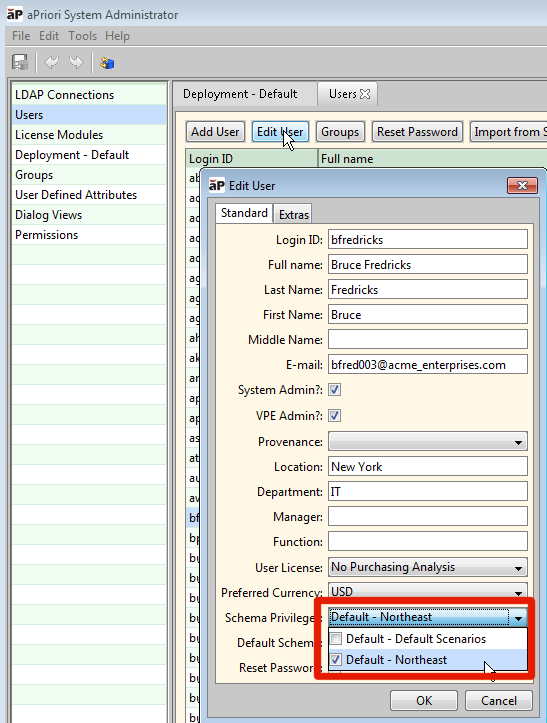
For general information about component schemas, see the "Managing Deployments" section of the aPriori System Administration Guide.
-
Access Control permissions: If your deployment has implemented aPriori Access Control, you must also ensure that your logged-in user is able to add, modify, and delete aPriori users, typically by being a member of the System Administrators group and having update permissions for Access Control groups (there are no specific Access Control permissions related to users). For general information about Access Control, see the "Access Control" section of the aPriori System Administration Guide.
-