Data Sources
aP Analytics connects to two aPriori data sources:
- aPriori Operational DB
- aPriori Reporting DB
The aPriori Operational database contains the data for scenarios that have been uploaded to or Cost in aPriori applications such as aP Pro or aP Design.
For more information, see the aP Pro User Guide and the aP Design User Guide.
The aPriori Reporting database contains scenario data that has been exported from the aPriori Operational database by aP Admin. For more information, see the aP Admin User Guide.
To examine properties for an aPriori Data Source
-
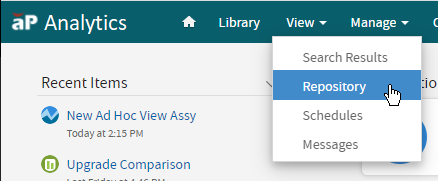
In the aP Analytics menu bar, click View > Repository.
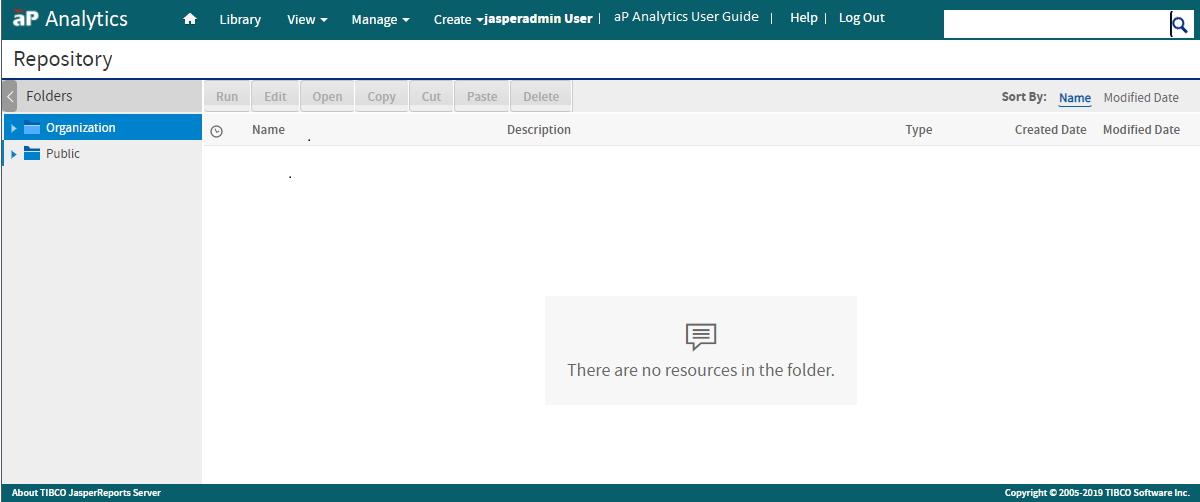
 The Repository opens.
-
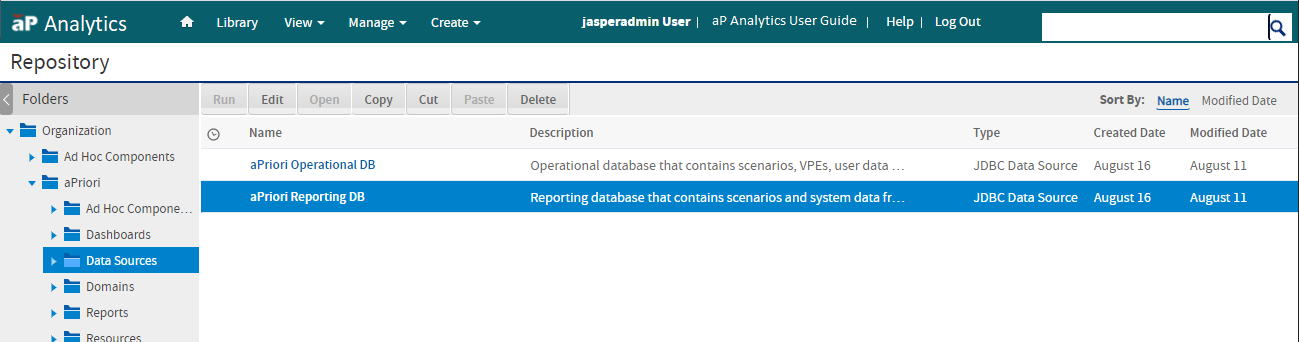
On the left side of the page, in the Folders panel select Organization > aPriori > Data Sources.
The aPriori Operational and Reporting databases appear in the list of Data Sources.
Tip:
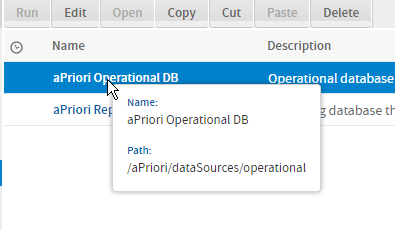
To display a tooltip that includes the path to a data source, hover over the name of the data source.
-
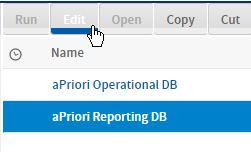
Select the database that you want to examine, and then, in the Repository menu bar, click Edit.
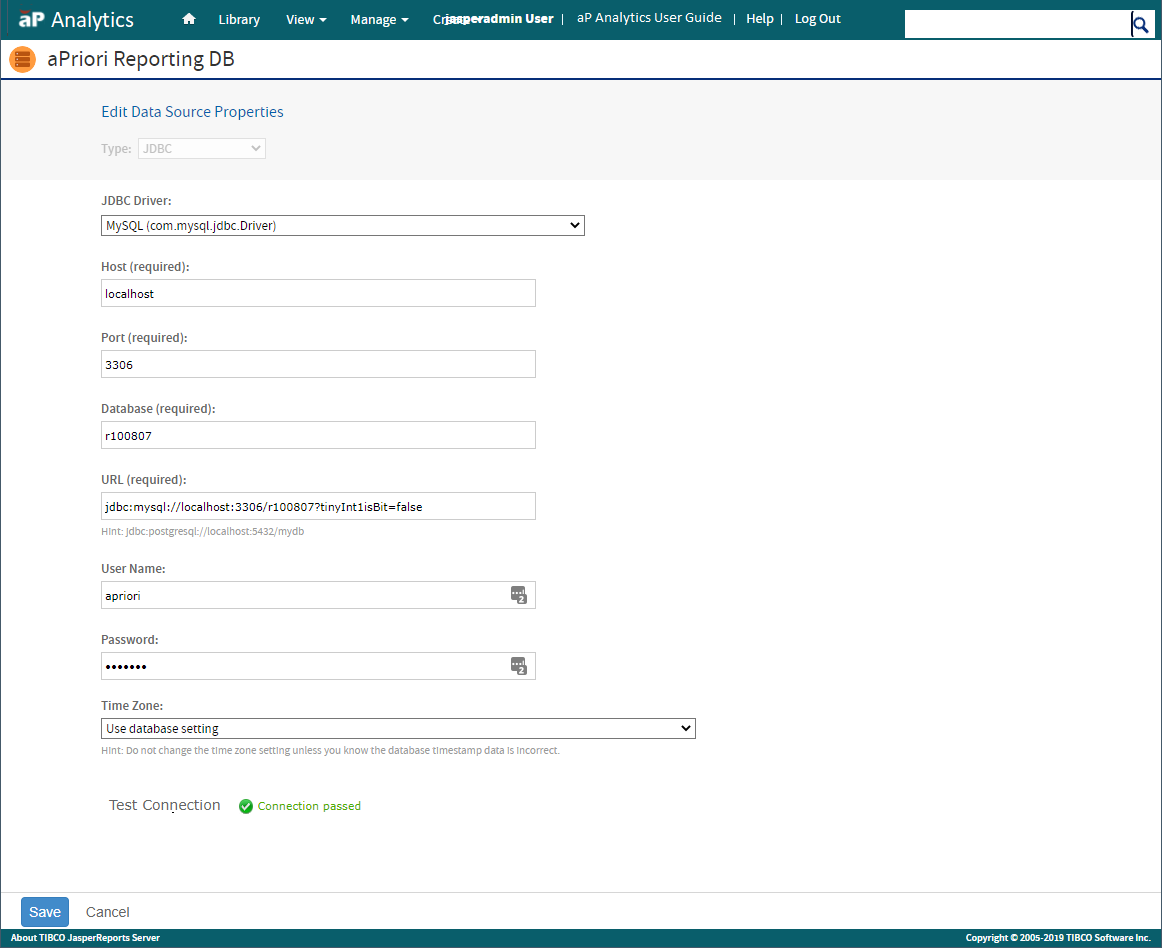
 The Edit Data Source: aPriori window opens. The fields that appear in the window depend on the value that is specified for JDBC Driver.
Caution:
If a property field contains an incorrect value, aP Analytics cannot connect to the Data Source.
The fields that appear depend on the value that is specified for JDBC Driver.
You can examine and update the property values.
You can also and test the connection between aP Analytics and the data source.