Schedule a Sync Job
Once a realm has been created and has been joined by another site, you can schedule jobs to export and import data in the form of component scenarios.
Note:
If you schedule a job to run at a time when another job is also running against the same realm, then the job will abort. Do not schedule a job to run against a realm if another job is also scheduled at the same time to run against the same realm.
To Create the Job
-
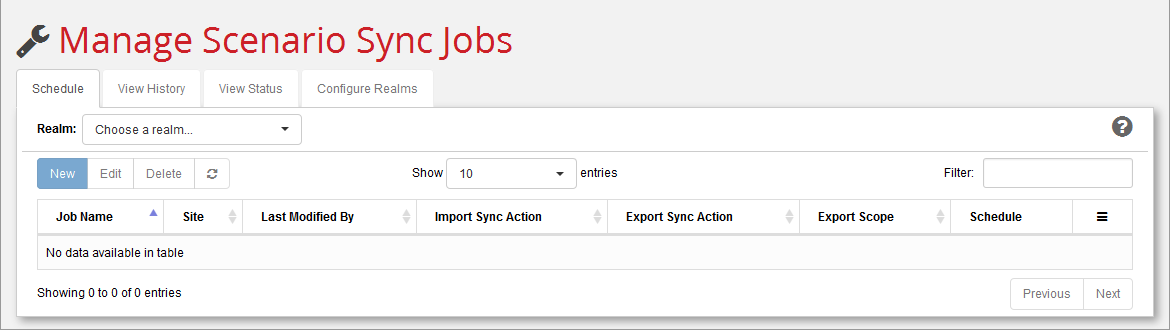
Log in as described earlier and click the Schedule tab.
-
From the Realm: pull-down menu, select the realm through which to synchronize the data.
- Click New to display the New Sync Job dialog.
-
Provide values for this dialog:
Name: Description: Comment: Job Name: A unique string identifying this job. For example: "nightly_update" Site Name: A selection from the pull-down menu. This is the site where the job will be executed. Component Schema: A selection from the pull-down menu. The items on this menu are defined by an administrator with the Source Schema Options setting at install time. See the “Enterprise Platform Installation Guide” for more information. Import: Action: Update and/or Delete Select one, both, or neither. At least one box must be checked for either Import or Export. For more information about Update and Delete, see How synchronize works. Export: Action: Update and/or Delete Select one, both, or neither. At least one box must be checked for either Import or Export. For more information about Update and Delete, see How synchronize works. Export Scope: Scope: All or Dynamic Rollup Only visible when an Export action is selected.
All: all scenarios saved since the last export will be exported.
Dynamic Rollup: Use the rollup specified in the next field to determine which components to export. This is a technique to control which specific component scenarios get exported. Note: Dynamic roll-ups do not support the scenario Delete feature introduced in Release 16.2.1.
If you always want to export all scenarios, just select All.Rollup Name: Name of the dynamic rollup used to specify which components to export. Only visible when Dynamic Rollup Export Scope is selected.
Note: If a named dynamic rollup is specified but does not exist, the synchronization process aborts.Scenario Name: The scenario name of the dynamic rollup being used for export. Only visible when Dynamic Rollup Export Scope is selected. Required. Deep Export: Check or uncheck. Only visible when an Export action is selected.
Controls how aggregate scenarios are exported.
Enabled (checked): Subcomponents are exported whenever an aggregation changes, regardless of their timestamps.
Disabled: Subcomponents are exported based on their timestamp, regardless of their relationship to the aggregation.Include: Scenarios saved after or Everything Only visible when an Export action is selected.
Scenarios saved after: Use the date and time widget on the next field to specify how far back the initial export should look to find scenarios to export.
Everything: The initial export will export all scenarios that it can find in the database.
Caution:
This could result in an operation that takes a very long time to complete.
Subsequent exports will use the “high water mark” (HWM) set in the initial Everything export.Date/Time (UTC): A date and time from the widget, indicating how far back the export should look to export data. If you set this too far in the past, it may result in the operation running too long. A rule of thumb is to set this no further back than one day.
Note: Times are UTC, not local time.Clean-up Realm: Scope:
Scenarios exported by this site(default)
Scenarios exported by any site
No Clean-upUse this field to specify whether this site is responsible for cleaning up old exports only from this site, from all sites, or not at all.
This is a performance option that allows you to off-load automatic clean-up responsibilities from slower systems with high latency to faster machines with low latency. See Clean-up completed exports
By default, a given site is responsible for removing files exported by that site. The process identifies any successfully completed exports by comparing the EXPORTED and IMPORTED flags for a given scenario. If a scenario with an EXPORTED flag displays IMPORTED flags for all the other sites in the realm, this indicates that the synchronization has successfully completed for all sites, and the folders related to that export are purged.
Note: If you are unsure of what you should select here, leave it set to the default value (Scenarios Exported by this Site).Frequency: Once or Repeat Once: The job will perform a single import and/or export operation and never run again. You might want to use this when first setting up and testing a job. You can use the Execute Now button to manually start jobs, and then change to a Repeat schedule once things are working the way you want.
Repeat: The job will continue to run on the schedule specified by the following settings.Date/Time (UTC): A date and time from the widget, indicating when the job should begin. Only visible when Frequency is set to Once.
Note: Times are UTC, not local time.Time (UTC): A time from the widget, indicating when the first in a series of repeating jobs should start, based on the selected interval (see below). Only visible when Frequency is set to Repeat.
Note: Times are UTC, not local time.Interval: A selection from the pull-down menu:
Hourly
Daily
Weekly
MonthlyHourly –Run at the frequency specified in the Every field. For example, to run the job every six hours, specify 6 Hours. To run every hour, specify 1 Hour.
Daily --Run once a day. No further settings are required.
Weekly --Run once a week, on the days specified in the Days in Week field. Note: Specifying Weekly and then selecting every day of the week is equivalent to specifying Daily.
Monthly --Run once a month, on the months specified, either on the Last Day of the month or on the Days: specified.Ends: Never or On Never: Job continues to run on schedule for eternity.
On: Set a date in the calendar widget after which the job will no longer run. -
Click Create when done.
- The job appears in the schedule tab and will execute at the specified date and time.
Note:
Remember, the user you are logged in as when you create or modify a sync job determines the user account and privileges that the job will run under when it executes. It is also important to note that if you discover a permissions problem and then address it by changing the Access Control permissions for the user, the next run of the job will still not synchronize the components that were skipped in the previous run, if those skipped components have not been changed. This is because of the way Scenario Synchronization identifies components that need to be synchronized (see How synchronize works). After adjusting Access Control permissions, you must modify the job in some way (or replace it with a new one) to ensure that all eligible components are synchronized.