Adding a machine
-
Open the Digital Factory to which you want to add a machine.
The Digital Factory is displayed in the aPriori Digital Factory Manager. For more information, see Opening a Digital Factory. Expand the process group to which you want to add a machine.
-
Expand the Machines folder.
- Expand the machine type folder for the type of machine you want to add.
-
Right-click the machine type folder and select Create new machine from the context menu to display the New Machine window.
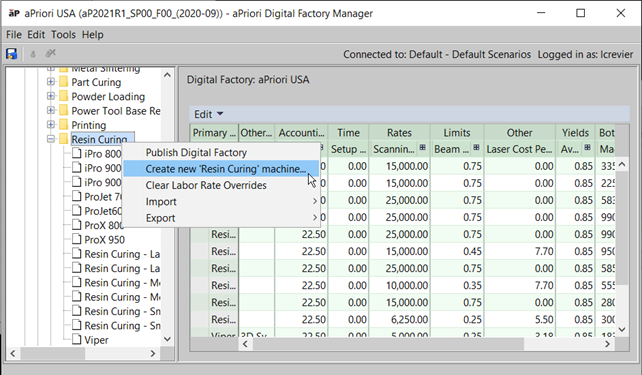
Figure: Adding a machine -
Enter the machine’s name and select the work center. Check Apply Default Values if you want to use the values from the default machine to populate the new machine’s data.
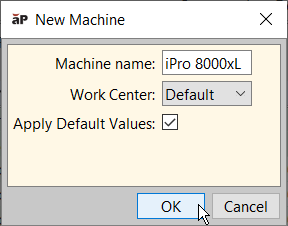
Figure: Add machine details -
Click OK to add the new machine as a new file in the Navigation pane and as a new row in the machine type table in the Data pane.
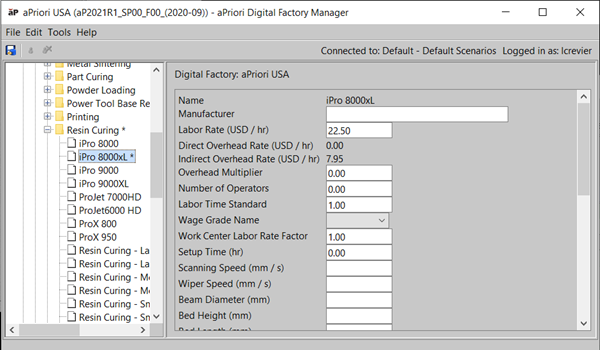
Figure: Add the new machine as a new file 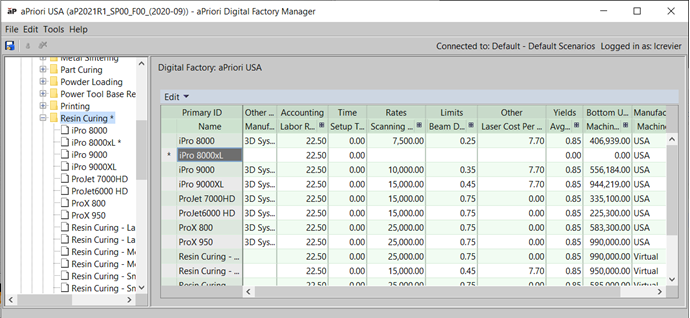
Figure: Add the new machine as a new row -
Click the machine in the Navigation pane to edit the machine’s properties.
If you are editing directly in the table, you can click
 in the column header to expand the column and display its sub-columns. Click
  to collapse the sub-columns.
As you edit, an asterisk (*) appears next to the file in the Navigation pane and next to the row to indicate that there are unsaved changes.
-
To save the changes, click the publish button,
 .
. - In the Success window, click OK.
To add or update a machine field
You can add or update a column in the machine table across all processes in a process group at once, rather than making the same change to each distinct process machine table. This feature is useful if your company wishes to add a column to all machine tables in a Digital Factory, such as “Factory Location.”
- In the Digital Factory Toolset (or the Cost Model Workbench), open a Digital Factory and select the process group you wish to change.
- From the menu bar, click Tools > Add/Update machine field.
- Enter values in the fields in the resulting dialog box and click OK.
- The column is added to the table, but it will not actually be populated with data.
- Select File > Publish Digital Factory from the aPriori Digital Factory Manager menu bar or click
 in the toolbar to save your changes.
 - Input values into the field through the Digital Factory Manager.