Using the bomLoad command
- Open a Windows command window.
- cd to
<aPriori Install folder>``\bin - Enter:
bomLoad <full path to the bomLoad.properties file>
The above example assumes that you are providing <username> and <password> through the properties file. The bomLoad.properties file must have all the required properties specified. Assuming that all supplied properties are valid, all data from the BOM csv file will be pushed to the aPriori database and the corresponding scenario files will be created or updated. The following info will appear in the console:
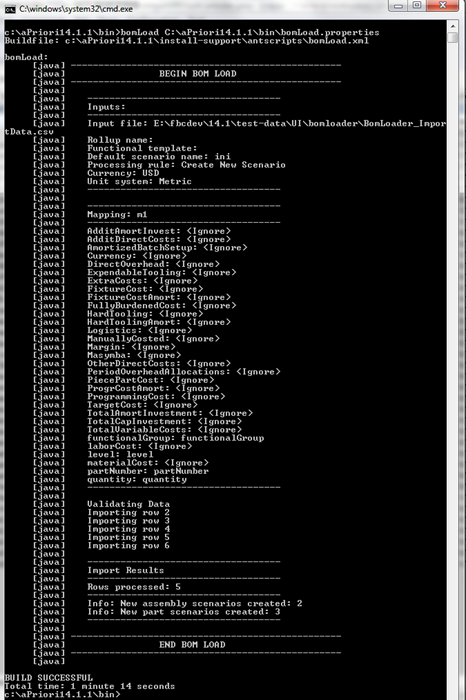
Between the lines BEGIN BOM LOAD and END BOM LOAD lines are four sections:
- Inputs: Contains some of the specified properties in the bomLoad.properties file (follows the same order as the BOM Load UI).
- Mapping: Lists the fields for the specified mapping.
- Validating: Records the progress of each data row import.
- Import results: Displays totals (similar in appearance to the BOM load UI).
If any of the required properties are not specified, an error message with the missing property name(s) is displayed in the console. An example of output for a missing defaultScenarioName property is shown below:
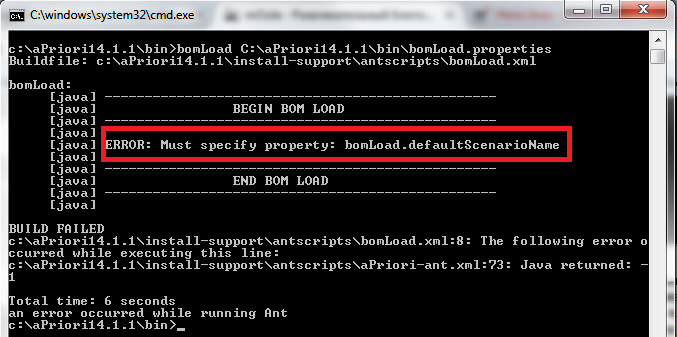
Other messages are displayed for errors such as specifying non-existing mappings or failing to supply a rollupName property for a functional group template.
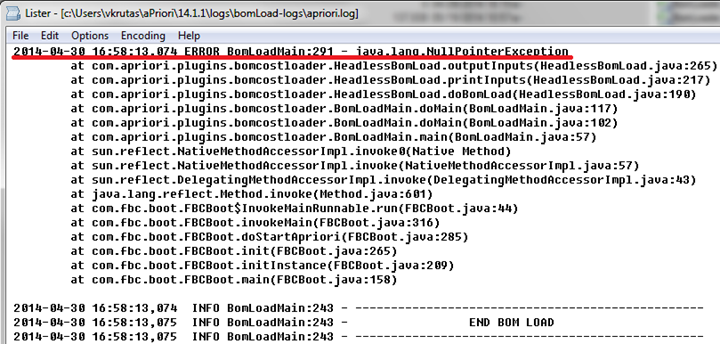
The following screenshot shows an example of the error log file:
<user home>\aPriori\minorVersion\bomLoad-logs\apriori.log