Map BOM Loader Headings
Before allowing your users to cost wire harnesses or PCBAs, you must configure the BOM Loader (see BOM Loader) by mapping BOM column headings to aPriori fields:
- Open the aPriori client and select Tools > Digital Factory Toolset.
- Click the BOM Loader icon. The BOM Loader opens and prompts you to select the file to import.
-
Select a Wire Harness or PCBA
.csvdata import file (not the component library file).For a new installation, this might be a demo file created for you by aPriori Professional Services with a name like
WIRE-HARNESS-001 - formatted.csv, delivered in a folder with a name like Wire Harness Demo Data. -
If this is the first import done on your installation, the aPriori BOM Loader prompts you to enter a mapping name. Provide a descriptive name such as "Wire_Harness" (or “PCBA”).
-
Ensure that this checkbox is checked in the upper-right corner.

-
One by one, click the aPriori Field cell for each Input File Column header and select the appropriate plain-English display name as shown in the screenshots below. (Different BOM versions may use different naming conventions, such as underscores vs spaces and initial caps.)
Wire Harness mappings:
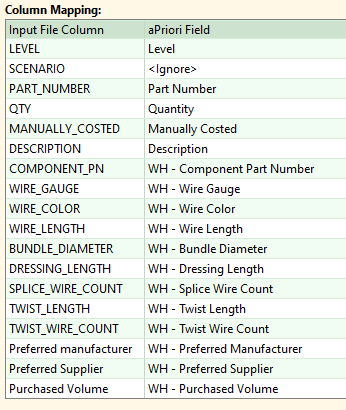
Figure: Column mapping PCBA mappings:
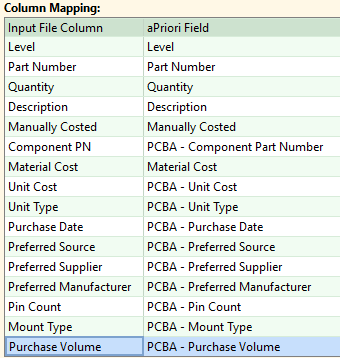
Figure: PCBA mappings -
Click the Save Changes icon in the upper-left corner when done.