Creating a new Digital Factory
The Digital Factory Manager allows you to create a new Digital Factory by copying an existing Digital Factory. This is the recommended method to create Digital Factories - see Copy a Digital Factory.
However, you can also create a new Digital Factory entirely and then add process groups manually.
Note:
Creating an entirely new Digital Favtory is not a recommended process, unless directed by aPriori.
-
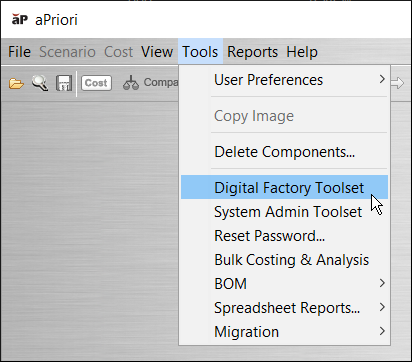
If the Digital Factory Toolset is not already open, in the aP Pro menu bar, click Tools > Digital Factory Toolset.
-
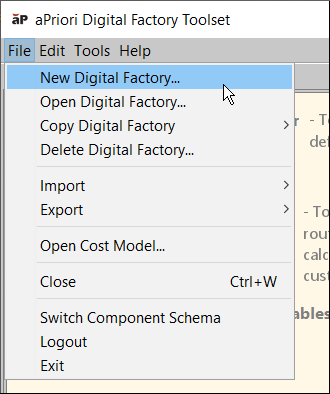
Select File > New Digital Factory from the Digital Factory Manager menu bar to display the New Digital Factory window.
-
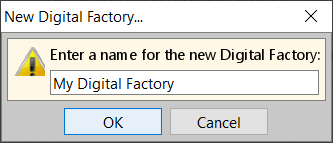
Enter a unique name for the new Digital Factory and click OK to create the Digital Factory and open it the aPriori Digital Factory Manager.
Note:
Digital Factory names must be unique and cannot include percentages, hyphens, slashes, or ampersands
(%, -, /, &). -
Optionally click the top entry in the navigation pane (the new Digital Factory name) and scroll to the bottom of the screen. Enter a unique type name for this Digital Factory. Although optional, this may be useful for creating Access Control statements to determine who has or does not have access to this Digital Factory. For example, you may want to ensure that only European users have access to this new Digital Factory. By creating a type called DF_EU_ONLY, a System Administrator could use the Permissions tab to create a rule that prohibits North American users from accessing this Digital Factory. (The default Digital Factory Type for basic aPriori-provided Digital Factories is “Regional Data Libraries”.)
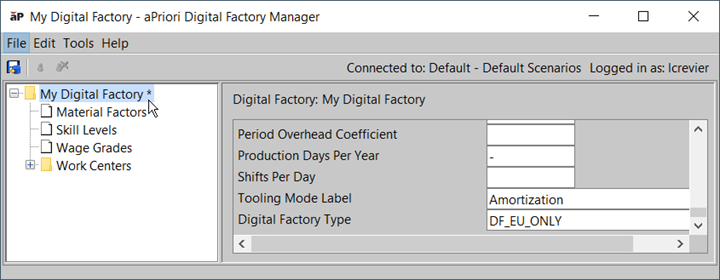
Figure: Adding Digital Factory values -
Optionally edit any of the other fields on this page to reflect the requirements of this new Digital Factory.
-
Right-click the name of the Digital Factory, select Add ProcessGroup from the context menu, and select the process group you want to add.
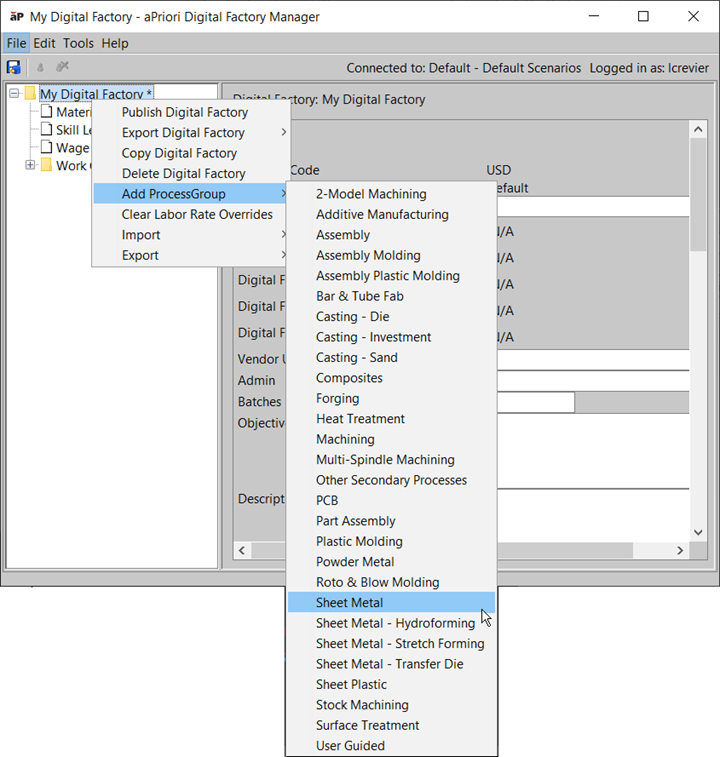
Figure: Add process group -
In the Add ProcessGroup window, click Yes.
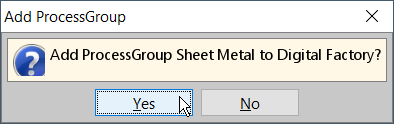
Figure: Confirming adding the process group -
In the Select baseline version window, select the version of the cost model to use for the process group and click OK to add the process group to the Digital Factory.
As a best practice, unless you want to use an older version, select the most recent version, that is, the one with the highest number.
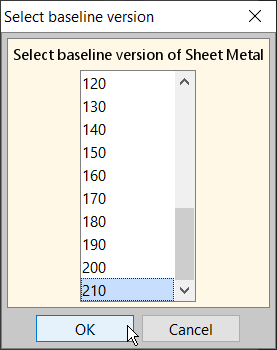
Figure: Selecting the baseline version The added process group appears in the navigation pane.
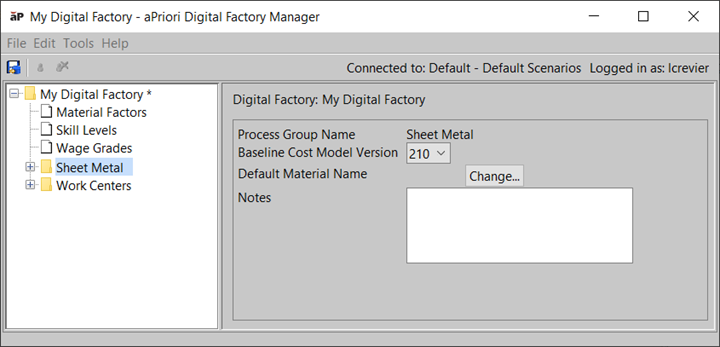
Figure: Process group in navigation pane -
Repeat steps 4 and 5 for each process group you want to add.
-
When done, click the Publish icon (
 ) to save your changes.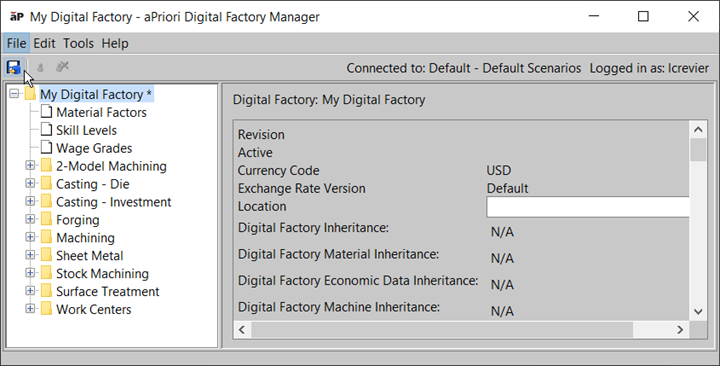
Figure: Clicking publish icon to save changes -
In the Success window, click OK.
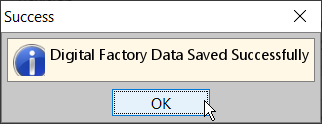
Figure: Saving Digital Factory -
Close the newly created Digital Factory.
-
In the Digital Factory Toolset, click the Digital Factory Manager.
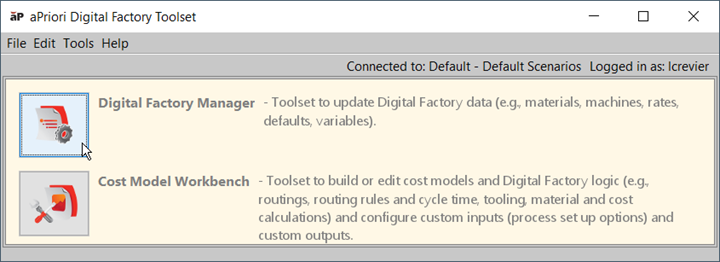
Figure: Digital Factory Toolset The new Digital Factory now appears in the list in the Select Digital Factory window.
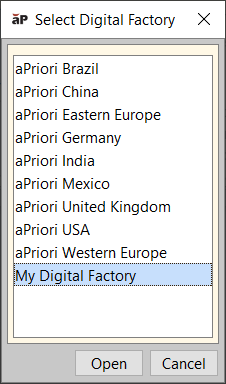
Figure: List of Digital Factories