Work with both Materials and Stocks Using a Spreadsheet
- Expand the process group to which you want to add materials.
-
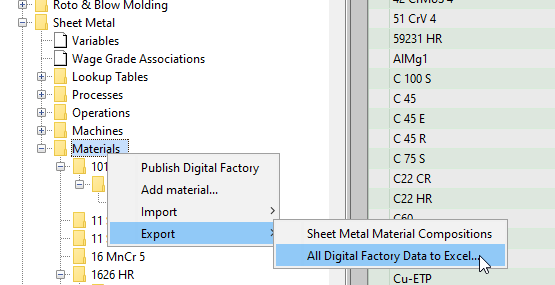
Right click Materials and select Export > All Digital Factory Data to Excel.
-
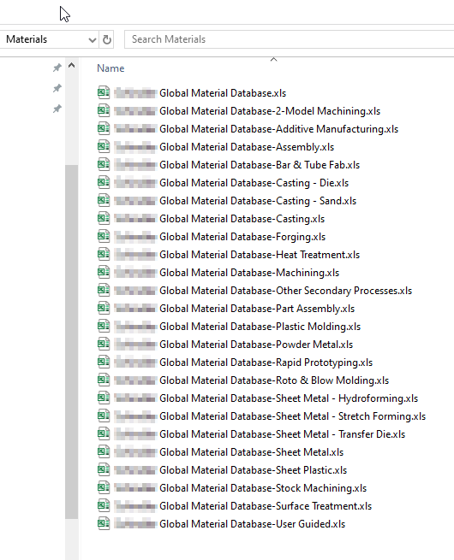
Save the exported CSV files locally, in a dedicated directory. Many files will be exported.
-
Navigate to the spreadsheet for the process group that you want to update.
-
Open the spreadsheet in Excel and make the required updates.
If you need to update stock sizes for a particular sheet metal material; navigate to this material in the spreadsheet and look for the blank cells below it.
Scrolling to the right will show the available stock sizes, update and add as necessary.

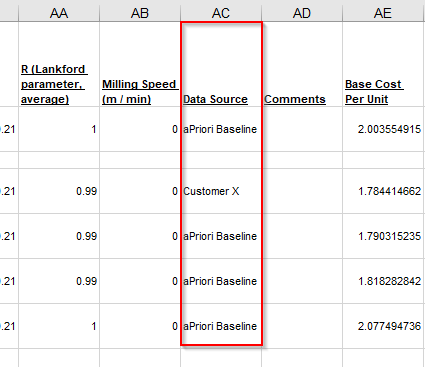
When adding company specific material make sure to update the Data Source as the company name.
-
Delete all rows that you have not updated. The material for any row that is not deleted will no longer inherit from its associated baseline material, once the spreadsheet is imported.
One way to filter aPriori baseline materials from custom materials is to filter by the Data Source column.
-
Delete all spreadsheet tabs except the Materials and sheetIndex tabs.

-
On the sheetIndex tab, delete all rows except the materialType row.
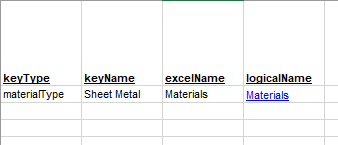
-
Save and close the spreadsheet.
-
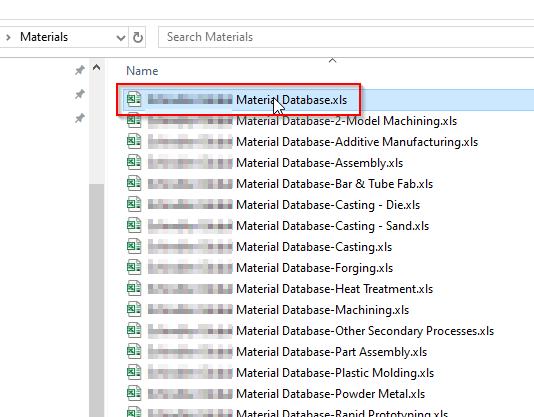
Open the spreadsheet whose name is simply the Digital Factory name (with no process group name).
-
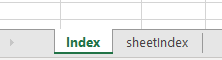
Delete all tabs to leave the Index and sheetIndex tab.
-
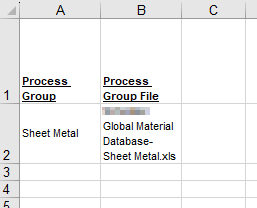
On the Index tab, delete all the process groups except the one you have updated.
-
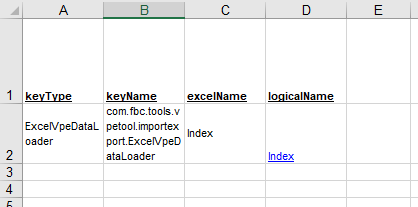
On the sheetIndex tab, delete all rows except the one containing ExcelVpeDataLoader.
-
Save and close the spreadsheet.
-
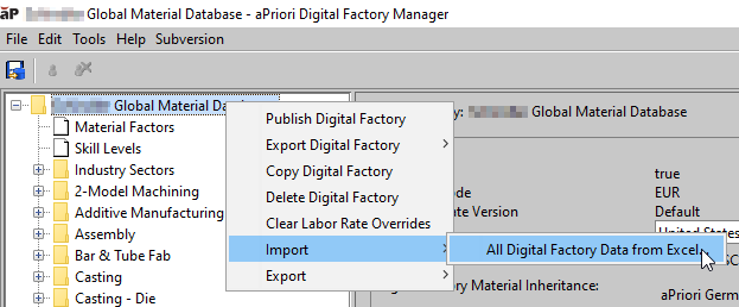
In the Digital Factory Manager, right click the Digital Factory top-level node, and select Import > All Digital Factory Data from Excel.
-
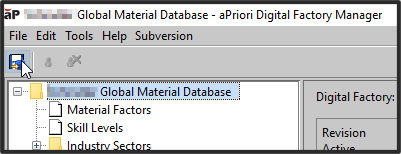
Click the Publish icon to save and publish your changes.