Electronics Data Collection
You can optionally use aPriori's Electronics Data Collection (EDC) service to collect data for electronic components in your PCBA or Wire Harness, giving access to live information and costing data for more than a billion manufacturer part numbers across thousands of suppliers.
EDC integration requires a subscription to the third-party Silicon Expert Technologies Webservices - for details, please contact your aPriori account team
Tip:
See the PCBA - How to setup Electronic Data Collection (EDC) Knowledge Article for setup instructions.
EDC fits into the PCBA and Wire Harness workflows as shown below:
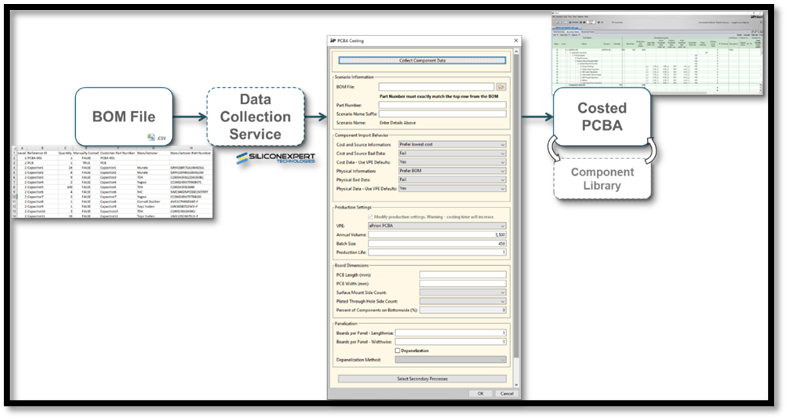
Using EDC
Important:
You must have your login details for EDC; these are separate from your aPriori login details.
To access EDC information for your BOM, you can login to EDC directly, or collect data during the cost process.
Note:
You must format your BOM before using EDC - see PCBA BOM Formatting and Wire Harness BOM Formatting.
Access EDC with Direct Login
You can log in directly:
- In your browser, enter your Electronics Data Collection URL.
-
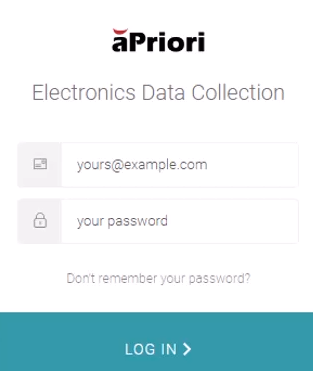
Enter your credentials when prompted:
-
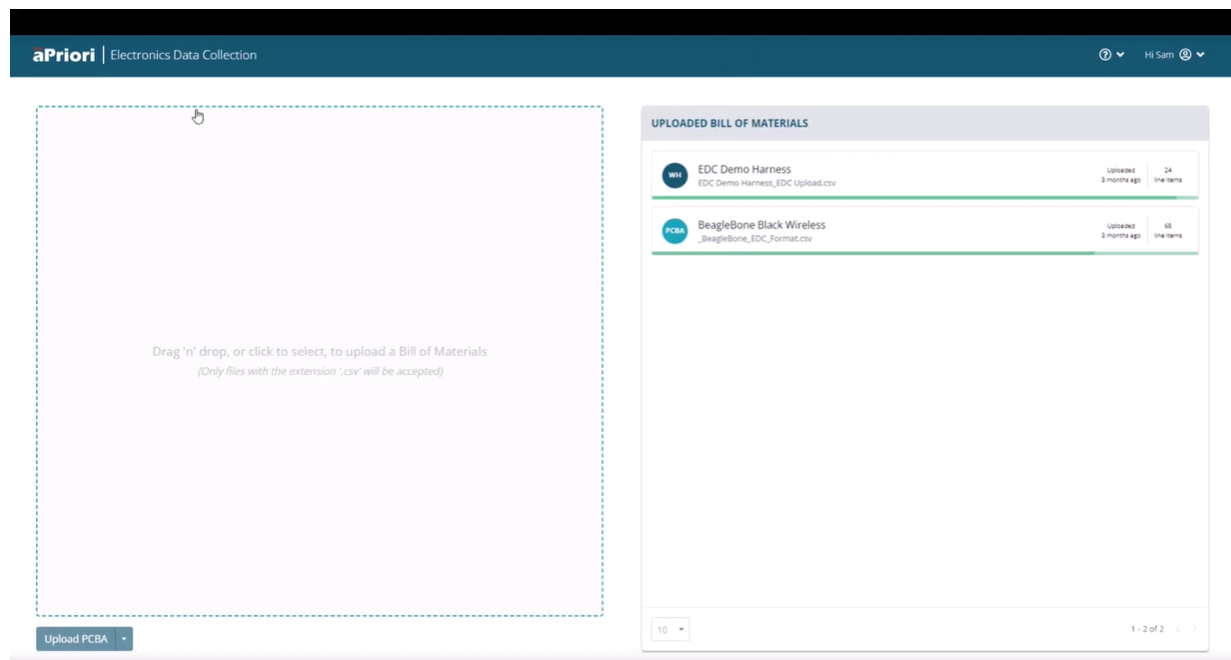
This will load the EDC interface:
-
From here, select the BOM file CSV and drag it into the drop area, and click Upload PCBA or Upload Wire Harness..
- aPriori will then step through each of those individual components within the BOM file and extract all the relevant information from the Silicon Expert connection.
- You can then use the EDC Dialog - see Use the EDC Dialog
Access EDC When Costing
After importing the PCBA or Wire Harness BOM, but before costing, you can proceed to data collection during your costing process.
Note:
To use EDC, your imported BOM must have the columns Customer Part Number, Manufacturer Part Number, Level, and Quantity defined and populated.
For example, for PCBA, click the Collect Component Data button in the PCBA Costing dialog (see Cost a PCBA):
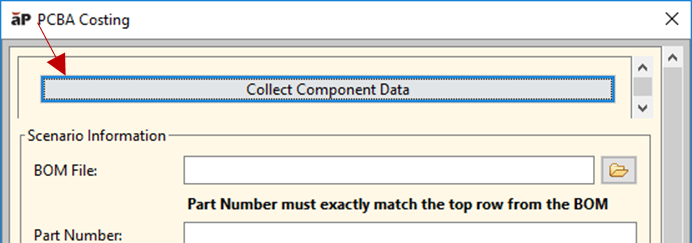
You will then see the EDC Dialog - see Use the EDC Dialog.
Use the EDC Dialog
The EDC dialog shows the BOM components on the left, and the matches found by SiliconExpert on the right:
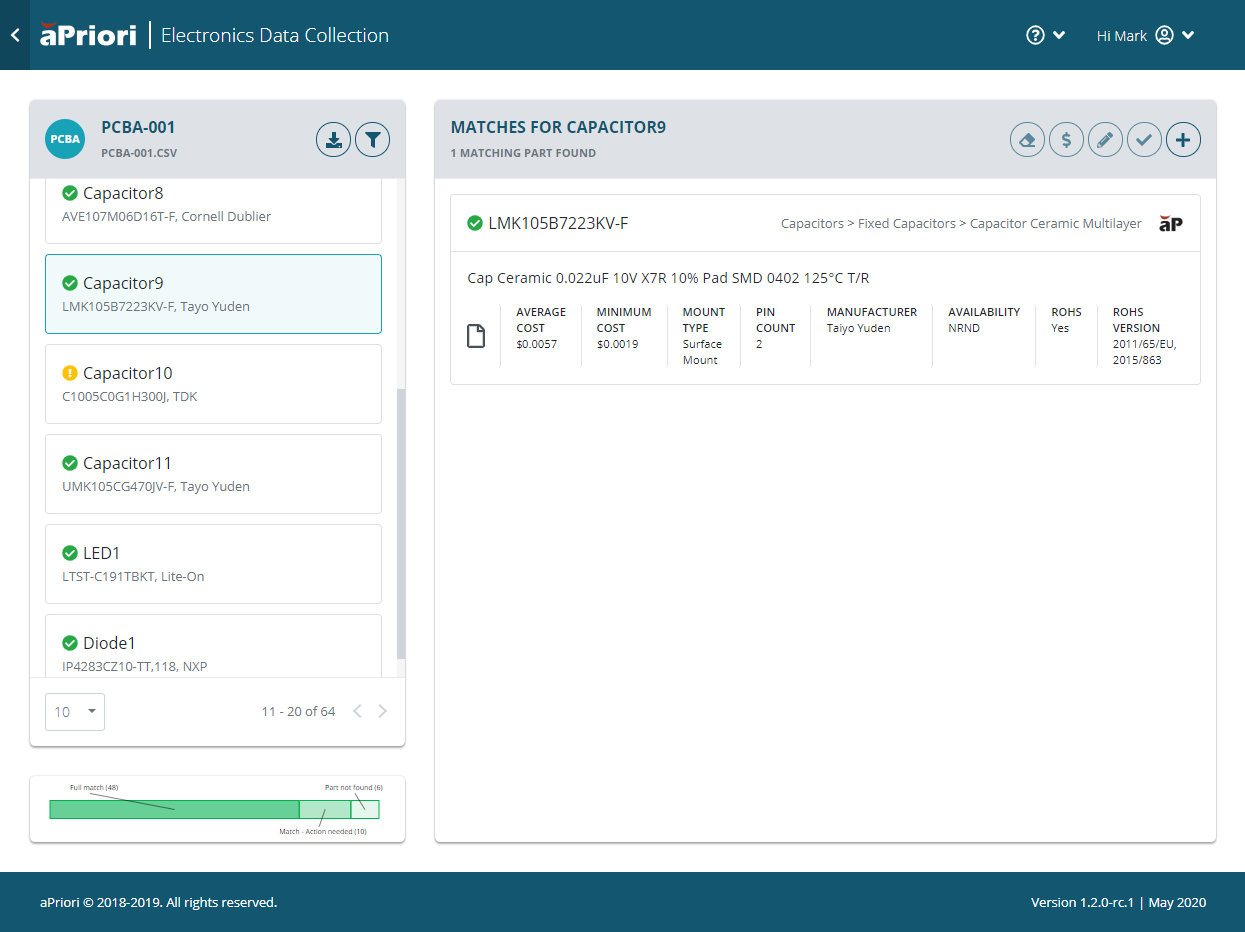
If there is a single match for a component, the cost information is automatically retrieved and displayed for that component.
- A green tick check mark indicates that aPriori found all the required information for that component.
- A red icon indicates that no matching manufacturer part number could be found.
- An amber exclamation point indicates not all information has been found; for example, if a component found is missing cost information, or if there are multiple matched manufacturer part numbers.
To take further remedial action for items marked with amber icons:
- If you know the cost for a component that does not have cost data available, select the component, then click the Edit icon and supply this information.
- If you know that you will be replacing the obsolete or non-existent part and have a general estimate for the part cost, click the Add button to create a custom part and provide all of your own information.
- You can leave the component as-is and cost in aPriori, potentially referencing data from the component library if it exists.
Filtering Results
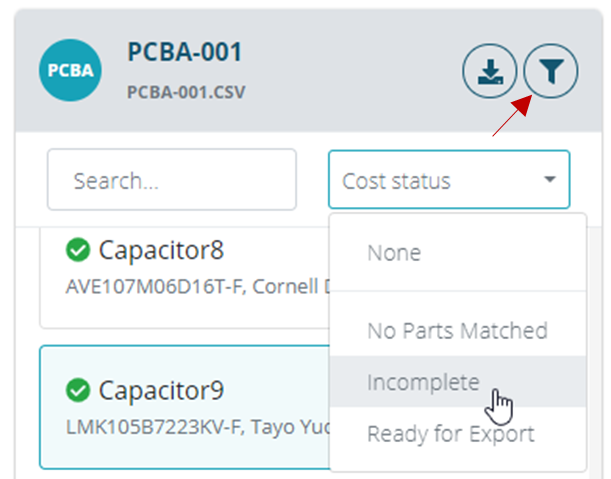
You can use filters to focus on components that require specific actions, such as Not Costed, parts that require some action based on matched part(s), or Cannot Cost, parts that had no match in the SiliconExpert database.
Click the filter button to filter results:
Export the BOM
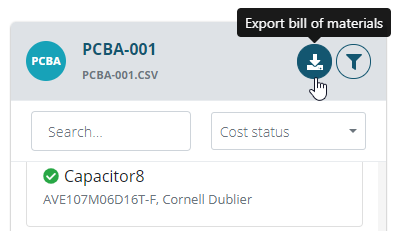
After you analyze the BOM and provide any manual data needed, export the updated BOM for costing in aPriori, by clicking the Export icon.
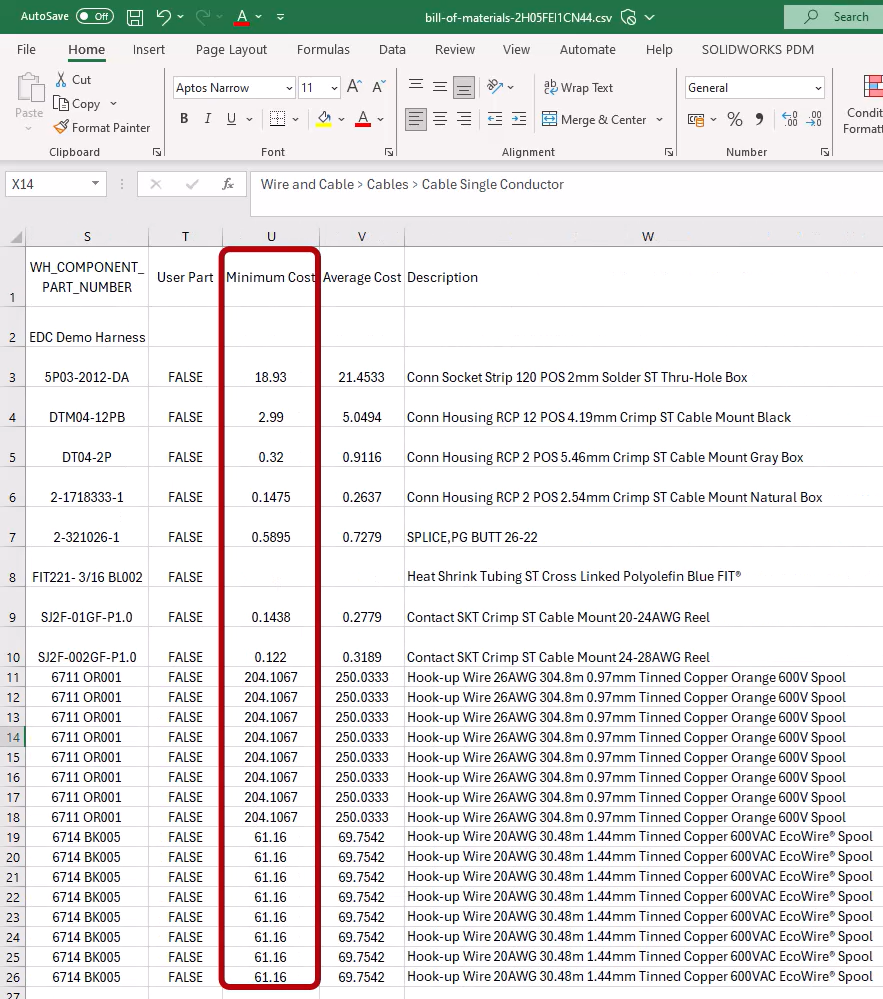
This then takes the original BOM and adds all the new information as additional columns - for example:
After the new BOM has been imported in aPriori, you can define what information aPriori should use via the Component Import Behavior section of the PCBA (or Wire Harness) Costing Dialog - see PCBA Costing Dialog Parameters .