Managing Single sign-on (SSO) options
Automatic login to aPriori allows users to authenticate once and thereafter start aPriori without the need for re-entering the user name and password, for as long as the authentication is valid. aP Pro provides two approaches to automatic logins:
- Through LDAP authentication with Kerberos (see LDAP authentication)
- By enabling the Allow Single Sign On checkbox at the top of the aPriori System Administrator Users tab (see the rest of this section)
aPriori SSO requires that your environment uses Active Directory with Kerberos authentication caching enabled (typical for a modern Windows environment).
To enable or disable SSO, use the Allow Single Sign On checkbox at the top of the Users tab. This setting is enabled (checked) by default.
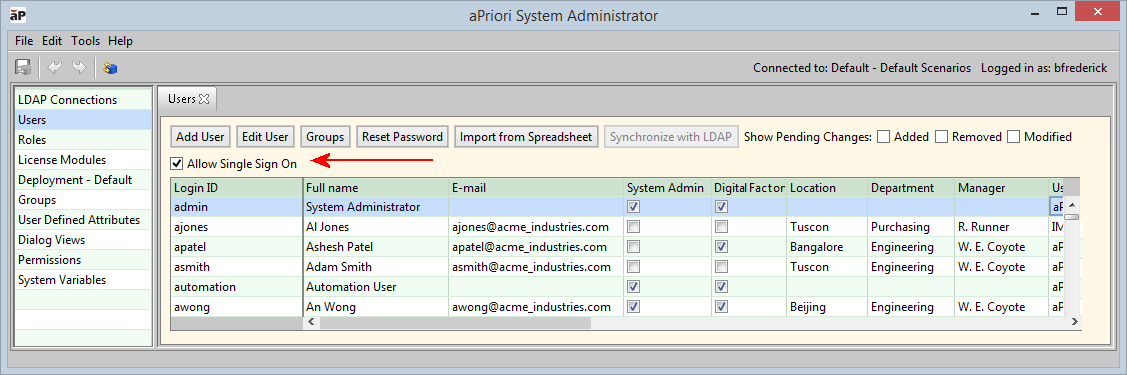
When SSO is enabled, the exact behavior your users will see when starting aPriori depends on how they log into your company’s authentication environment. Here are three common environments:
- Domain Login: The user logs into their laptop (working from the office, or at home and logged into the company’s VPN). In this case their credentials are validated using Windows Authentication (Kerberos + Active Directory). When they start aPriori it uses their cached credentials which are retrieved from the Windows Operating System. aPriori uses this ID to find a valid cached Kerberos ticket and then it validates that the user is a licensed user in the aPriori user database. This works if the user’s aPriori login id matches their Windows username.
-
Local Login: The user logs into their laptop (working at home but not logged into the VPN). In this case their credentials are authenticated by the local system using the SAM (Security Accounts Manager). When they try to start aPriori, it will not find a valid Kerberos ticket. The aPriori login screen appears and the user is required to enter their username and password.
Note:
There are situations where a user can log in successfully as an SSO user to aP Professional even when disconnected from the VPN and fully disconnected from the network. If they had connected earlier and obtained a valid Kerberos ticket (and their DB is local to their install), they may be able to login in again without connecting through VPN if the ticket has not yet expired (typically 10 hours).
-
Remote Login – The user uses Remote Desktop Connection to log in to another computer or VM within the company’s firewall. In this case the remote system is on the internal network and the credentials the user enters when logging in remotely will be authenticated through the domain controller. This behaves the same as Domain Login above: when the user starts aPriori, they do not need to re-enter their credentials.
Note the following:
Remote Desktop users should sign off rather than disconnect from the Remote Desktop Connection. A disconnect can result in zero cached tickets for the next login to the Remote Desktop, causing SSO to behave unexpectedly for the user.
You should educate your users that when they work remotely, they must be logged into the company VPN or else they will typically need to enter their aPriori credentials. This can be confusing to users who only rarely work remotely, since they typically do not need to enter aPriori credentials and may not even remember them when they are unexpectedly prompted for them.
Single sign-on debugging
To help with problems when configuring Single sign-on, you can increase the level of SSO-related messages that are recorded in the logs by uncommenting the following line:
in the following file:
aPriori strongly recommends that you do so with the assistance of aPriori Customer Support.
Single sign-on and aPriori Command Line Utilities
Single sign-on also applies to the aPriori following command line utilities:
- Bulk Costing
(bulkLoad.cmd) - BOM Loading (
bomLoad.cmd) - Client Compatibility Updater
(updateCompatibleVersions.cmd) - Doc Cache Cleaner (
cleanDocCache.cmd) - Doc Cache Updater (
updateDocCache.cmd) - Watch Point reports (
runAprioriReport.cmd)
In general, when Single sing-on is enabled, these scripts will attempt to use the signed-in Windows user credentials, unless you override this behavior by providing the credentials on the command line or in a relevant properties file.
The order of precedence for using credentials is:
- Command line arguments.
- Stored in the relevant properties file (if applicable).
- Signed-in Windows credentials from SSO.
If you are upgrading to a release that uses SSO and you have existing command line scripts, you must review them and determine the following:
- You want or need to remove current credentials to make use of SSO.
- You need to reorder the position of existing credentials on the command line as order may have changed as part of the implementation of SSO.
See the aP Pro Installation Guide for upgrade details.