Load a License
Systems Administrators must import an aPriori license file into your aP Pro client, if your current license is set to expire or has been modified to include additional features.
Note:
This workflow applies to on-premise customers, aPriori manages loading of license updates for aPriori-hosted cloud customers.
Load a License
To load a new license:
- Click File > Load License File from the System Administrator menu bar to display the Select a license file to load window.
-
Navigate to the folder containing your license file, select the file, and click Open.
The license file is added to your environment and is displayed in the User Licenses list.
-
For Enterprise Platform users, there are some additional steps - see Enterprise Platform License Update.
-
Assign users to the license. See Change a User License.
Select File > Publish Changes on the System Administrator menu bar or click
 in the toolbar to save your changes.
Tip:
Click on License Modules to check and review the contents of the new license - see View Detailed License Information
Enterprise Platform License Update
If you also use the Enterprise Platform (aP Admin and aP Analytics), you must restart the services associated with the aPriori Enterprise Platform installation, to avoid errors being produced.
Note:
You may need to ask your IT or DBA team to assist with this process.
- After loading in the license into aPriori Professional, but before any Enterprise Platform export jobs are scheduled to process, log into the machine, or VM, that hosts your Enterprise Platform installation.
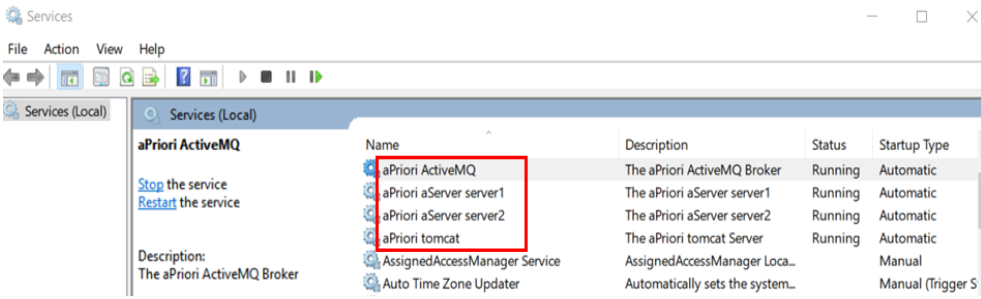
- From the machine's Start menu, search for Services (gear icon) and open it.
-
In the new window, locate the aPriori services, such as aPriori Active MQ, aPriori aServer server #, aPriori tomcat. You will typically have 2-3 servers installed). For example:
-
Restart each service by right-clicking on the service name and selecting Restart.