Introduction to Exporting Digital Factories
You can use the Digital Factory Manager to export:
- A single Digital Factory; for example, when moving a modified Digital Factory from a testing environment into production. See Export a Digital Factory.
- Selected Digital Factory data to a spreadsheet (site variables, processes, Digital Factory data from Excel); for example, to re-use data from one Digital Factory in a different Digital Factory. See Export Digital Factory Data to a Spreadsheet.
- Multiple Digital Factories; for example, installing an RDL (Regional Data Library) update. See Export Multiple Digital Factories.
- From the command line — see Export from the Command Line.
- Site Variables — see Process Group Site Variables
Note:
You can then import an exported Digital Factory, or import selected exported data — see Import Digital Factories.
Use Export Menu Options
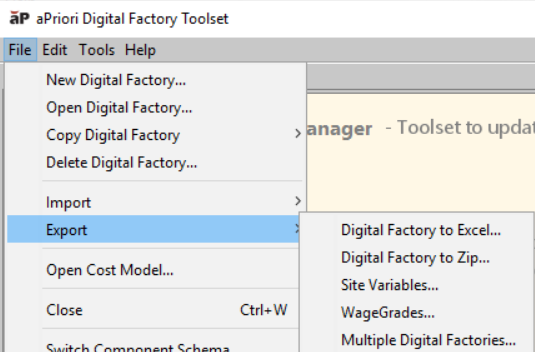
To view export options, open the aPriori Digital Factory Toolset, then select File > Export:
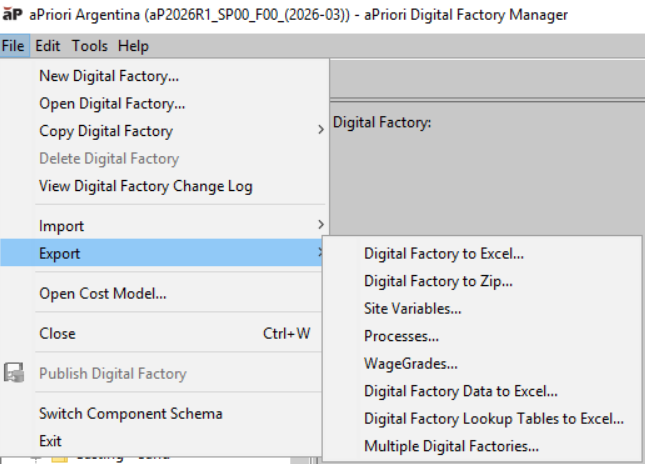
Additional export options are available from this menu option after you open a Digital Factory:
Exporting Digital Factories in aP Pro Cloud
If using aP Pro Cloud, Digital Factory exports may be slow or fail if you export a Digital Factory zip file to your Home folder; this is because a background synchronization operation cannot handle large numbers of temporary files created using this option.
To avoid these issues, export to the Temporary Files folder instead.