View Scenarios
In aP Pro, each scenario appears in a separate tab:
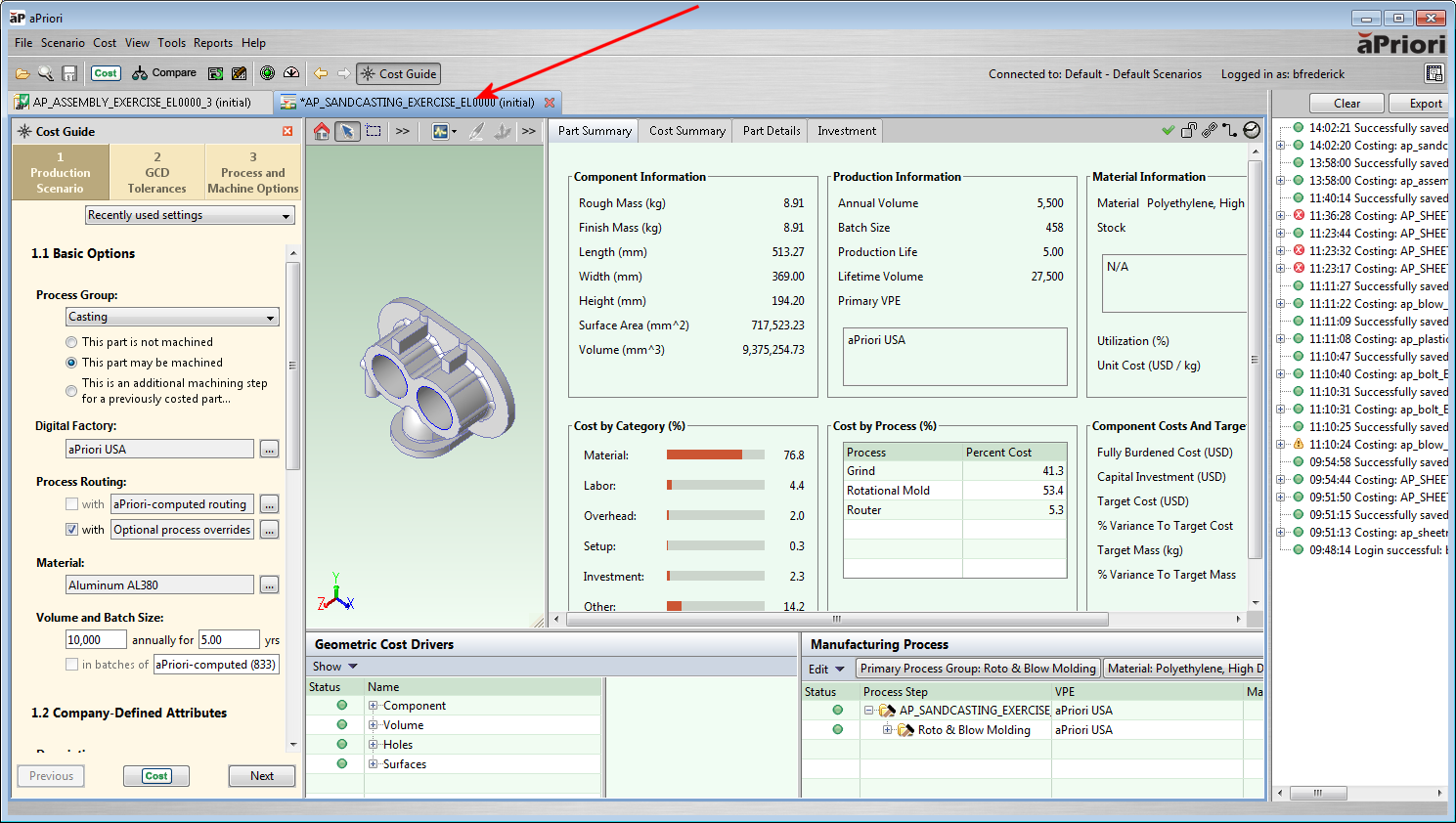
Each scenario tab includes the following
- Cost Guide: see Analyze Components with the Cost Guide.
- Component Viewer: see Use the Component Viewer.
-
Component Scenario tabs: shows detailed analysis results in tabs including the Design Guidance, Sustainability, Cost Summary, and Part Details tabs. See Review Analysis Results.
The clock icon indicates whether the displayed cost outputs are current:
- The current icon
 indicates that the component has not been modified since this cost was calculated.
 - The stale icon
 indicates that the component has been modified since this cost was calculated.
- The current icon
-
Manufacturing Process pane: allows you to examine and modify the current process routing, operation assignments, and machine selections. See Review Manufacturing Process Information.
- Geometric Cost Drivers pane: displays the Geometric Cost Driver (GCD) hierarchy for the current component. Allows you to examine and, in some cases, edit GCD properties. See Edit Geometric Cost Drivers.
- Message pane: appears on the right of the window, and displays information from aPriori as it evaluates the feasibility and costs associated with alternative ways of manufacturing the component. Click View > Show Messages to display or hide this pane.