Saving an exchange rate version
You can save historical exchange rates for later use. The recommended workflow is to update the Default currency table so that it is always up to date. Whenever you update the Default currency table, make a copy of it and give the copy a descriptive version name so that it can be identified and used at a later time. For example, to add a new currency code, modify an exchange rate, and save these changes in a new version table:
- Display the Deployment Data Administration window as described in To start the Deployment Data Administration tool.
-
Click Currency in the left column, and make sure that Default is displayed in the pull-down menu.
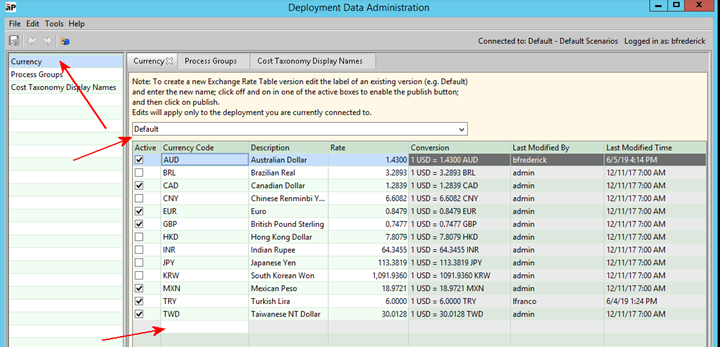
Figure: Add a new currency code -
To add a new currency code, double-click the first open Currency Code field at the bottom of the existing table.
In this example, we will add “MYR” for the Malaysian Ringgit, which as of this writing has an exchange rate of 4.18. We will also update the Turkish Lira from 6.0 to 5.74. When done, Publish the table so that the Default table now has the most up-to-date information.
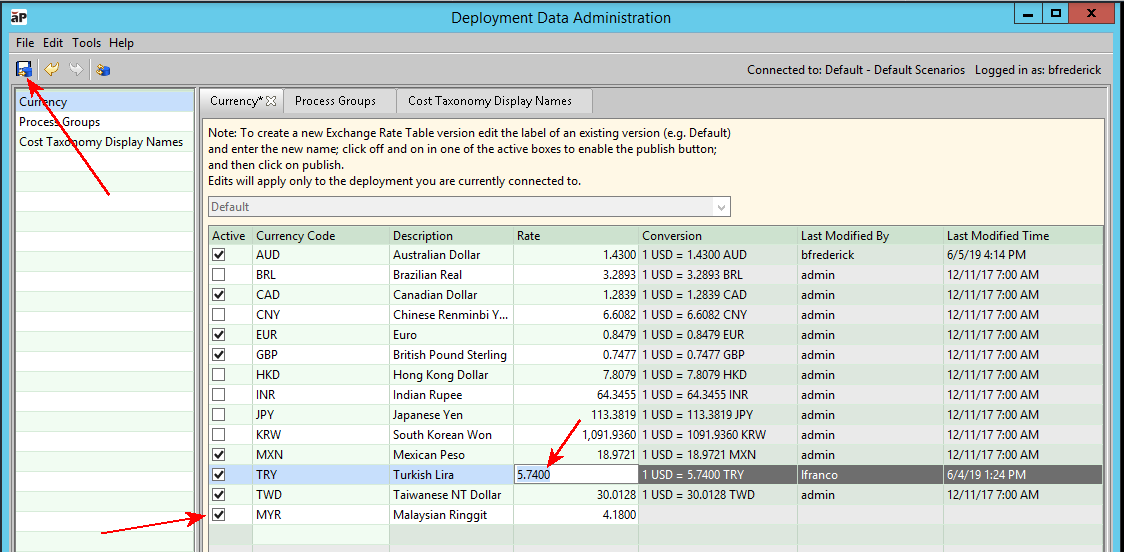
Figure: Adding and updating currencies -
When the Publish action completes, click in the Default field and edit the name to something that indicates what version the new copy will represent, such as a date like “2019_JUNE_05_a”. To enable the Publish button again, you must make an innocuous change to the table, such as toggling a currency off and then back on again. Click Publish. When done, “Default” and “2019_JUNE_05_a” will be identical, until the next time you update the Default table and create a new version copy.
Saved exchange rate versions are currently accessible only to the aP Pro client and aP Analytics. They are not yet available to Manually Costed process groups, Bulk Costing, or aP Design.