Creating an XML mapping file
When you identify the CAD properties that you want to map and identified or created the aPriori attributes to map to, you must create the XML mapping file to define these pairings.
Important:
It is critical that you use an XML-cognizant editor such as Notepad++ that can help you catch syntax errors while editing this file. You can also try to display the edited file in a browser to catch typos and errors prior. See Troubleshooting for more information.
- Create an XML mapping file in an editor that recognizes XML.
-
Following is an example mapping file:
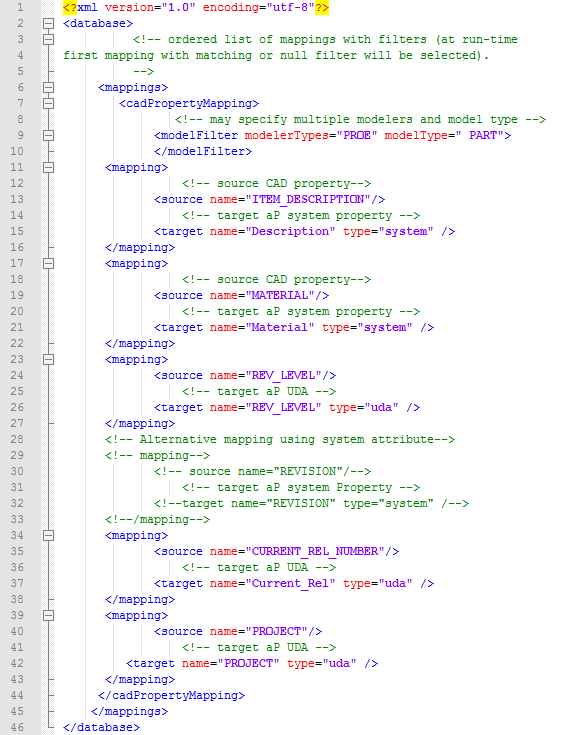
See Elements of an XML CAD Mapping File for more information.
-
Save the XML file When you finish and take note of the folder where you save it.
Important:
Ensure that the file contains valid XML with no errors.
-
Load the mapping file: In the aPriori client, click Tools > System Admin Toolset.
- Click the System Administrator button (
 ) on the resulting window.
 - In the System Administrator window, click File > Import > CAD Property Mapping File .
If there is a problem with your XML mapping file, you will see the following error dialog when you attempt to load the mapping file:
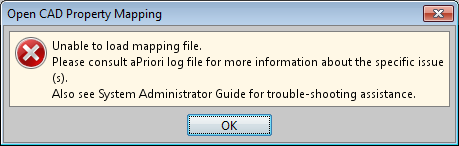
Proceed to the Troubleshooting section if you need help tracking down the problem.
The mapping file is loaded into the aPriori database and will be used whenever you read or update GCDs from the CAD file and will map the CAD properties to the aPriori attributes.
Testing the mapping
When you save the XML file, check that the mappings appear correctly.
- Start the aPriori client and open the CAD file.
-
Go to the Cost Guide and ensure that the attributes are showing up in the Company-Defined Attributes section. (The appearance of your Cost Guide varies depending on what release you are running and how your UDAs and Dialog View are configured.
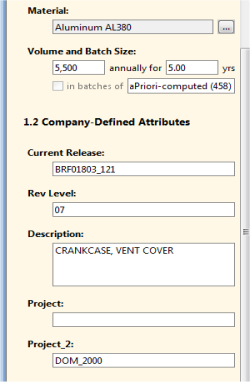
In this example, note that the Material field has been updated with the CAD material property, and that the PROJECT UDA (with the display name "Project_2" has displayed the CAD PROJECT property correctly, without conflicting with the system Project attribute.