Elements of an XML CAD mapping file
To map CAD properties to aPriori UDAs and production inputs, you must:
- Define these mappings in an XML file
- Verify that the XML is valid
- Load the file into aPriori
Note:
Because every company has different CAD property fields and different requirements, aPriori does not provide a standard out-of-box mapping file. We suggest that you contact aPriori Customer Support or Professional Services for a starting file that is appropriate for your company. Every XML mapping file must consist of a series of source/target mapping statements, where the source specifies the CAD property, and the target specifies the aPriori attribute and its type. We advise against trying to copy and paste snippets found in the documentation into a mapping file, since formatting and auto corrected characters like straight quotes can cause problems that are difficult to debug.
Important:
Names of CAD properties and aPriori attributes are case-sensitive. Names of CAD datum objects are case-insensitive.
The following example mapping file defines different mappings for PRO/E and NX™ systems, for both User Defined Attributes and production inputs. The Pro/E Material mapping maps multiple properties to a single Material attribute. In this case, the first mapping that works takes precedence.
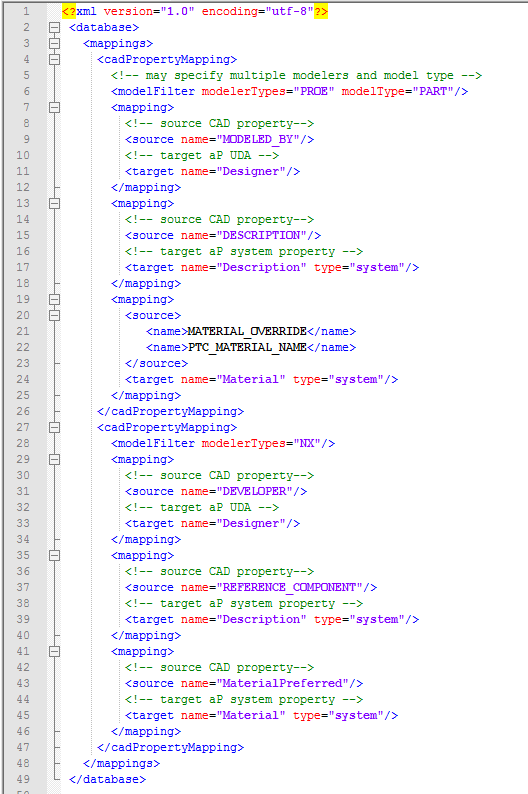
CAD Mapping tag reference
The following table lists the available XML mapping tags. Closing tags are not listed:
| TAG | ATTRIBUTE(S) | DESCRIPTION |
|---|---|---|
| <database> | Top-level required tag. | |
| <mappings> | Second-level required tag | |
| <cadPropertyMapping> | If you have multiple CAD systems and the mappings are the same for all of them, you can have a single <cadPropertyMapping> section with a <modelFilter> tag (see below) that specifies multiple "modelerTypes" attributes. For different mappings, use multiple <cadPropertyMapping> sections, each with its own <modelFilter> tag specifying the "modelerType" attribute for the specific CAD system. | |
| <modelFilter> | modelType modelerTypes |
Defines the kind of model and what CAD system produced it, as well as the path to the file (optional). Valid values are: ASSEMBLY PART Valid values can be any combination of space-separated: PROE CATIA Creo NX™ SOLIDWORKS™ and/or STEP For example: <!-- may specify multiple modelers, model type and cadFileRegEx --><modelFilter modelerTypes="PROE CATIA NX STEP" modelType=" PART ASSEMBLY"> |
| <mapping> | Contains a source/target mapping pair. | |
| <source> | name id |
Each <source> tag much specify at least one named CAD property to be mapped. You can specify the name by attribute, or you can use the <name> tag (see below), particularly if you wish to map to multiple properties. If you specify multiple <name>tags, the first one to match takes precedence. If you specify both a name attribute and one or more <name> tags within a <source> specification, the attribute takes precedence. Note: ForNX™attributes that are defined under a category, use the vertical bar (“|”) to separate the category and attribute. For example: <source name="MyCategory|MyAttribute"> The id attribute is only needed if your <mapping> element needs to access the <source> via a CSL expression. See also the <expression> tag. |
| <target> | name type |
Name of theaPrioriattribute to be mapped. Note: This is NOT the display name. The type ofaPrioriattribute to be mapped. Valid values are: - uda - system If not specified, "uda" is assumed. |
| <name> | Same as the <source> "name" attribute (see above). If you use multiple <name> tags within a <source> tag (for mapping multiple properties to a singleaPrioriattribute), the first match takes precedence. If you specify both a name attribute and one or more <name> tags within a <source> specification, the attribute takes precedence. Therefore, the following statements are equivalent:<source name="Tooling Region"><name>TOOLING_REGION</name></source><source><name>Tooling Region</name><name>TOOLING_REGION</name></source> |
|
| <expression> <cslRule> <![CDATA[ CSL code]] |
These tags are used to support CSL expressions in the mapping file. This capability was introduced inaP Pro2018 R1. See also the id attribute for the <source> tag. Note that "cslRule" can also be specified as an attribute to the expression tag (for example, "<expression cslRule="csl code…" ). However, for clarityaPriorirecommends that you use individual <cslRule> tags rather than attributes. For more information and examples, see the sections starting at Using CSL logic in your mappings. |
|
| <drawDirectionMappings> | Second-level required tag for Draw Direction mappings | |
| <directionMapping> | If you have multiple CAD systems and the Draw Direction mapping is the same for all of them, you can have a single <directionMapping> section with a <modelFilter> tag (see below) that specifies multiple "modelerTypes" attributes. For different mappings, use multiple <directionMapping> sections, each with its own <modelFilter> tag specifying the "modelerType" attribute for the specific CAD system. | |
| <coordinateSystemInfo | Contains description of mapped coordinate systems. A valid entry contains one or more <coordinateSystem> tags and a single <coordinateSystemAxis> tag. | |
| <coordinateSystem> | name | Name of the CAD coordinate system to be mapped to the Draw Direction |
| <coordinateSystemAxis> | name | Axis of the CAD coordinate system to be mapped to the Draw Direction. The valid values are “X”, "x", “Y”, "y, ”Z”, and "z". |
| <datumAxis> | name | Name of the CAD datum axis to be mapped to the Draw Direction |
| <datumPlane> | name | Name of the CAD datum plane to be mapped to the Draw Direction |
Importing a CAD property mapping file
When you have created a mapping file, you load it from the System Administration window by clicking File > Import > CAD Property Mapping File. This command prompts you to browse the operating system directory structure and navigate to the mapping file you want to load into the aPriori database.
Exporting a CAD property mapping file
To save a copy of the CAD property file that is currently loaded, use File > Export > CAD Property Mapping File. This command prompts you to specify a folder and an XML file name in which to save the current mappings.
Clearing your mappings
You can clear out your mappings by importing a correctly-formatted, near-empty mapping file with the following contents: