Exporting the Component Library lookup tables
This procedure assumes that you are updating your Component Library with output from a third-party component data provider. Adjust the procedure as necessary to reflect your situation.
- In the aPriori client, click Tools > Digital Factory Toolset.
- In the resulting aPriori Digital Factory Toolset window, click the Digital Factory Manager icon (
 ), then select the Wire Harness or PCBA Digital Factory from the Select Digital Factory window. For this example, the Digital Factory is named Wire Harness; yours may have a custom name, or you may be exporting the PCBA Digital Factory.
 -
Click Open.
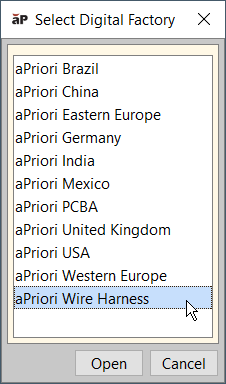
Figure: Select Digital Factory -
In the resulting aPriori Digital Factory Manager window, click File > Export > Digital Factory Lookup tables to Excel.
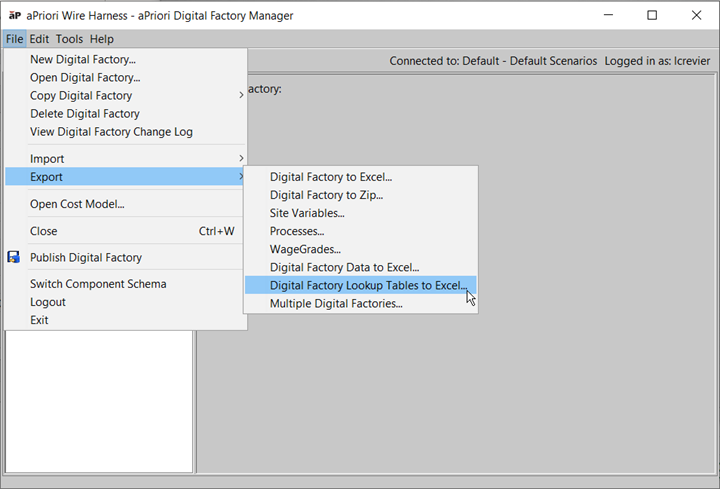
Figure: Export Digital Factory Lookup tables to Excel. -
Specify a name (for this example, "wire_harness_LUT" or “PCBA_LUT”) and click Okay.
This creates an Excel file for every process group in the Digital Factory, as well as an "index" spreadsheet for all of the other sheets created by the export. In the case of the Wire Harness and PCBA Digital Factories, there are only two process groups that generate Excel files: Assembly and User Guided. Note the folder where the spreadsheet is saved.
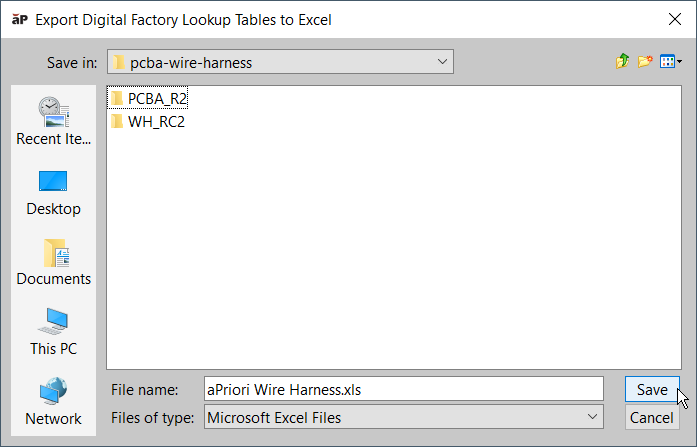
Figure: Specify file name