Editing Digital Factories
You can use the aPriori Digital Factory Manager to edit Digital Factory data. This data includes facility data, such as variables, lookup tables, processes, operations, machines, and materials.
When you open a Digital Factory, the data for the Digital Factory is organized in the navigation list on the left. Select a folder or file to display its data on the right.
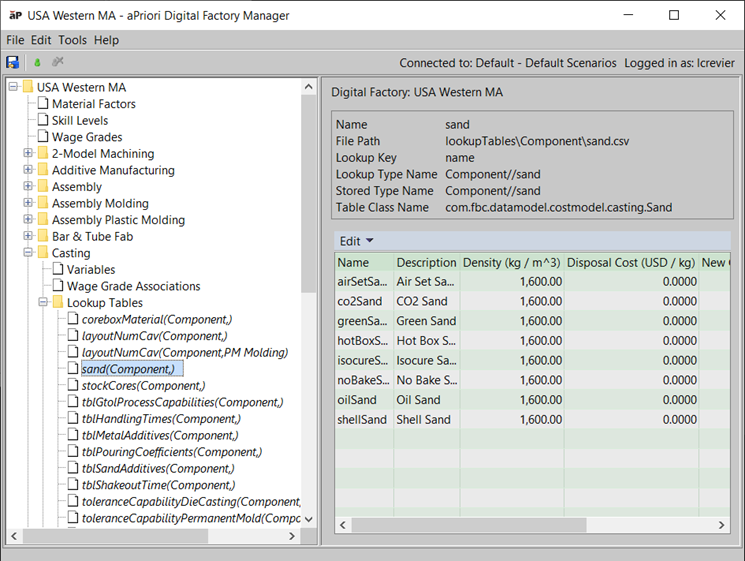
All Digital Factories have a consistent file structure. You can:
- Click the top-level Digital Factory folder to display general facility data and usage information, such as a description, objective, and usage guidelines and limitations.
- Click each process group folder to display the cost model version and default material name. The Notes field contains information displayed to aPriori users on the Digital Factory Details window.
- Click
 or double-click a process group to expand it:
Variables display the plant variables for the processes used in the selected Digital Factory’s cost model.
Lookup tables display lookup tables, such as handling times or cut rates.
Processes display the default tool shop and default machine for each process. The Notes cell contains information displayed to aPriori users in the Digital Factory Details window.
Operations display the operations associated with each process.
Machines display machine descriptions, rates, speeds, and feeds.
Materials display the material list and composition, sheet size, and rate data.
Editing - Best Practices
All the Digital Factories provided with your installation of aPriori have been created and tested to reflect specific costing behavior. Changes to these Digital Factories will impact cost estimates for all components using the Digital Factory. We recommend that you use the following best practices to ensure that Digital Factory changes are applied in a controlled and consistent manner:
- Make any Digital Factory modifications in a staging environment before moving them to production.
- Create a data maintenance plan for each Digital Factory to ensure that Digital Factory data is kept current.
- Ensure that anyone editing Digital Factory data attends aPriori Administrator training or engages with aPriori Professional Services for support.
- Ensure that any changes are synchronized between single- and multi-tenant operations - see Synchronizing Changes.
- When editing Digital Factories in the cloud, only one user should edit and publish Digital Factories at the same time.
- When Digital Factories are published in aP Pro, other users will not see those changes until they launch a new aP Pro session, as Digital Factories are cached at the start of each session.
Editing a Digital Factory
-
Open the Digital Factory you want to edit.
The Digital Factory is displayed in the aPriori Digital Factory Manager. You cannot edit aPriori baseline point Digital Factories. For more information, see Opening a Digital Factory.
-
Save a copy of the Digital Factory as a backup.
-
Edit the Digital Factory data.
You can use the aPriori Digital Factory Manager to add or delete the machines and materials in each process group. You also can edit machine, material, and other Digital Factory data. For more information, see Adding machine and material data, Editing Digital Factory data, and Deleting machine and material data.
-
Select File > Publish Digital Factory from the aPriori Digital Factory Manager menu bar or click
 in the toolbar to save your changes.
 - Select File > Close, press Ctrl+W, or click
 on the title bar to close the Digital Factory Manager and return to the aPriori Digital Factory Toolset window.