Full-view aP Pro interface
The full-view interface opens in a regular sized, fully adjustable window and provides all the tools, features, and capabilities that are available in aP Pro.
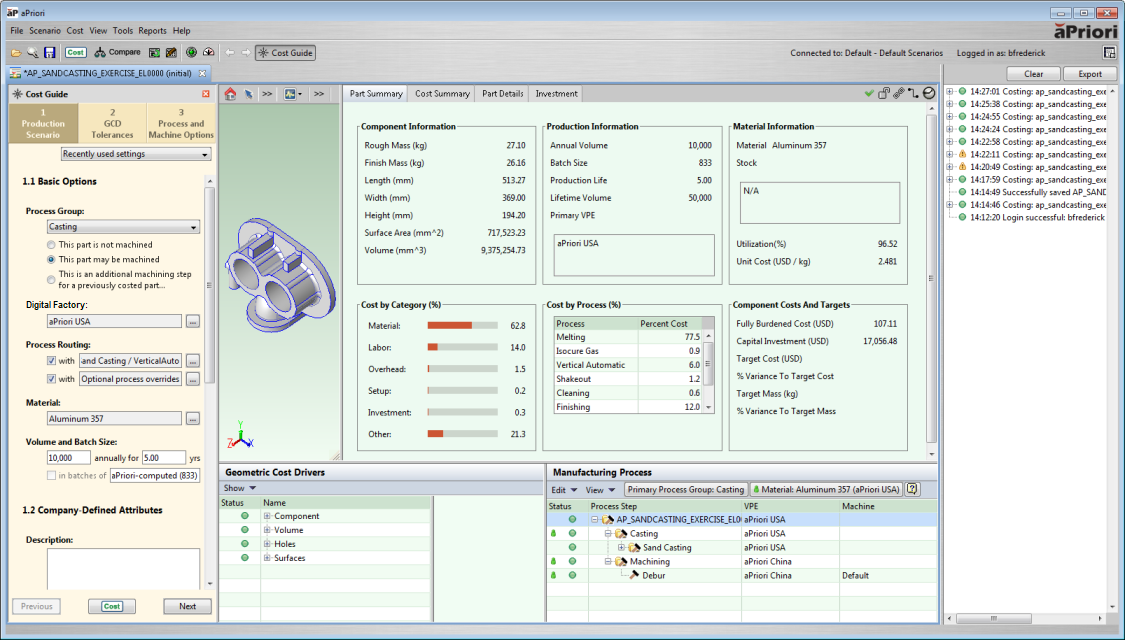
Interface Main Areas
- Cost Guide: Helps you enter production, tolerance, machine, and process information that aPriori uses to analyze a component. See Analyze Components with the Cost Guide.
- Component Viewer: Allows you to interact with a 3D rendering of the current component in order to examine and, in some cases, edit Geometric Cost Drivers. See Use the Component Viewer.
- Component Scenario Tabs: Appears in the center of the window. Allows you to view the results of the latest component analysis (costing event) and edit the current scenario. Shows detailed scenario information in tabs including the Design Guidance, Sustainability, Cost Summary, and Part Details tabs. See Review Analysis Results.
- Geometric Cost Drivers pane: Displays the Geometric Cost Driver (GCD) hierarchy for the current component. Allows you to examine and, in some cases, edit GCD properties. See Edit Geometric Cost Drivers.
- Manufacturing Process pane: Displays the process-operation hierarchy and machines that aPriori has selected for the current component. Allows you to examine and modify the current process routing, operation assignments, and machine selections. See Review Manufacturing Process Information.
- Message pane: Appears on the right of the window, and displays information from aP Pro as it evaluates the feasibility and costs associated with manufacturing the component. See View Status Messages
- Navigation pane (available in a floating window): shows component information and current open items.
Navigation pane
Click View > Show Navigation to show the Navigation pane, containing the Component and Open Items tabs:
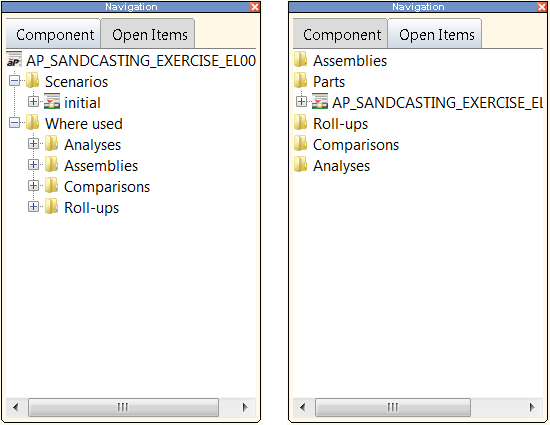
The Component tab shows information for the component currently displayed, including:
- Scenarios: scenarios associated with the current component.
- Where used: which other components use this component.
The Open Items tab lists all components currently open in aP Pro (assemblies, parts, rollups and others), allowing you to view and navigate across components. To open a component, double-clicking on the entry.
Tip:
You can drag and drop components from the navigation pane to the active roll-up or comparison.
Changing Layout
- Click View > Change Layout to change the display of the aPriori panes.
- To save this view for later, select either View > Use as Part Layout Default or View > Use as Assembly Layout Default.
aP Pro icons and command buttons
| Icon | Usage |
|---|---|
 |
Open a CAD file in CAD-Independent mode. |
 |
Search for a component or group of components that meet specific criteria. |
 |
Save the displayed cost. |
 |
Cost a component. |
 |
Update the Geometric Cost Drivers (GCDs) from the CAD model and calculate the new cost using the updated GCDs. Hover the cursor over this icon to see the date and time when the GCDs were last updated. |
 |
Enable manual cost overrides in the Cost Summary tab. |
 |
(Pro/E Direct Integration mode only). |
 |
(Pro/E Direct Integration mode only). |
 |
Display system status messages. The color of the Message button indicates the system status: - Green: the system is functioning normally - Yellow: a warning - Red: an error |
 |
Open the Production Info editor and specify the Total Cost Target. If the Total Cost Target is set and the current cost is: - Between 90% and 110% of the target cost; the indicator on the Cost Target icon points upwards - Less than 90% of the target cost; the indicator points to the left - More than 110% of the target cost; the indicator points to the right |
 |
Navigate back and forward through the open item tabs in the order that they were last visited. |
 |
Toggle the display of theCost Guide. See Analyze Components with the Cost Guide for more information. |
 |
Switch to aP Pro Ticker. |
 |
Appears if the current scenario is designated as “Official”; otherwise not present. |
  |
Indicates whether the current scenario is locked or unlocked. |
  |
Indicates whether the current scenario is Active (re-extract and update GCDs from CAD models) or Inactive (does not extract GCDs). |
  |
Shows if the current component is connected to a CAD file. Hover the cursor over the icon to show the path to any connected CAD file. |
  |
Shows if the current component costs are up-to-date. Hover the cursor over the icon to display when the component was last saved and by whom. |
 |
The Cancel icon appears in the lower-right of the aPriori desktop window during costing operations. See a costing operation for details. |