Export from the Ccommand Line
aPriori provides the ability to export Digital Factory data (and optionally. lookup tables) to Excel spreadsheets from the command line. This requires some configuration as explained below.
-
Open the following file in a text editor:
-
Edit the lines highlighted below as needed:
templateFile=ext/project-management-plugin/macro/ide/exportMultipleVPEsData.xml inputs.vpeFolder=<Enter destination folder here> inputs.exportVPEs=CSL(asList(asMap('plantName', '<Enter VPE name here>'))) inputs.exportVPELevelData=true inputs.exportMaterials=true inputs.exportMachines=true inputs.exportToolShops=true inputs.exportLookupTables=false inputs.useXls=false //Basic example -- The edited file below will export data from the "aPriori USA" //<span class="mc-variable General.DigitalFactory variable">Digital Factory</span> to Excel //spreadsheets located in D:/aaa_tmp/000_vpe_export_folder: templateFile=ext/project-management-plugin/macro/ide/exportMultipleVPEsData.xml inputs.vpeFolder= D:/aaa_tmp/000_vpe_export_folder inputs.exportVPEs=CSL(asList(asMap('plantName', ' aPriori USA'))) inputs.exportVPELevelData=true inputs.exportMaterials=true inputs.exportMachines=true inputs.exportToolShops=true inputs.exportLookupTables= false inputs.useXls=false -
The vpeFolder path must use forward slashes ("/"), not Windows back slashes ("\").
Advanced example: The edited file below additionally includes lookup tables, and exports from multiple Digital Factories ("aPriori USA" and "aPriori Mexico") to older-style .xls (not .xlsx) files:
templateFile=ext/project-management-plugin/macro/ide/exportMultipleVPEsData.xml inputs.vpeFolder= D:/aaa_tmp/000_vpe_export_folder inputs.exportVPEs=CSL(asList(asMap('plantName', 'aPriori USA'), asMap('plantName', 'aPriori Mexico'))) inputs.exportVPELevelData=true inputs.exportMaterials=true inputs.exportMachines=true inputs.exportToolShops=true inputs.exportLookupTables= true inputs.useXls=true -
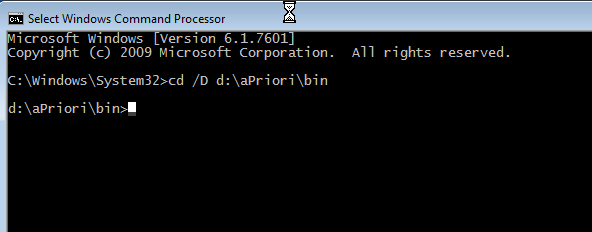
Open a command console and change to the aPriori installation bin directory. In this example, aPriori is installed at the root of the D: drive. Adjust as necessary for your installation.
-
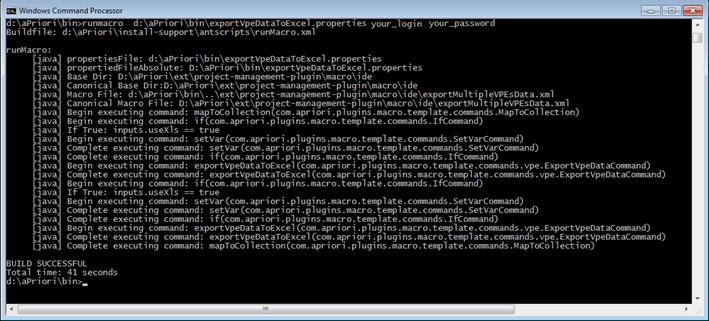
Execute the following command line, substituting your actual values for the aPriori installation directory and your login credentials:
runMacro <apriori_install_dir>\bin\exportVpeDataToExcel.properties <your_apriori_login> <your_apriori_password>You must specify the complete aPriori installation path. If you specify a relative path (such as
.\exportVpeDataToExcel.properties, the command will fail.As the export command runs it displays status on the console. Watch for error messages; the most common errors are due to back slashes in the properties file and relative pathnames in the command line. The export can take several minutes to complete, so if it looks like it is hanging, give it plenty of time before you decide to cancel.
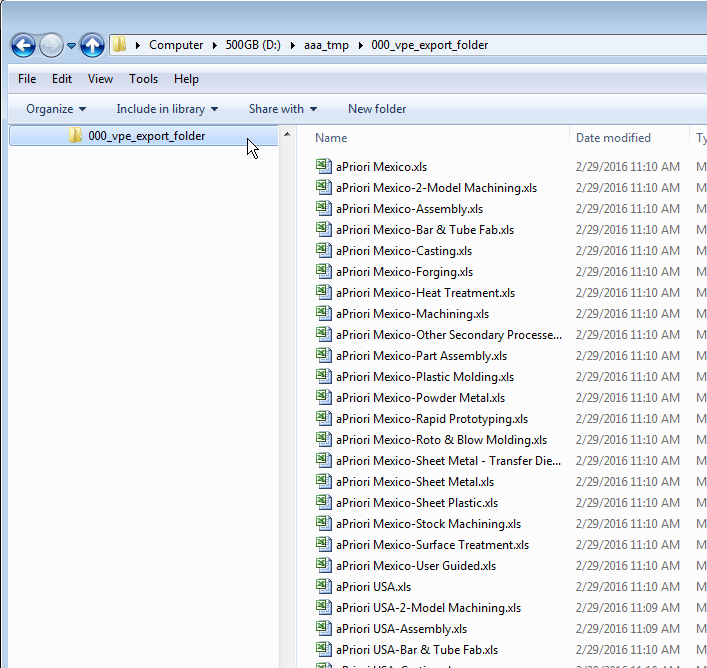
When done, your export folder should contain Excel files for the process groups plus an index file for each Digital Factory you specified.