LDAP authentication
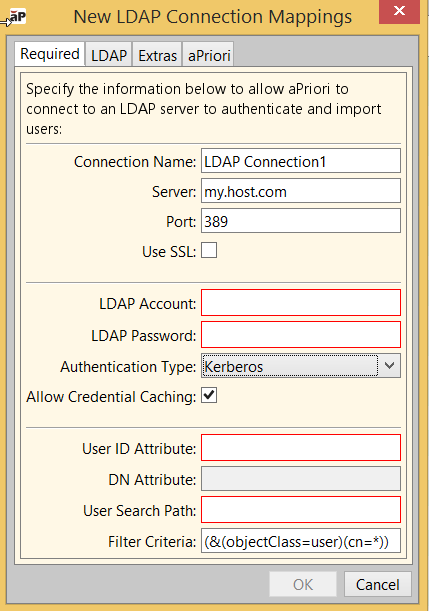
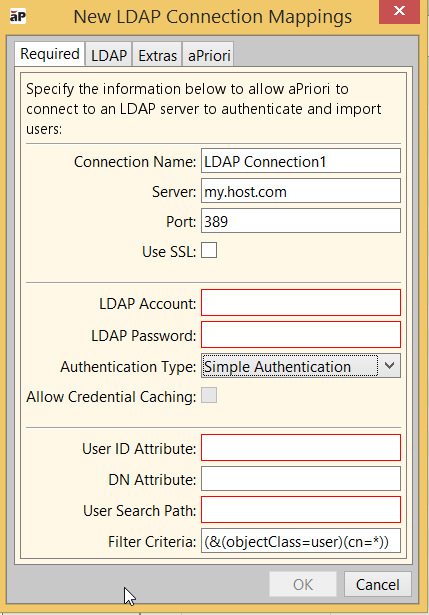
LDAP authentication is used when a user’s provenance is set to an LDAP connection. You must first define the connection using the aPriori System Administrator Window. Connections can be defined as either Simple Authentication or Kerberos. If Kerberos authentication is used, you can elect to have Kerberos tickets cached, enabling automatic log ins to aPriori after an initial authentication.
Note:
If SSO is turned on then the authentication via the user’s Domain-cached Kerberos ticket takes precedence over the LDAP Kerberos cached ticket. In simpler terms, when SSO is enabled, the user’s Windows authentication takes precedence over the LDAP connection authentication.
(See Managing Single sign-on (SSO) options for information about Single Sign On authentication which also allows for automatic logins.)
Simple Authentication
- Login: when aPriori is started it presents a login dialog and the user is asked to enter their username and password.
- Authentication: aPriori authenticates the user’s credentials using the LDAP connection (the LDAP directory is used).
Kerberos (including “automatic login”)
When you choose Kerberos authentication, you can choose whether to specify Allow Credential Caching:
Credential caching disabled
The login and authentication process works similar to Simple Authentication above.
Credential caching enabled (“automatic login”):
- Login: when aPriori is started for the first time it presents a login dialog box and the user is asked to enter their user name and password. The user’s Kerberos credentials are cached. When aPriori is started the next time, aPriori skips the login screen and uses the cached credentials (assuming the credentials are still valid).
- Authentication: aPriori authenticates the user’s credentials using the LDAP connection (the LDAP directory is used).