See how the carbon for a part is calculated
This example shows how to see how aP Pro calculates the carbon for a part by viewing the Formula Dependencies for the outputs of a sustainability analysis for the part.
Seeing how carbon is calculated can help you understand the significance of the data that you input for your scenario.
Requirements
To enter and analyze sustainability data, you must have an aPriori Sustainability License and aP Pro 2023 R1 or later.
Limitations
- aP Pro does not yet support Sustainability analysis for all process groups. For a list of currently supported process groups, see Processes supported in Sustainability.
- Carbon from product use, tooling, and end-of-life is not currently considered.
Prerequisites
This example requires a part that has been costed in a version of aP Pro that includes a Sustainability License.
Procedure
- Open the scenario for the part.
-
Open the Part Details tab.

-
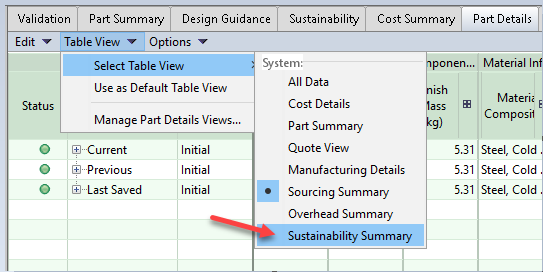
In the Part Details tab, expand the Table View drop-down menu, and then select Select Table View > Sustainability Summary.
Note:
The sustainability data is also available in the All Data table view.
-
You can review the calculations for an entire scenario (Current, Previous, or Last Saved), an entire process group, or a particular process in a process group.
For this example, the calculations of interest are for a particular process in the Current scenario.
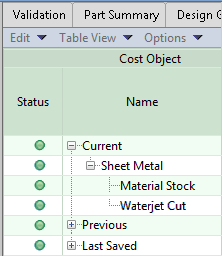
To access a particular process in the current scenario, in the Cost Object column, in the Name sub-column, expand the Current node, and then the nodes for each process group until the process for which you are interested in examining a calculation is visible.
-
Once you have found the row that contains the scenario, process group, or process that you are interested in, find the column or sub-column for the data that you are interested in examining a calculation for.
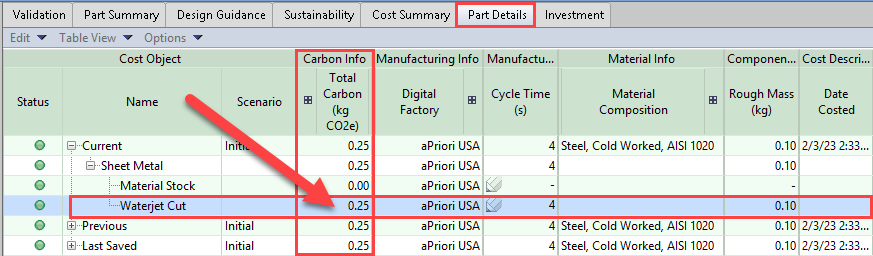
The cell of interest is at the intersection of this sub-column and row that contain the process or process group for which you are interested in examining a calculation is visible.
For this example, the process of interest is Waterjet Cut and the data of interest is Total Carbon, which is a sub-column in the Carbon Info column. Therefore, as this figure shows, the cell of interest is at the intersection of that row and column.
-
Right-click the cell of interest and then select Show Formula Dependencies.

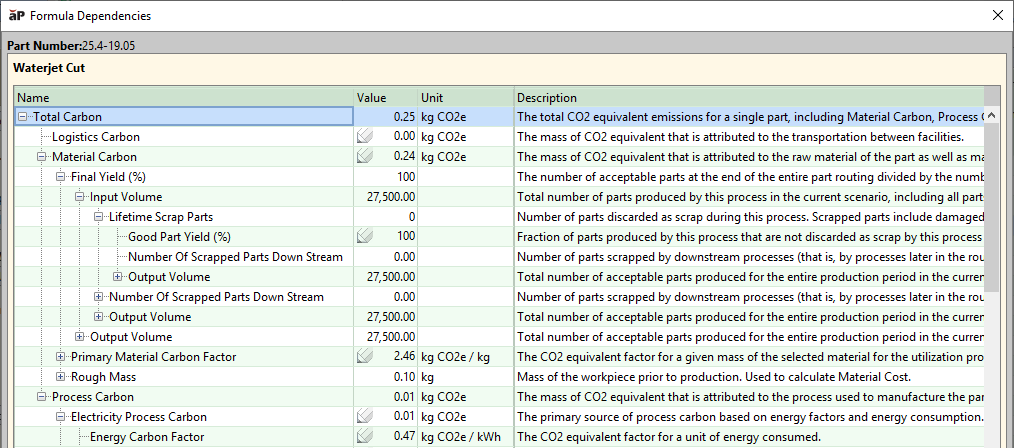
The Formula Dependencies dialog opens. Each row in the dialog contains a Name, Value, Unit, Description, and CSL, which shows the equation for the data and links to the code for the calculation.

For this example, the three main nodes in the Formula Dependencies dialog for the Total Carbon for the Waterjet Cut process are:
-
Logistics Carbon details. By default this will be zero. See Edit the Logistics Carbon for a part.
-
Material Carbon details. Expand the Material Carbon node and its sub-items to see more details.
-
Process Carbon details. Expand the Process Carbon node and its sub-items to see more details.
For more information on Formula Dependencies in aP Pro, see Show Formula Dependencies.
Tip:
As required to see all the data in the Formula Dependencies dialog, expand the window or adjust the column widths.
Info:
A pencil icon,
 , indicates that you can edit a value. For more information, see Part Details Overrides.
 -
-
To examine sub-calculations, expand the nodes in the Name column of the dialog.
For more information on Formula Dependencies in aP Pro, see Show Formula Dependencies.