What’s new in EDC 2020-10
Electronics Data Collection Release Notes 2020-10
The changes in this release apply only to the Electronics Data Collection (EDC) application. No upgrades, preference, or system changes are required for the EDC enhancements.
Electronic Data Collection Algorithm Improvements
Cost more items on your BOM more quickly and with less manual input
To replicate the performance of the Silicon Expert BOM (bill of materials) Manager, in terms of the number of matches between your part number (PN) and a PN in Silicon Expert, aPriori has improved the algorithm in the Electronics Data Collection (EDC) API for Silicon Expert. The general approach of the improved algorithm is to find a match in Silicon Expert for:
- Your manufacturer and your manufacturer PN
- Your manufacturer and PNs that start with your manufacturer PN
- Your manufacturer PN and no manufacturer
- PNs that start with your manufacturer PN and no manufacturer
- A truncated version of your manufacturer PN and no manufacturer
Also, to highlight cases for which actions are required, EDC now notifies you when:
- It finds multiple potential matches.
- There is data missing from the Silicon Expert match.
To allow you to cost more BOM items in aP Pro by using VPE defaults for Cost Data and Physical Data, the EDC BOM Export now includes parts that have incomplete Silicon Expert data.
Interactive Account Activation
Easily activate your account after you log in to the Electronics Data Collection
If you log in to the Electronics Data Collection (EDC) application but your account is not activated, the application opens to the Manage Accounts page. You can easily activate your account by following the directions on the page.
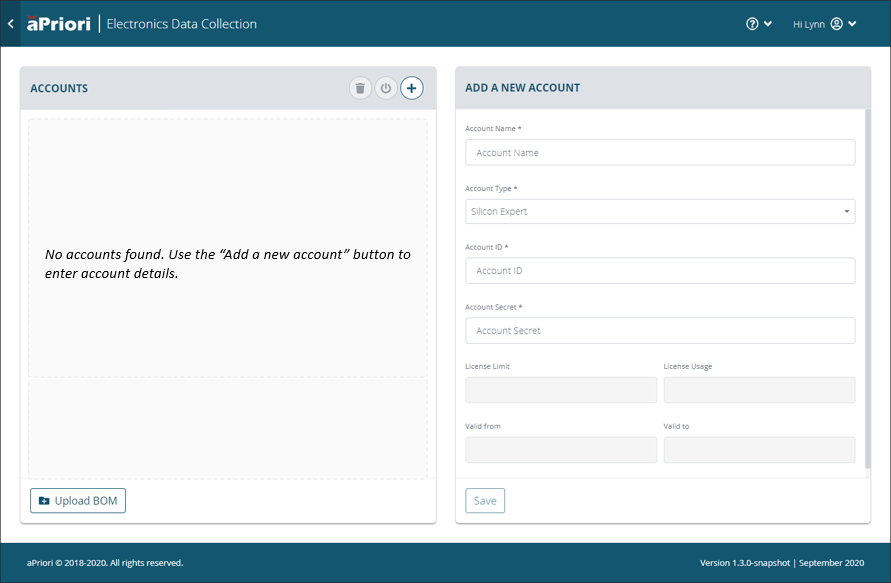
To activate an account, supply this information in the ADD A NEW ACCOUNT form.
- Account Name
- Account Type
- Account ID
- Account Secret
After the account is activated, to navigate to the Upload BOM page, you can either:
- Click the Upload BOM button.

- Click the back arrow in the aPriori Electronic Data Collection header bar.

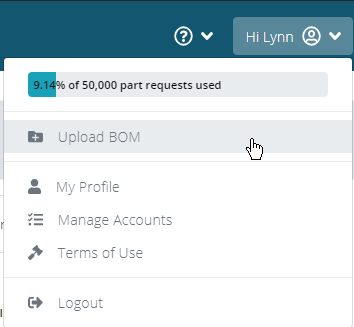
- Open the My Account dropdown menu and then select Upload BOM.
BOM Load Error Message Improvements
Clearer messages help you understand the cause of BOM load failures
In previous releases, the error message that was generated by a BOM load failure did not clearly indicate that there was a BOM load failure. Now, the error message clearly indicates that the BOM load failed and, if ascertainable, the also indicates the cause of the failure. BOM Load failure causes include:
- Excessive BOM size
- Upload time-outs
- Missing required columns
- Invalid file formats
BOM Upload Validation Improvements
Import more BOMs successfully
To reduce the number of BOM upload failures, the upload validation process has relaxed the criteria for failures. For example, an upload failure no longer occurs if:
- A part number (PN) field or manufacturer field on the BOM is blank.
- A PN is excessively long.
- The manufacturer or manufacturer PN field contains only a dash (-).
- The manufacturer or manufacturer PN contains some of the character that would prevent an upload in a previous release.
Instead, if a PN number is excessively long or contains some of the character that would prevent an upload in a previous release, EDC accepts the upload and attempts to find a match for the item in Silicon Expert. If a PN is invalid for matching, for example, if a PN or manufacturer field includes only a dash or if the PN field is empty, the upload does not fail, but the algorithm that the Electronic Data Collection API uses to match PNs in Silicon Expert does not process the PN.
Format Consistency between Imported and Exported BOMs
The Electronics Data Collection applies the order of the columns in your uploaded BOM to the BOM that it generates
In prior releases, the order of columns in the BOM produced by Electronics Data Collection (EDC) application did not retain the order of your uploaded BOM. Now, when EDC generates a BOM that adds Silicon Expert data to your data, it retains the order of the columns in your original BOM. Any new data fields are added to columns that are located to the right of columns from the original BOM.