Cost a Multi-Body Step Assembly
Bulk cost a Multi-Body STEP Assembly
- Ensure that the free body properties are set appropriately.
- Create a new bulk cost group for the multi-body assembly.
- Make sure specify a Rollup Name.
- Click OK in the New Bulk Cost Group dialog box when done.
- Click the Cost button in the aPriori Bulk Costing & Analysis window, then click OK when the Bulk Costing Complete window appears.
-
When the main aPriori window the rollup you specified in Step , click Cost > Deep Cost Scenario.
This displays the aPriori Bulk Costing & Analysis window again, this time showing the rollup, with all the subcomponents accessible and visible in the table. However, note that the Bulk Cost file cannot be saved to re-open later and that you will need to Deep Cost the Rollup scenario again to get back to the table.
Bulk Costing 2-Model Machining Parts
To bulk cost 2-Model Machining components, you must specify the source component though the user inputs file. For general information about 2-Model Machining, see the chapter: 2-Model Machining Process Group in the aPriori Cost Model Guide.
To bulk cost 2-Model Machining components
-
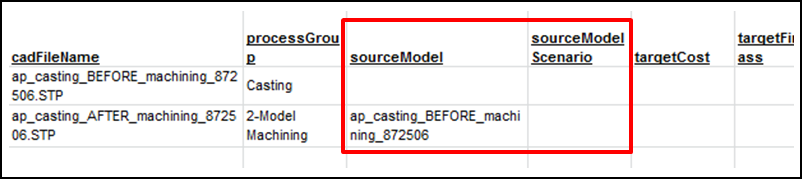
Create a user inputs Excel file that contains columns sourceModel and sourceModelScenario. If sourceModelScenario is blank, the effective scenario is the Official scenario. Also note that the processGroup of the finished model should be "2-Model Machining".
-
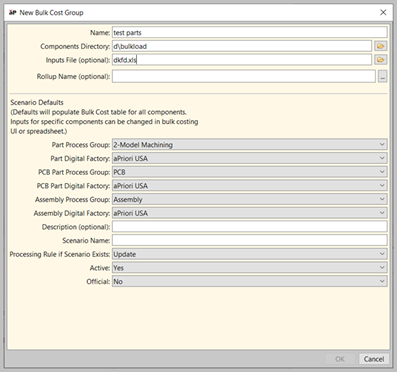
Create a Bulk Cost Group in the Bulk Loader UI using your spreadsheet and source/finished model CAD files.
-
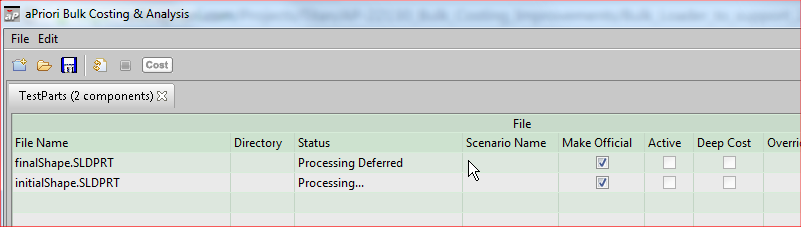
Click the Cost button. The Status of the finished model is "Processing Deferred" until the source model is costed.
Note:
The Bulk Loader first scans the inputs file for any 2-model components. If it finds any, it first costs the non-2-model components, and then cycles costs the 2-model components.