What’s new in Electronics Costing 2020-09
Electronics Costing Release Notes 2020-09
The changes in this release apply only to the aPriori PCBA Product VPE and aPriori Wire Harness Product VPE. You must upgrade to aP Pro 2020 R1, 2020 R1 SP1, 2020 R1 SP2, or a related hot fix, and Regional Data Libraries 2020-09 (September 2020) to utilize these enhancements.
PCBA Costing Module 2020-09 Enhancements
Standoff Insert Process
Include the cost of assembling and installing posts in your PCBA costing results
The new Standoff Insert process is a secondary process that allows you to include the cost for the time that it takes to assemble and insert posts into the PCB (printed circuit board) of your PCBA (printed circuit board assembly). There are two methods that you can use to enable the Standoff Insert process:
-
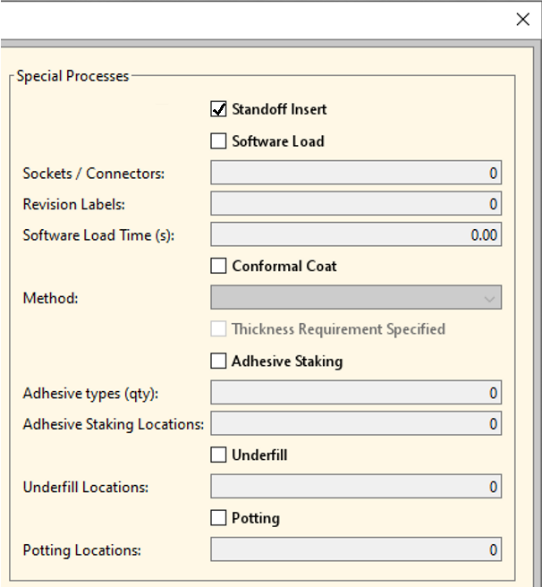
In the PCBA Costing window, click the Select Secondary Processes button. Then, in the Optional Processes window, in the Special Processes section, select the Standoff Insert checkbox, and then click OK.
-
In the Special Processes routing, enable the Standoff Insert process.
The cost calculation depends on the labor cost per standoff and the number of standoffs in the assembly. aPriori determines the number of standoffs based on the default value number for the number of intervals around the perimeter of the PCBA.
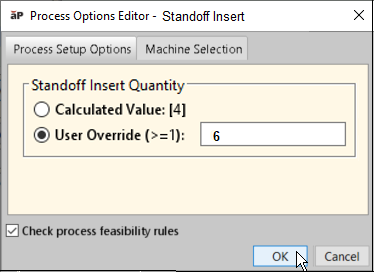
You can override the calculated quantity by specifying a User Override value for Standoff Insert Quantity in the Standoff Insert tab in the Process Options Editor:
- Cost a PCBA that includes the Standoff Insert process.
-
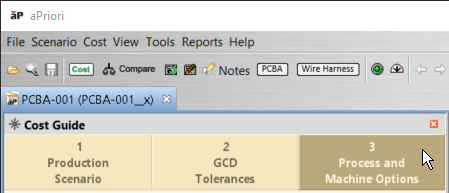
In the aP Pro toolbar, click Cost Guide.

-
In the Cost Guide, select 3 Process and Machine Options.
-
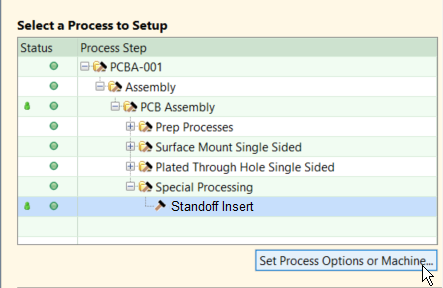
In the Select a Process to Setup section, expand the PCBA, Assembly, PCB Assembly, and Special Processing nodes. Then, select Standoff Insert and click Set Process Options or Machine Selection.
-
In the Process Options Editor, in the Process Setup Options tab, in the Standoff Insert Quantity section, select the User Override (>=1) option, specify a positive, non-zero value, and then click OK.
-
Recost the PCBA.
Conformal Coat Partial Coverage Option
Apply the conformal coat process to only a portion of your PCBA
You can now specify the amount of coverage, as a percentage, for conformal coating for your PCBA for these applications:
- Hand Spray
- Hand Brush
- Machine Spray
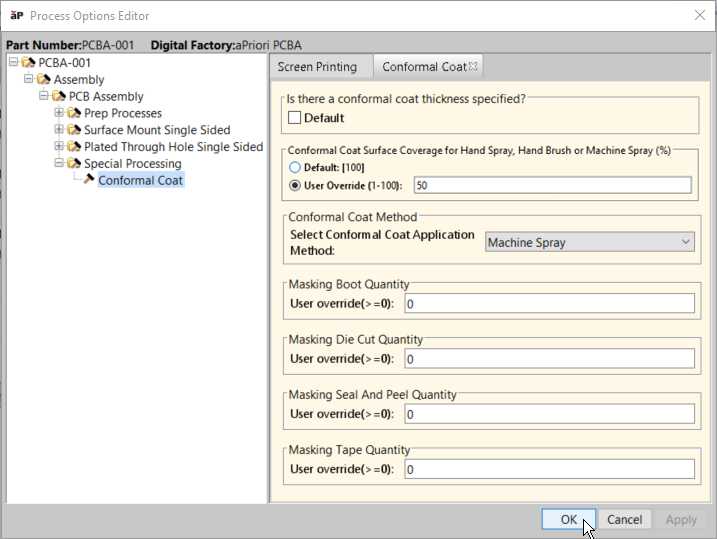
If the Conformal Coat process is enabled, by default, the coverage value is set to 100% of the PCBA surface area. To specify a partial coverage, use the Process Options Editor:
- Cost a PCBA that includes the Conformal Coat process
-
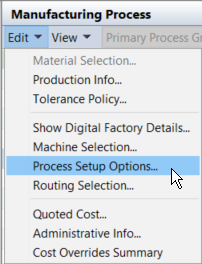
In aP Pro, in the costing results, in the Manufacturing Process section, click Process Setup Option.
-
In the Process Options Editor, expand the PCBA, Assembly, PCB Assembly, and Special Processing nodes. Then, in the Conformal Coat tab, select User Override (1 - 100), specify a number that is between 1 and 100, inclusive, and click OK.
-
Recost the PCBA.
Limitations
This partial coverage conformal coating is applicable only to the Hand Spray, Hand Brush, and Machine Spray applications because process time calculations are independent of surface area for methodologies that require submersion.
Test Fixture Improvements
Improved defaults for Functional Test and In-Circuit Test Equipment.
The default cost for a Functional Test fixture has been updated to $15,000 USD. The default cost for a fixture for an In-Circuit test has also been adjusted to $15,000 USD. The new costs are in line with aPriori research and customer feedback.
You can overwrite the new default values in the Process Setup Options for either fixture.
PCBA and Wire Harness Costing Module 2020-09 Enhancements
Option to Disable Costing Failure Popup Messages
Speed up PCBA and Wire Harness costing by disabling costing failure popup messages
There is now an option to disable pop-up notifications for line-item failures that occur when you cost a PCBA or Wire Harness. Previously, you had to click OK (or Cancel) to dismiss each popup failure message that appeared during a costing. Now, because you do not have to dismiss each popup failure message, you can cost PCBAs and Wire Harnesses that include items that cannot be cost more quickly.
Note:
Even if popup failure messages are disabled, any error messages that are generated appear in the messages window when the costing is complete.
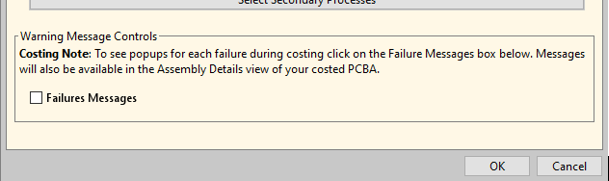
By default, the failure messages are disabled. To enable failure messages, in the PCBA or Wire Harness Costing window, in the Warning Message Controls section, select the Failure Messages checkbox.
Costing Failure Message Improvements
Costing failure popup messages are more descriptive and instructive
A costing failure message is generated when a part number is not found in the component library, a quantity is missing on the Bill of Materials (BOM), or there is an illegal value in one of the fields, for example text found in a field that is set to be numeric only. Previously, the failure messages did not properly convey the cause of, or indicate how to resolve, the issue. Now, popup failure messages that are generated by PCBA and Wire Harness costing issues provide clear issue descriptions and issue-resolution instructions.
Note:
If you do not enable costing popup notifications in the PCBA or Wire Harness Costing Window, failure messages do not appear. However, even if popup messages are not enabled, all generated messages appear in the messages window when the costing is complete.
Wage Grade Associations
Update labor rates quickly
aPriori PCBA and aPriori Wire Harness now have Wage Grade Associations that are similar to the wage gradations in aP Pro Release 19.2.1 and later. The wage grade associations simplify the wage update process because you enter the labor rates in only one place instead of for each machine.
Previously, for each process, you had to individually populate and manage the Labor Rate field for each machine. Therefore, even though many or all of the machines for the same process typically use the same labor rate value, updating the labor rates for an entire VPE required updating values for thousands of machines. In fact, there are only a few different labor rates in the electronics VPEs.
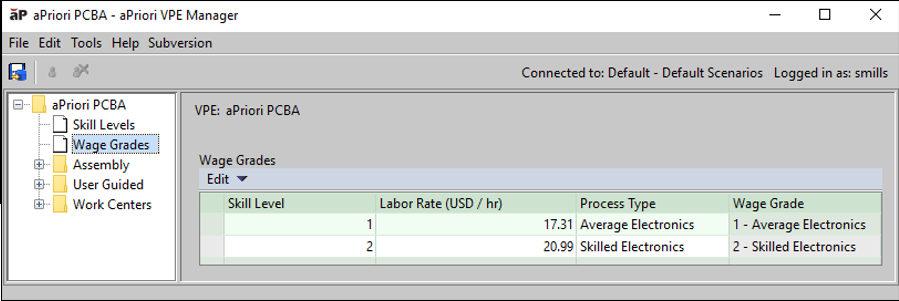
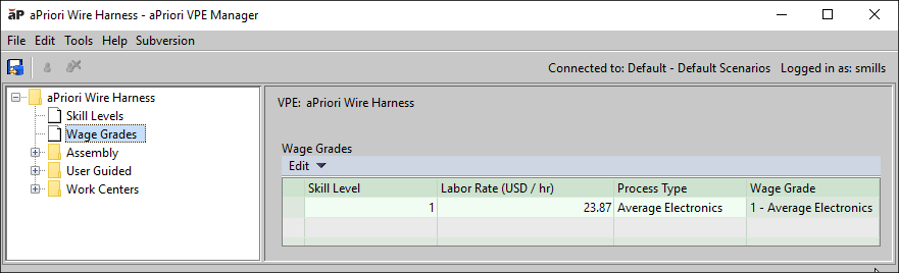
Now, labor rate management is greatly centralized and streamlined through the use of several new VPE tables. The Wage Grades table is used to specify the labor rates corresponding to different worker skill levels and process types. Skill levels are defined and described in a separate Skill Levels table. Both the Wage Grades table and the Skill Levels table apply to an entire VPE and are located at the VPE level within the VPE Manager. You can associate an applicable wage grade with each process by using the new Wage Grade Associations table for each Process Group. Machines use the wage grade specified for the process, unless a different Wage Grade is specified for that individual machine using the new Wage Grade Name field.
The figures show the wage grade tables for the aPriori PCBA VPE and the aPriori Wire Harness VPE.
Costing and Import Window Improvements
Only applicable PCBA or Wire Harness VPEs appear in the VPE list
In prior releases, even though they were not all applicable, every installed VPE was a selection option in the PCBA and Wire Harness Costing Module dialog boxes. For example, aPriori USA, if installed, appeared as a selectable VPE option for costing PCBAs and Wire Harnesses even though it is not an applicable VPE for PCBA and Wire Harness costing.
Now only applicable VPEs are available in the VPE options for PCBAs or Wire Harnesses. The VPEs that are applicable to PCBA and Wire Harness are those that include “PCBA” or “WH”, respectively, in the VPE name.