Costing a component in the aP Pro Ticker
The aP Pro Ticker displays a summary of a component’s cost. When you open a component, the aP Pro Ticker’s behavior depends on whether this component was previously costed.
By default, One Click Costing™ is enabled, which means that you must click the Cost button to cost the component. However, you can switch from One Click Costing to auto-costing, which means that aPriori automatically costs a component whenever it is opened, activated, or changed in the CAD system. To enable auto costing in aP Pro; see One Click Costing™ (enabling/disabling auto-costing in response to CAD changes).
To cost a new component
- Open the component.
- By default, when you open a component that wasn’t costed before, aPriori displays a dialog prompting you to open the aP Pro, which causes the new part to be opened in the Cost Guide, which in turn enables you provide the information to perform an initial costing.
- The Cost button is enabled in the Ticker even for new parts if your aPriori system administrator has configured your installation to automatically import CAD properties and all inputs needed to cost a part have been successfully mapped (Process Group, Digital Factory, Material , and Annual Volume). This enables Design Engineers to generate initial cost estimates while keeping their focus on their CAD windows and design-related
Note:
Batch Size is not required to be set to enable the Ticker Cost button. If Batch Size is not available through CAD properties, the value is determined by the default aPriori mechanism of computing it as a fraction of Annual Volume.
For more information about mapping CAD properties, see the chapter “Using CAD Properties in aP Pro System Administration Guide.
For information about using the Cost Guide, Analyze Components with the Cost Guide
To cost a previously costed component
- Open the component.
- If the component has been costed before, the aP Pro Ticker displays the last saved cost values for the component. The stale clock icon
 and gray background color indicate that the cost information is not current.
 -
Click Cost.
-
aPriori displays progress messages during the costing process.
-
When the costing is done, the cost values are displayed.
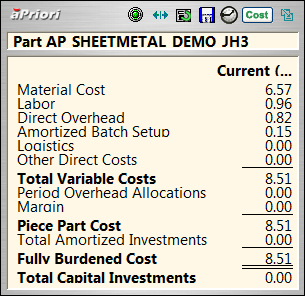
-
The clock icon and the background color indicate that the cost information is current.
-