Making bulk edits with the Material Factors spreadsheet
This section describes using a spreadsheet-based workflow for entering or updating material factors, which are used to establish a material’s costs based on a company’s buying power and purchase volumes (see Working with Material Factors).
This spreadsheet-based workflow provides an alternative to editing the Material Factors table. With the Material Factors spreadsheet, you can change multiple adjustment factors and purchase volume factors at the material type, process group, and/or material level in a single import.
To open the Material Factors spreadsheet, right click Material Factors in the Digital Factory Manager navigation pane and select Export > Material Factors to Excel.
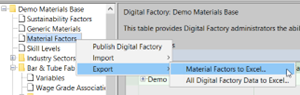
aPriori exports the material factors table from your Digital Factory to the spreadsheet, including all information regarding material types, process groups, and materials.
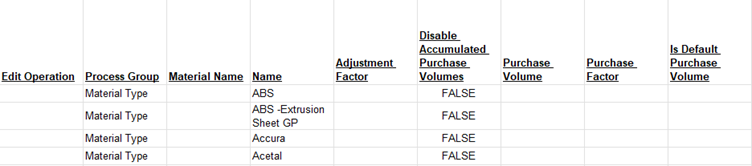
The top section of the spreadsheet is related to material types. If you add an adjustment factor or purchase factor in this section, it applies to all materials across all process groups.
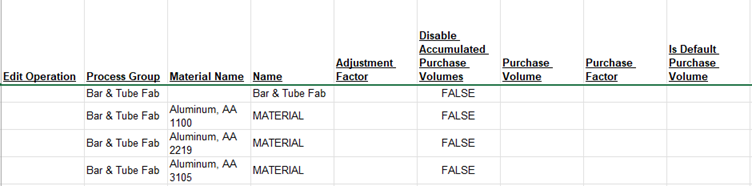
Below this, the spreadsheet has a section for each process group and its corresponding materials. The first row of each process group section displays the name of the process group in both the Process Group and Name columns. In this row you can set process group level factors, which apply to all materials that do not have their factors entered as outlined in the next paragraph.
Below the first row of a process group section, there is a row for each of the process group’s materials. Each of these rows has MATERIAL in the Name column. If you enter a factor on a specific material row, the factor is used to calculate the material’s cost. Materials with no entries default to the process group level factors.
For more information, see:
See also Linking Materials Using a Spreadsheet.
Adding Adjustment Factors
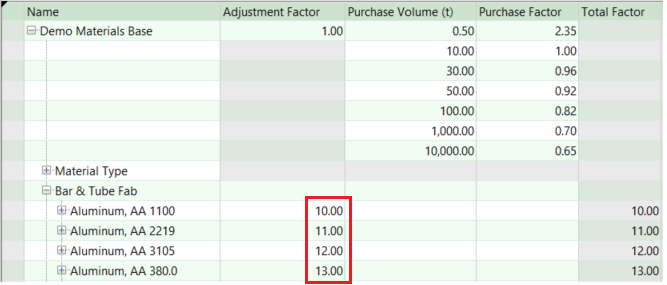
To add new adjustment factor information, enter the desired value in the Adjustment Factor column, in the same row that the process group or material is listed in. In the example below, adjustment factor values of 10, 11, 12, and 13 were added for the first four aluminum materials.
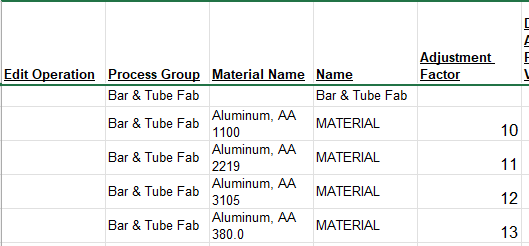
Once the modified spreadsheet is imported back into the Digital Factory, the new values are displayed in the Digital Factory Manager’s Material Factors table.
Adding Purchase Volumes and Purchase Factors
To add new purchase factor information, add an extra row in the spreadsheet below the entity to which the purchase factor information corresponds. This entity can be a material type, a process group, or an individual material.
For example, to add a purchase factor to the material Aluminum, AA 380.0, Insert a row below Aluminum, AA 380.0, and do the following in the new row:
-
Set Is Default Purchase Volume to TRUE or FALSE.
TRUE sets this new information as the default for scenarios to which this entity applies. (The spreadsheet column Default Purchase Volume corresponds to the Default checkbox in the Digital Factory Manager’s Material Factors table—see How Material Factors table is used during costing) .
FALSE or blank does not set this new information as the default.
If multiple rows are set to TRUE for the same material, the last one is used as the default.
-
Set purchaseVolume to a purchase volume in metric tonnes (3 in the image below)
-
Set purchaseFactor to the factor be applied (2 in the image below).
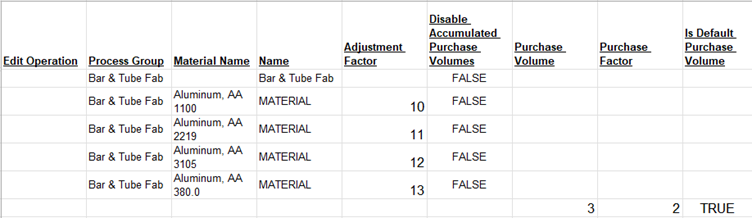
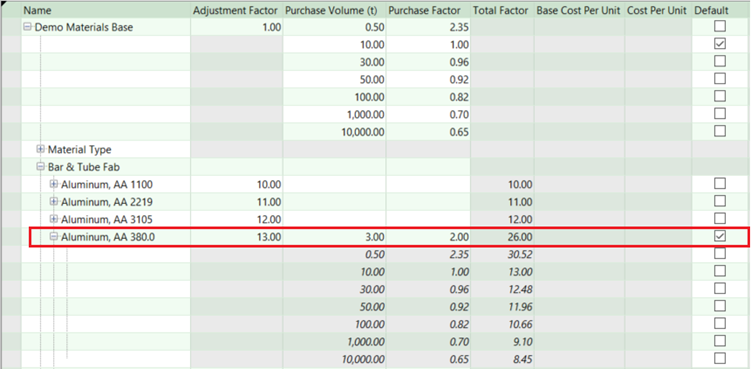
Once you import these changes, the Material Factors table displays the updated Purchase Factor as well as the Total Factor computed from that value.
Deleting Factor Values
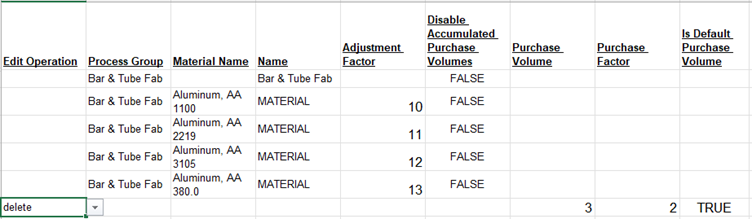
To delete a factor value that is no longer wanted, set the Edit Operation column to delete.
Important:
Deleting a row from the spreadsheet does not cause modification of the Digital Factory upon import. With the spreadsheet, the only way to delete a factor that exists in the Digital Factory is to set the Edit Operation column to Delete for the corresponding spreadsheet row.