PCBA BOM Formatting
Introduction
The primary input to aPriori for PCBA costing is a Bill of Materials (BOM) file in .csv format.
A BOM is a list of all the items used in the manufacture of the PCBA, sourced in a centralized location. Generally, this information is stored internally within an end user's PLM or MRP system, and can be extracted to a CSV file.
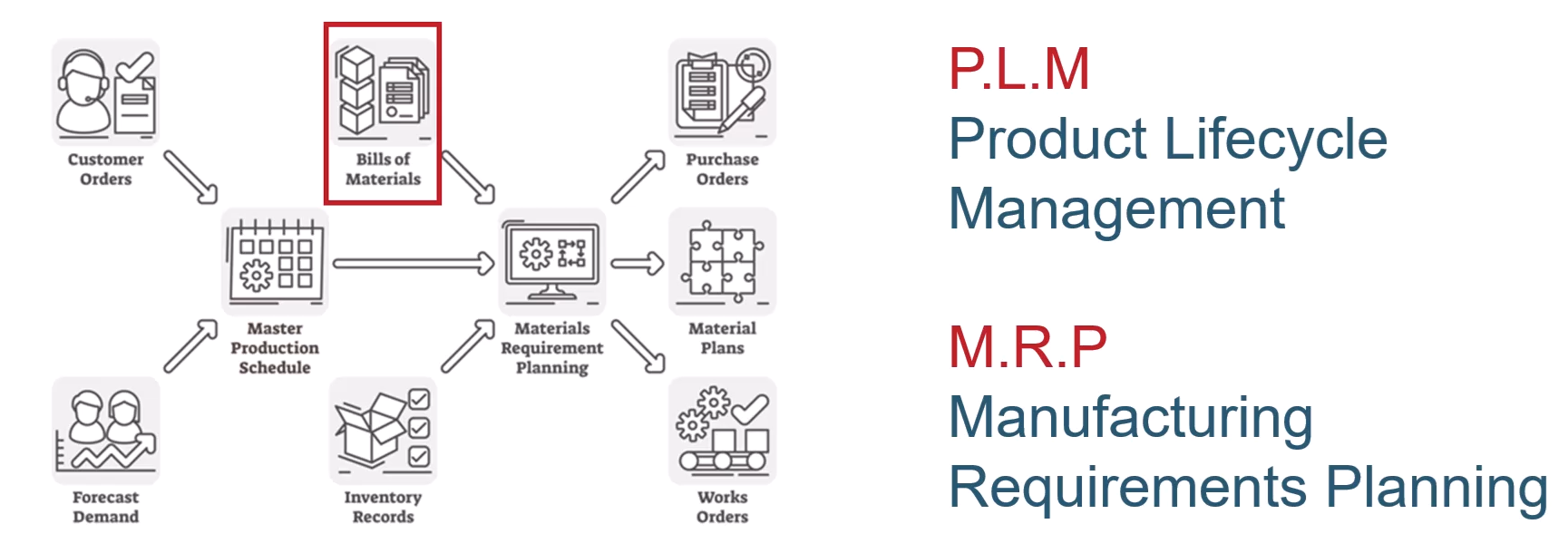
Adjusting BOM data
aPriori can support and interact with differing BOM formats, however there are some critical columns mappings that are required to enable analysis, requiring some minor adjustments to the BOM data before you can import it into aPriori. This information is determined by column mapping:
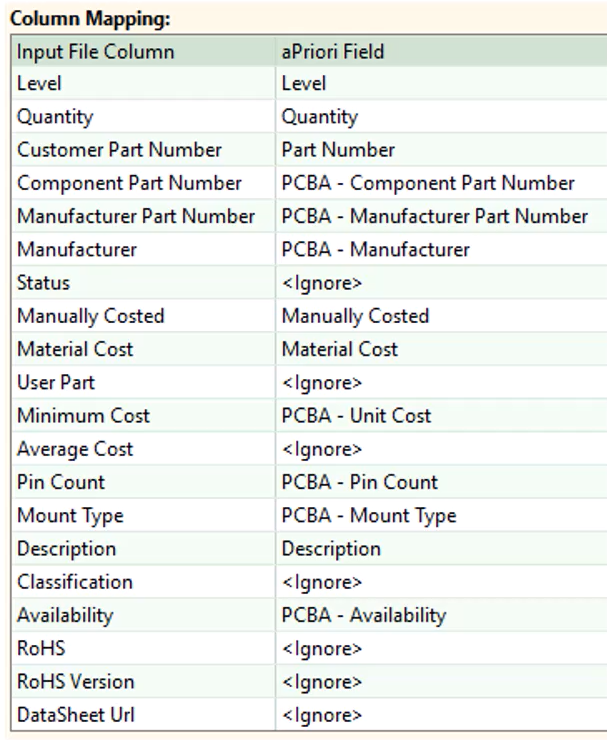
See Mapping BOM loader headings for details of mapping PCBA BOM column headers to aPriori fields.
BOM Mapping columns
This table shows the required and optional columns for adapting your BOM for import to aPriori. The specific column names are not critical because you map the columns to aPriori columns when you import. For example, “LEVEL”, “Level”, and “Lvl” are all acceptable candidates for the level column and will be mapped to the “Level” field in aPriori. However, you should be consistent in your naming convention across different BOMs.
| Column Heading | Required? | Comments |
|---|---|---|
| Level | Y | PCBAs should have only two levels, either 0 and 1, or 1 and 2. The top-level PCBA assembly part number should be level “0” or “1”. All other components should be level “1” or “2”. WARNING: BOMs with additional structure yield incorrect results. |
| Part Number | Y | This column contains the name of the part, which may be a reference designator to a drawing, or may be the internal company part number. If the latter, make sure that it matches the entries in the COMPONENT_PART_NUMBER column (see below). |
| Quantity | Y | The number of instances of the component on this PCBA. |
| Description | N | Any string that helps identify the component: “Fuse sm 5A”, “IC 5V voltage regulator”, “Capacitor 33UF 25V 20%”, etc. |
| Manually Costed | Y | Identifies any part which is not automatically costed but which is provided by the user. ONLY the row for the printed circuit board itself – or for components that you do not wish to cost in the PCBA cost model (such as schematics, work instructions, or some other non-costed line item) – should be set to TRUE. All other rows should be set to FALSE. |
| Component Pn | Y | This column contains the internal company part number for each component. |
| Material Cost | Y | Captures the cost of the PCB itself. |
| Unit Cost1 | N | The current cost that your company is paying for this component. |
| Unit Type1 | N | Typically, “Each”, but could be “IN”, “MM”, or “U/M” (unit of measure) depending on the component. |
| Purchase Date1 | N | The most recent purchase transaction. |
| Preferred Source1, 2 | N | A non-distributor component costing source such as internal data, web pricing, or contract manufacturer. |
| Preferred Supplier2 | N | The distributor that sells the component. |
| Preferred Manufacturer2 | N | The company that builds the component. |
| Pin Count3 | N | Any integer greater than zero. |
| Mount Type3 | N | Either “Surface Mount” or “Through Hole” |
| Classification3 | N | A string that typically comes fromSiliconExpertdatabase – can be manually populated to values that map to values in the Component Classification Defaults lookup table |
| Manufacturer Part Number | N | The part number of the component used by the manufacturer |
| Manufacturer | N | The company that builds the component |
| Purchase Volume1 | N | Specify the purchased volume for each component independent of the annual volume. |
- These fields provide the ability to capture existing purchase data specific to this BOM. The settings specified for the Component Import Behavior parameters in the PCBA Costing dialog determine which component data source aPriori uses for costing.
- You can specify the supplier, manufacturer, and source that you prefer to use for a component. If the specified supplier, manufacturer, and source exists for that component then this will override values in the component library. If the provided supplier, manufacturer, and source do not exist for that component, the componment library values are used by default. You can also use Process Setup Options (PSOs) available on the Purchased Component node of each component to select the specific supplier, manufacturer, and source to use from the options available in the Component Library.
- These inputs enable you to cost components that are not available in the Component Library, streamlining the workflow for costing PCBAs with new components. The settings specified for the Component Import Behavior parameters in the PCBA Costing dialog determine which component data source aPriori uses for costing
Once your PCBA .csv file is formatted as described, you import it as part of the costing procedure - see Cost a PCBA.
To load a 2D image of the PCBA assembly
You can associate an image of your PCBA with the aPriori assembly, similar to the images that are displayed of components that come into aPriori from CAD files. There are several methods that you can use:
- When you create the assembly in aPriori, add a column to the BOM Loader import file and specify it.
- Add the image after you create the assembly. For more information, see the "Specifying 2D Images for virtual components" section of the aP Pro User Guide .