aPriori properties file
When you install your first version of aP Pro, the aP Pro Installer creates the aPriori .properties file in the top level of the installation directory:
<apriori_install_dir>\apriori.properties
When you upgrade to a new version of aP Pro, the aP Pro Installer preserves the settings from the selected apriori.properties file.
The entries in the table below are the only properties that customers should change. You should only add or modify these if you understand exactly what they do. If you have any questions, please consult with aP Pro Services or Support.
| Property | Description |
|---|---|
| apriori.doc.cache.in.user.home apriori.enable.doc.cache.cleaner apriori.doc.cache.dir |
[true|false] The first two entries take true/false arguments and are set automatically during the installation and setup process. The third takes a path argument for locating the cache in a custom directory. These properties generally should not be modified except under the direction ofaP ProServices or Support. For an explanation of the document cache, see theaP Pro Installation Guide. The Bulk Costing properties file (install\ext\analysis-purchasing-module\plugin.properties) contains a setting to control cache cleaning upon execution of the Bulk Loader:launcher.set.apriori.enable.doc.cache.cleaner=false This cleaner addresses theDigital Factoryand cost model caches but does not touch GCD/images.aPrioriprovides a separate script to clean the GCD/images cache: install\bin\cleanDocCache.cmd |
apriori.cad.flattening.cache.timeout.secondsapriori.cad.flattening.cache.folder fbc.debug.geom.save.bse.files(for debugging purposes only) |
The flattening cache applies only to the flattening capabilities of the Sheet Metal Process Group. See theaPrioriCost Model Guidefor more information about this capability. The timeout value determines how long cached flattened output is kept. The default value is 4 days. The folder path determines where the files are cached. The default is: C:\Users\<username>\AppData\Local\aPriori\<version>\tmp\flatteningCache Note that the third property is for debugging use only and should only be changed in consultation withaPriori Customer Support. Can be set totrueorfalse. Default =false. If set totrue, intermediate input files thataPriorisends to the flattening subsystem are dumped to the user's cache location, e.g. Files will be saved in: C:\Users\<username>\AppData\Local\aPriori\<version>\tmp\BSE\<partName><partName>is the filename of the component being costed.There will be an XML and a SAT file for input, and another XML/SAT pair for output. The output files will be in a bseOut subfolder.The output XML contains all error codes reported by the flattening subsystem. |
| apriori.database.monitor.enable | Default setting = true Specifies whether the Database Connection Monitor is displayed. See Monitoring Database Connection Speed in theaP Pro User Guide. To disable display, set this tofalse Display can be disabled for an individual user by setting this property tofalsein aPriori user properties file. For a given user, if the property is set in both apriori.properties and apriori.user.properties, the setting in apriori.user.properties is used. |
| apriori.display.locale | de_DE = Germanfr_FR = Frenchen_US = American English(default) Specify the language and its locale for theaPrioriGUI. See Setting the Display Language. |
| apriori.max.rows.to.expand | Specifies the number of rows that are expanded in the Assembly Details tab. Default is 1000 rows |
| apriori.enable.surface.models apriori.enable.surface.models.sheetmetal |
[true|false] Default=false Allows you to cost CAD models that are either "surface-only" (having no solid geometry), or hybrids that have some combination of solid and surface-only features. Applies ONLY to User Guided process groups. [true|false] Default=true Allows you to cost CAD models that are either "surface-only" (having no solid geometry), or hybrids that have some combination of solid and surface-only features. Applies ONLY to Sheetmetal and Sheetmetal – Transfer Die process groups. NOTE: For details about the interaction between these two similar properties, see the section following this table, “Enable surface model properties”. |
| apriori.keep.free.bodies apriori.free.bodies.preserve.CAD apriori.free.bodies.ignore.missing.component |
These properties specify howaPriorishould handle CAD files containing more than one distinct solid body. SiemensNX™files in particular may contain a combination of sub-components and other solid bodies due to specificNX™modeling techniques. All of these properties take[true|false]values, and the default isfalse. apriori.keep.free.bodies– The behavior of this property depends on whether or not the CAD file is anNX™assembly file. When set to true: - Any CAD part file which contains multiple distinct (detached) solid bodies causesaPriorito interpret the file as an assembly with a subcomponent for each solid body. (For all CAD systems, a part file can contain detached solids, e.g. two extruded profiles which are not attached. Also note anNX™file is considered a “part” if there is only one component in the Assembly Navigator pane AND an icon of a single cube appears beside it.) - AnNX™assembly file causesaPriorito interpret the file as an assembly scenario with a subcomponent for each solid body andNX™subcomponent. When set to false, only the largest solid body in the part file will be extracted as a part scenario. In anNX™assembly file, only the subcomponents will be extracted, not the solid bodies. (WhenaPrioricreates additional subcomponents from the free bodies, it generates names for them following the convention<filename>-AP_PART-1,<filename>-AP_PART-2, etc.) apriori.keep.free.bodiesdoes not apply toCreo®or CATIA assemblies, as it is not possible to have a “free body” protrusion existing in an assembly in those file formats. apriori.free.bodies.preserve.CAD– Applies only toNX™assembly files whenapriori.keep.free.bodiesis set to “true.” When set to true, all solid bodies and subcomponents in theNX™file are imported. When set to false,aPrioriexcludes subcomponents that significantly overlap solid bodies as the solid bodies typically represent a finished part derived from the subcomponent. apriori.free.bodies.ignore.missing.component– Applies only toNX™files with a rare error: When set to “true”NX™assembly files containing exactly one free body and one missing component will be interpreted as a part with the free body’s geometry. A “missing component” is one for which the corresponding CAD file cannot be found in the expected location. Note: These properties apply to both interactive costing andBulk Costing and Analysis. However, the Bulk Loader also recognizes two additional properties. See Bulk Load properties file below as well as the “Bulk Costing and Analysis” chapter in theaP ProUser Guidefor more information. aP Proalso provides a Multi-Body Options dialog for setting these values. See “Multi-Body Options” in the “Changing User Preferences” section of theaP ProUser Guide. |
| apriori.viewer.projection=Perspective | [Orthographic | Perspective ] Changes the Component Viewer display from Orthographic (default) to Perspective. |
| apriori.max.image.size.mb | Use this property to increase the size of component images that are permitted to be saved to the database. For example, if you open a large part but its image does not appear in the UI, try increasing this value. Default value is “10”. Recommended increased value is “50”. |
| apriori.interop.dlls.dir | By default,aPrioriplugins use DLLs from Spatial Interop as specified by the installer. For example: (<install_dir>\WIN64\catia\NT_VC11_64_DLL\code\bin) However, some plugins might require different versions of these DLLs. This property allows you to specify a directory containing DLLs of a different version. |
| gcds.to.highlight.threshold | Default setting = 2000 Implemented for efficient handling of large parts with thousands of GCDs.aPrioriwill only automatically highlight and select GCDs when the GCD category node has fewer GCDs than this setting. If this threshold is exceeded, NO automatic highlighting occurs, in order to prevent unacceptable delays in the GUI. |
| ide.saveactions.trim.whitespace.enabled | By default, theaPrioriCost Model Workbench (CMWB) trims extraneous white space characters (spaces and tabs) from the end of lines when saving CSL and routing template files. If necessary, you can turn off this behavior by adding the following property to the apriori.properties file and giving it a value of false: ide.saveactions.trim.whitespace.enabled = false Note: regardless of the value of this setting, you can always remove trailing white space characters manually by selecting Trim Trailing Spaces from the Edit menu in the CMWB. For details, see the aP ProCost Model Workbench User Guide. |
Enable surface model properties
In the previous table, there are two very similar properties:
- apriori.enable.surface.models.sheetmetal
- apriori.enable.surface.models
apriori.enable.surface.models.sheetmetal forces virtual thickening of surface models in Sheet Metal process groups. It is set to “true” by default.
apriori.enable.surface.models is an older property that has been available for several releases and which has been retained to preserve behavior in non-Sheet Metal process groups. It is set to “false” by default.
For Sheet Metal GCD extraction, apriori.enable.surface.models.sheetmetal supersedes apriori.enable.surface.models.
The following table shows the expected behavior for the various combinations of these properties:
| apriori.enable. surface.models. sheetmetal= |
apriori.enable. surface.models= |
Behavior in Sheetmetal | Behavior in other process groups | Behavior in User Guided |
|---|---|---|---|---|
| true(default) | false (default) | Part displayed. GCDs extracted. |
Part displayed. GCD extraction error. |
Part displayed. No GCD extraction error. |
| true (default) | true | Part displayed. GCDs extracted. |
Part displayed. GCD extraction error. |
Part displayed. No GCD extraction error. |
| false | false (default) | Part not displayed. GCD extraction error (part never opened). |
Part not displayed. GCD extraction error (part never opened). |
Part not displayed. GCD extraction error (part never opened). |
| false | true | Part displayed. GCD extraction error. |
Part displayed. GCD extraction error. |
Part displayed. No GCD extraction error. |
Here are two common settings and how they affect costing in different process groups.
EXAMPLE 1:
apriori.enable.surface.models=false
apriori.enable.surface.models.sheetmetal=true
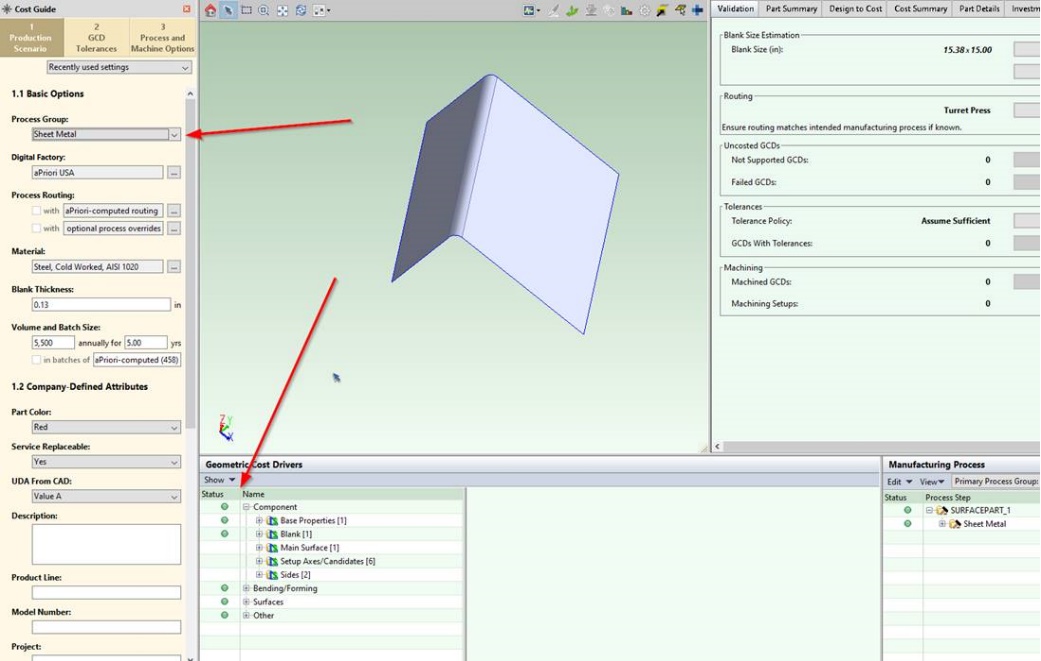
Process Group = Sheet Metal
Result:
- Part is displayed
- Able to extract GCDs like a solid model (No GCD extraction errors)
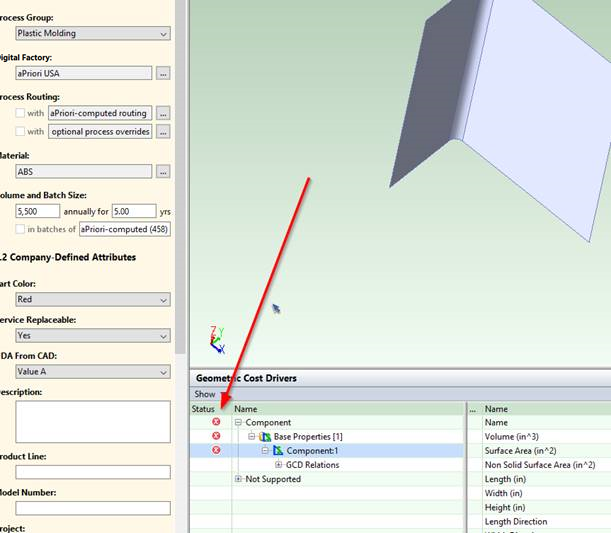
Process Group = Plastic Molding
Result:
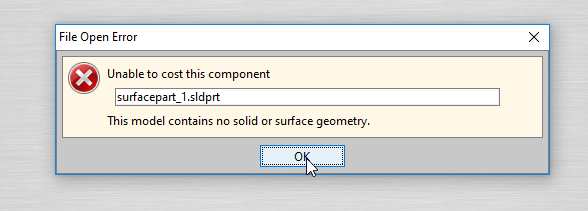
- Part is displayed on screen, but when first trying to cost, error (see below) is displayed: “This model has no solid geometry”.
- No GCDs extracted because there is no solid geometry
- GCD extraction “errors”, saying surfaces are not supported, see red dots with X in GCD panel
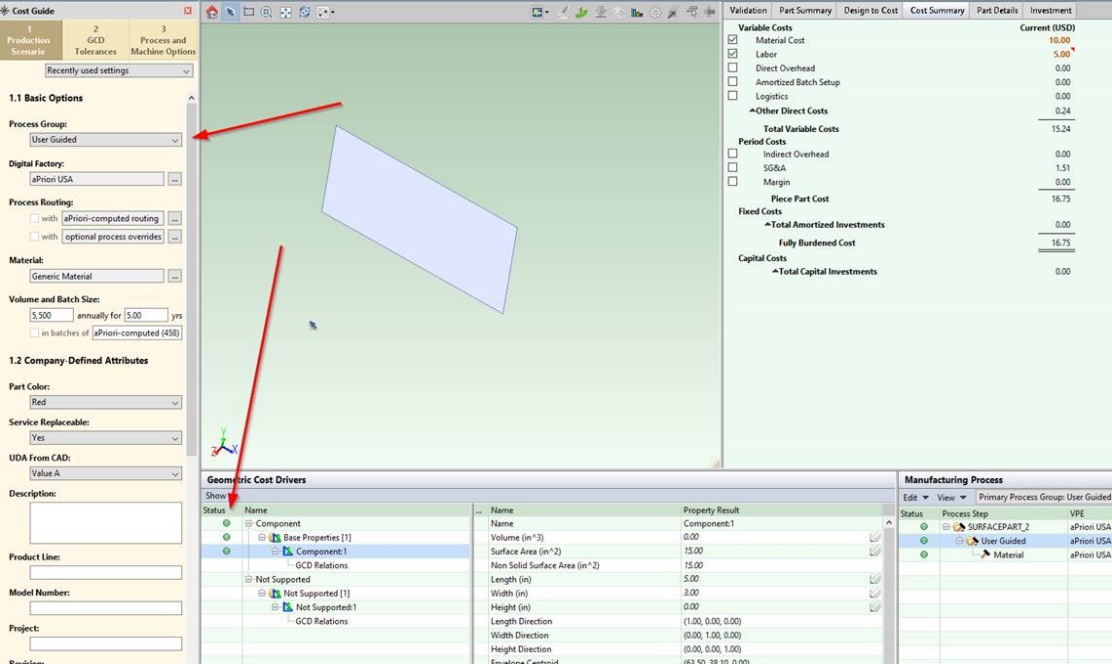
Process Group = User Guided
Result:
- Part is displayed on screen, when first trying to cost, NO error is displayed.
- No GCDs extracted because there is no solid geometry.
- No GCD extraction error (note all green dots for GCDs below) but that is because there ARE no GCDs.
EXAMPLE 2:
apriori.enable.surface.models=false
apriori.enable.surface.models.sheetmetal=false
Process Group: ALL
Result: