Open a Digital Factory
- From aP Pro, select Tools > Admin Tools > Digital Factory Toolset.
-
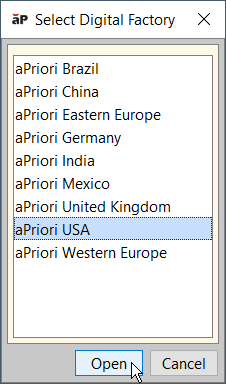
Click Digital Factory Manager to display the Select Digital Factory window, showing a list of available current Digital Factories.
-
From the list provided, select a Digital Factory then click Open to view the Digital Factory Manager screen.
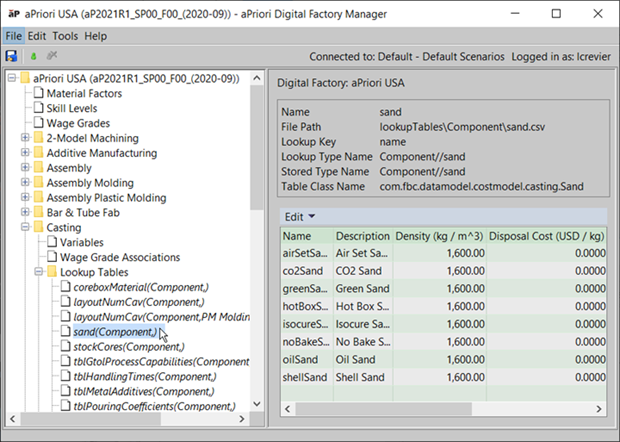 (The name and version of the selected digital factory appear as the first item in the left pane, and in the window title.)
At the top-level, you can see key rate information; you can also view:
- Sustainability Factors — see Working with Sustainability Factors
- Generic Materials — see Using Generic Source Materials
- Material factors — see Working with Material Factors
- Skill levels — see Working with wage grades
You can then view and edit process group information for that digital factory — see View Process Group Information.
View Process Group Information
A process group is a group of processes that belong to the same manufacturing type. For example, the Sheet Metal process group includes processes such as Laser Cut, Bend Brake, and Shear. Some components may be manufactured using processes in a single process group. Other components require multiple process groups (for example, Casting and Machining).
Tip:
Detailed information is available for each process group in the Cost Model documentation (login required).
The Digital Factory Manager left pane shows the process groups available to that digital factory. Each process group contains sections, including Variables, Wage Grade Associations, and Lookup Tables.
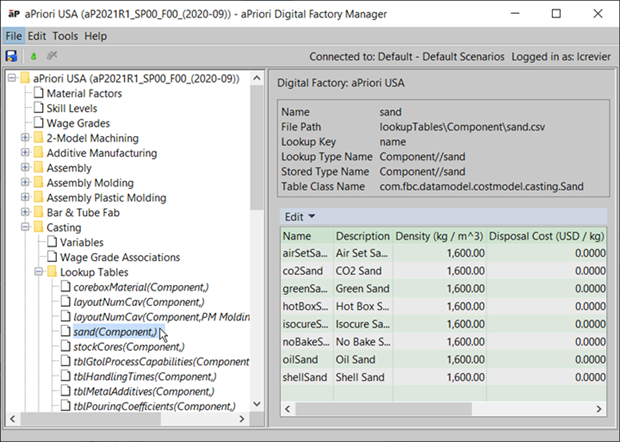
Use the left pane to navigate through the process groups; click on an item to display its elements in the right pane, and click on the plus icon to expand the details.
| Field | Description |
|---|---|
| Variables | Variables link a Digital Factory's logic and data. If you change a variable value, this affects cost model logic calculations. |
| Wage grade associations | Wage grades help you manage the labor rates for machines in a process. If you assign the same wage grade to multiple machines, you can change the labor rate for all associated machines by changing the labor rate associated with that wage grade. There are different wage grades for different processes, even within the same process group. |
| Lookup tables | These provide tabular data helping you update the calculations and provide some protection to the calculations. Lookup tables can be configured with any values, and you can also add to these values at a later date. See the Lookup Tables documentation in the Cost Model Workbench Guide for more information. |
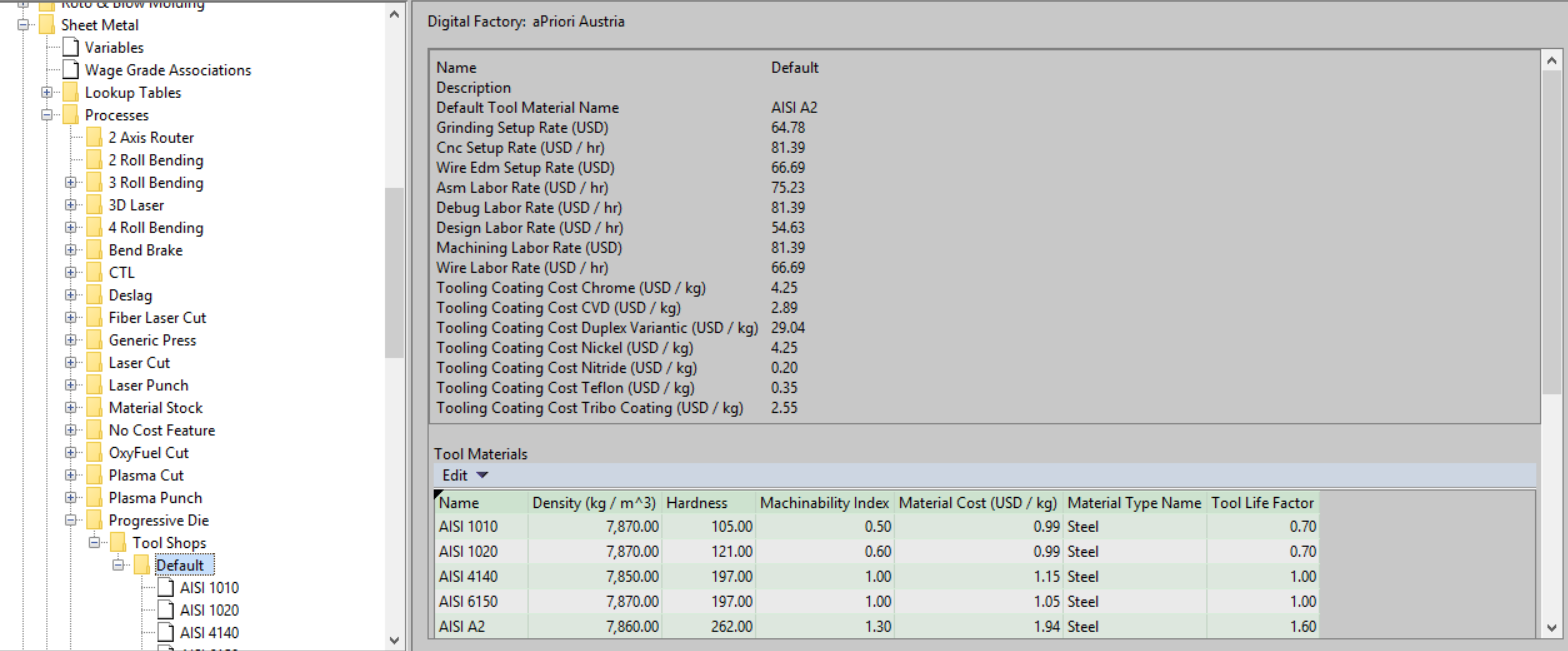
| Processes | Shows information for the processes available in this process group, with toolshop information if available (for hard-tooled processes). See View Processes for more details. |
| Operations | Shows information that aPriori defines to make different GCDs (Geometric Cost Drivers). Generally, there are multiple ways to compute each GCD. The operation name is shown followed by the GCD name; for example, for 2 Rool Bending: 2 Roll Bending//StraightBend, the operation name is 2 Rool Bending: 2 Roll Bending, and the GCD is StraightBend. Operations can also be suppressed and removed from routing considerations. |
| Machines | aPriori categorises all machines by their process. See View Processes for more details. |
| Materials | All the materials available for the selected process group. See View Materials for more details. |
View Processes
Processes shows information for the processes available in this process group, with toolshop information if available (for processes including hard-tooled processes, plant processes, and plating processes). For example:
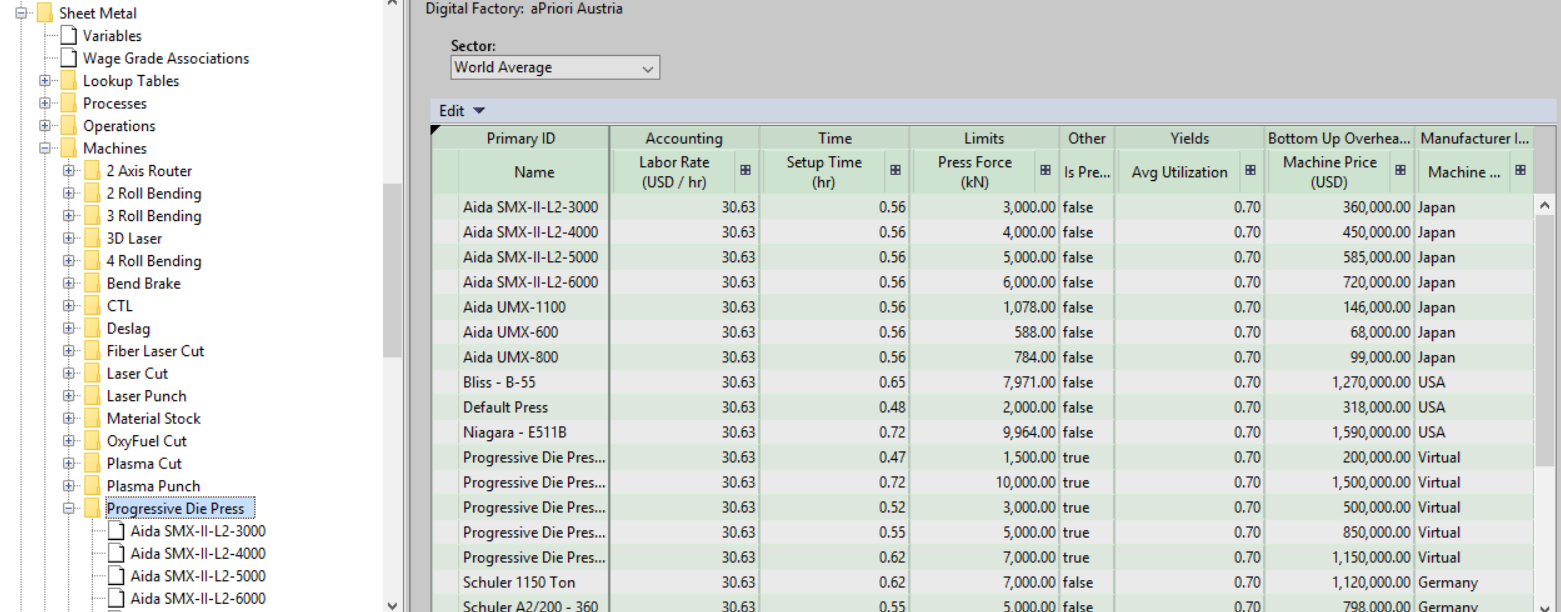
View Machines
aPriori categorises all machines by their process. For example:
View Materials
This shows all the materials available for the selected process group.
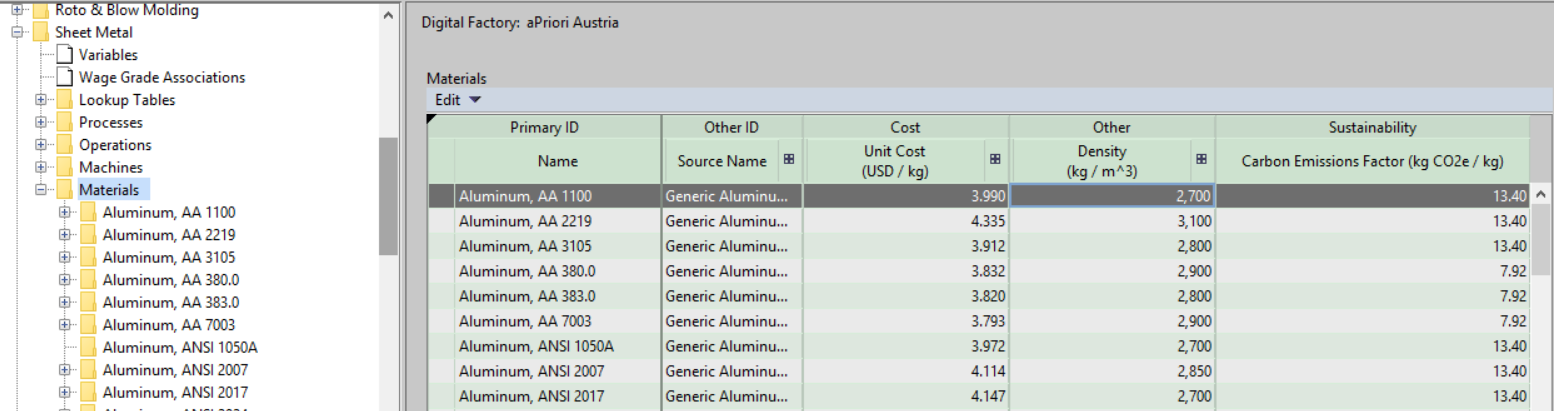
Click on a material name to view information in the right-hand panel.
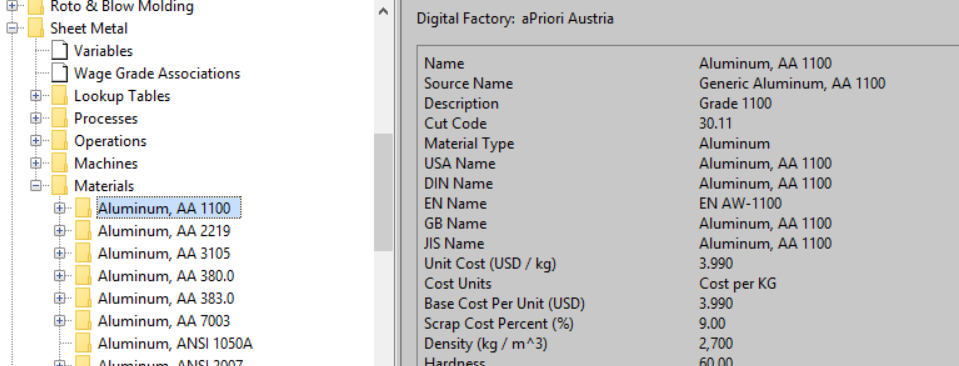
This panel shows your basic cost information and any technical information on the material. Expand an entry to show any available stock sizes. If no stock sizes are available, aPriori will assign a virtual material.
Other information included in the materials is a cut code, which is used as part of calculations for cycle times and also for feasibility rules for some processes, including some secondary processes.