Import and export
Access Control provides the capability to import and export an Access Control model. You typically use this in one of two ways:
- To transfer a new or updated Access Control configuration from your development and test environment to your production environment.
- to transfer Access Control models between your environment and aPriori Customer Support or Professional Services.
The exported Access Control configuration consists of two parts which can be exported and imported through the UI.
- Access Control Objects: These include permission definitions, attribute definitions (name/type pair), groups and subgroups hierarchy, group attributes (name/value pair), and group permissions. This is saved as an XML file and is not user editable.
- User-Group Associations: This is the list of users who belong to each group. This is saved as a spreadsheet .xls file and is user editable. Groups are represented as a full path (for example, "administrators/managers". (This does not export users, nor does it define new users on import.)
Important:
You must be a member of the Super Users group to perform Access Control import or export operations.
Importing guidelines
When you import an Access Control model, the following behaviors are observed:
-
Access Control Objects: All Groups and Permissions.
Permissions imported into the target system completely replace (overwrite) the existing Permissions definitions in the target system. When importing Groups, aPriori attempts to maintain existing User-Group associations in the target system by updating existing Groups rather than by deleting and recreating them. Any groups in the target system that are not in the Import file are deleted.
-
User-Group Associations: Complete overwrite.
Importing a User-Group mapping completely replaces the existing User-Group associations in the target system. aPriori ensures that Users and Groups represented in the mapping exist in the target system. If any are found that do not, the import uses the 'log error and continue' model.
Note:
A User-Group Association import replaces all existing associations on the target system, with the single exception that the last superuser will never be removed from the target system. Therefore, it is possible for an import to fail if it is started by a superuser on the target system who does not exist in the source system, and who is not the last superuser on the target system. (that is, the superuser is removed by the import, and the import fails because that user no longer exists in the superuser group.) This also means that the source system can never be a "sub-set" of the target system, since importing it will cause all users not in the sub-set to be removed from their groups.
Importing access control objects
When you import Access Control Objects, aPriori tries to maintain existing User-Group associations by overwriting existing Groups where the full path of the group is the same in the Import artifact and the target system.
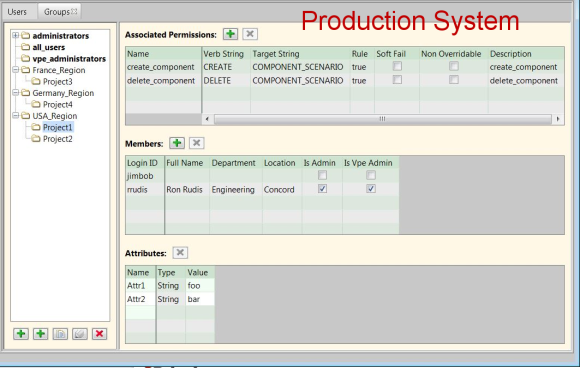
For example, assume that a production system has the following configuration. Note that there are three top-level, user-defined groups: France_Region, Germany_Region, and USA_Region:
A new Access Control configuration with a revised group structure has been developed and tested on a QA machine. Now it needs to be migrated to the production system using Export and Import. Note that, among other changes, the two region groups are now sub-groups under a new user-defined "Europe" group.
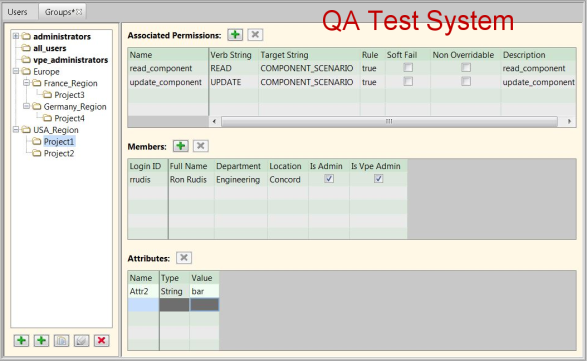
After exporting the Access Control Object from the QA system and importing it into the production system, the states of the Group objects are:
- The administrators , super_user , all_users and vpe_administrators groups in the production system have the same Permissions and Attributes as they did in the QA system. The members for these groups are unchanged from what they were prior to the import.
-
The USA_Region, USA_Region\Project1, and USA_Region\Project2 Groups in the production system have the same Permissions and Attributes as they did in the QA system. The members for these groups are unchanged (they do not match the members from the QA system). For the USA_Region\Project1 group detailed in the screen shots above, this group in the production system after import will:
- have the read_component and update_component Permissions.
- not have the create_component and delete_component Permissions.
- have the Attr2 attribute but not the Attr1 attribute.
- have both jimbob and rrudis as Members.
-
The France_Region, France_Region\Project3, Germany_Region, and Germany_Region\Project4 Groups will be deleted from the production system.
- The following new Groups will be created. They will have the Permissions and Attributes that they had in the QA system, and they will have no Members:
- Europe
- Europe\France_Region
- Europe\ France_Region\Project3
- Europe\ Germany_Region
- Europe\ Germany_Region\Project4
Best practices
When using Export/Import to migrate Access Control models between environments, aPriori recommends observing the following guidelines.
- For operations that will overwrite existing data, make sure to back up your data first.
- When making modifications and additions to your Access Control configuration, do so in a development and test environment, and deploy it to your production system only after extensive testing.
-
When using a development and test system to modify your Access Control configuration, ensure that you first export the Access Control configuration of your production environment and import it into your development and test environment. Using the same configuration data in all environments ensures that:
- All environments will operate on the same baseline set of Access Control configurations as a starting point.
- Any test configuration or access control items in a test or development environment will be removed, preventing those items from being migrated inadvertently to the production system.
-
When importing an Access Control configuration to a production system, make sure to do it during planned downtime when end users are not accessing the production environment.
Migration example
The following example shows the migration of an updated Access Control configuration from a customer test (QA) environment to their production systems:
- Ensure that the test environment includes all the users from the production environment. (You can do this from scratch, or by creating a spreadsheet and importing it, or by importing from LDAP if you have an LDAP environment. See the User and LDAP management sections for more information.
- Export the Access Control Objects from the production system.
- Export the User-Group Associations from the production system.
- If your QA system contains data that you wish to retain, back it up.
- Import the Access Control Objects into the QA system.
- Implement and test changes on the QA system.
- [Optional] Modify the User-Group Association export file from Step 2 to account for any Group hierarchy changes. (You can edit this file directly.)
- Export Access Control Objects from the QA system.
- Back up the production system.
- Import the Access Control Objects artifact from the QA system into the production system.
- [Optional] If you modified the User-Group Association artifact in Step 6, also import it into the production system.